
在 Vue 中實(shí)現(xiàn)拖放式圖片上傳組件
在上篇教程中,學(xué)院君給大家演示了如何基于 Laravel + Vue 框架快速實(shí)現(xiàn)圖片上傳并且給文章添加了封面圖片功能。除了傳統(tǒng)的點(diǎn)擊按鈕選擇圖片上傳之外,我們還可以基于 HTML5 原生提供的文件拖放 API 讓文件上傳變得更簡(jiǎn)單一些,接下來,我們就來演示如何在 Vue 框架中實(shí)現(xiàn)一個(gè)圖片拖放上傳組件。
后端接口和表單外圍功能都是現(xiàn)成的,只需要在 resources/js/components/form 目錄下編寫一個(gè)獨(dú)立的 DragImage 子組件,然后在 PostForm 中引入它即可。
模板代碼
首先,我們?cè)?DragImage.vue 中編寫 HTML 模板代碼如下:
<template>
    <div class="form-group">
        <div class="dropbox">
            <input class="drag-file" type="file" ref="image" :name="name" :disabled="isSaving" @change="fileChange" accept="image/*">
            <p v-if="isInitial">
                拖放圖片開始上傳<br>或者點(diǎn)擊選擇圖片上傳
            </p>
            <p v-if="isSaving">
                圖片上傳中...
            </p>
        </div>
        <div v-if="isSuccess">
            <div class="alert alert-success" role="alert">
                圖片上傳成功!<a href="javascript:void(0)" @click="reset()">重新上傳</a>
            </div>
        </div>
        <div v-if="isFailed">
            <div class="alert alert-danger" role="alert">
                圖片上傳失敗!<a href="javascript:void(0)" @click="reset()">重新上傳</a>
            </div>
        </div>
        <InputText type="hidden" :name="field" v-model="filePath"></InputText>
        <img :src="filePath" class="img-responsive img-thumbnail" style="width: 50%;" v-if="filePath">
    </div>
</template>
我們通過 div[class=dropbox] 這個(gè)容器定義拖放上傳區(qū)域,并且通過 accept 屬性設(shè)置只支持圖片上傳,如果已經(jīng)有圖片在上傳,則該組件處于禁用狀態(tài),在空閑狀態(tài)下,將圖片文件拖放到該區(qū)域會(huì)觸發(fā) fileChange 事件發(fā)送圖片上傳請(qǐng)求。在圖片拖放區(qū)域,會(huì)根據(jù)不同的狀態(tài)顯示不同的文案(這些狀態(tài)和方法我們馬上會(huì)提供)。
然后是圖片上傳成功或失敗的消息提示,并且提供了重新上傳鏈接清空已上傳的圖片。
最后和上篇教程實(shí)現(xiàn)的文件上傳組件一樣,是隱藏的圖片路徑字段和圖片預(yù)覽功能,如果圖片上傳成功,或者父級(jí)作用域已經(jīng)包含封面圖片,就會(huì)在圖片預(yù)覽區(qū)域渲染出來。
腳本代碼
為了讓上面的模板代碼可以正常渲染和工作,需要在 Vue 組件中編寫腳本代碼:
<script>
import InputText from './InputText';

const STATUS_INITIAL = 0, STATUS_SAVING = 1, STATUS_SUCCESS = 2, STATUS_FAILED = 3;

export default {
    props: ['name', 'field', 'path'],
    components: {InputText},
    data() {
        return {
            currentStatus: null,
            filePath: this.path
        }
    },
    computed: {
        isInitial() {
            return this.currentStatus === STATUS_INITIAL;
        },
        isSaving() {
            return this.currentStatus === STATUS_SAVING;
        },
        isSuccess() {
            return this.currentStatus === STATUS_SUCCESS;
        },
        isFailed() {
            return this.currentStatus === STATUS_FAILED;
        }
    },
    mounted() {
        this.reset();
    },
    methods: {
        reset() {
            // 重置狀態(tài)字段值
            this.currentStatus = STATUS_INITIAL;
            this.$emit('clear');  //  清理父級(jí)作用域報(bào)錯(cuò)信息
        },
        fileChange() {
            // 上傳文件后才會(huì)執(zhí)行后續(xù)步驟
            if (this.$refs.image.files.length === 0) {
                return;
            }

            // 清理父級(jí)作用域錯(cuò)誤信息
            this.$emit('clear');

            // 填充表單數(shù)據(jù)
            const formData = new FormData();
            formData.append(this.name, this.$refs.image.files[0]);

            // 開始上傳
            this.currentStatus = STATUS_SAVING;
            axios.post('/image/upload', formData, {
                headers: {
                    'Content-Type': 'multipart/form-data'
                }
            }).then(resp => {
                this.currentStatus = STATUS_SUCCESS;
                this.filePath = resp.data.path;
                this.$emit('success', this.field, this.filePath);
            }).catch(error => {
                this.currentStatus = STATUS_FAILED;
                let errors = {};
                errors[this.field] = error.response.data.errors[this.name];
                this.$emit('error', errors);
            });
        }
    }
}
</script>
除了新增一個(gè)狀態(tài)字段 currentStatus 和對(duì)應(yīng)的維護(hù)邏輯,以及與之相關(guān)的計(jì)算屬性定義外,其他邏輯和上篇教程創(chuàng)建的文件上傳組件都差不多,就不多做介紹了。
樣式代碼
現(xiàn)在我們的拖放式圖片上傳組件基本功能就已經(jīng)編寫好了,我們?cè)倬帉懭缦聵邮酱a讓其看起來更美觀一些:
<style scoped>
.dropbox {
    outline: 2px dashed grey;
    outline-offset: -10px;
    background: lightcyan;
    color: dimgray;
    padding: 10px 10px;
    min-height: 200px;
    position: relative;
    cursor: pointer;
}

.drag-file {
    opacity: 0;
    width: 100%;
    height: 200px;
    position: absolute;
    cursor: pointer;
}

.dropbox:hover {
    background: lightblue;
}

.dropbox p {
    font-size: 1.2em;
    text-align: center;
    padding: 50px 0;
}

.alert {
    margin-top: 10px;
}
</style>
在文章表單中引入
最后我們需要在文章發(fā)布/編輯表單中引入 DragImage 組件讓其生效:
<div class="form-group">
    <Label name="title" label="封面圖片"></Label>
    <!--
    <InputFile name="image" field="image_path" :path="form.image_path"
               @clear="clear('image_path')" @success="uploadSuccess" @error="uploadError">
    </InputFile>
    -->
    <DragImage name="image" field="image_path" :path="form.image_path"
               @clear="clear('image_path')" @success="uploadSuccess" @error="uploadError">
    </DragImage>
    <ErrorMsg :error="form.errors.get('image_path')"></ErrorMsg>
</div>

...

<script>
import DragImage from "./form/DragImage";

export default {

    components: {DragImage, FormSection, InputText, InputFile, TextArea, Label, ErrorMsg, Button, ToastMsg},

    ...
}
</script>
這個(gè)時(shí)候,再打開文章發(fā)布/編輯頁(yè)面,就可以看到如下的封面圖片上傳 UI 了:
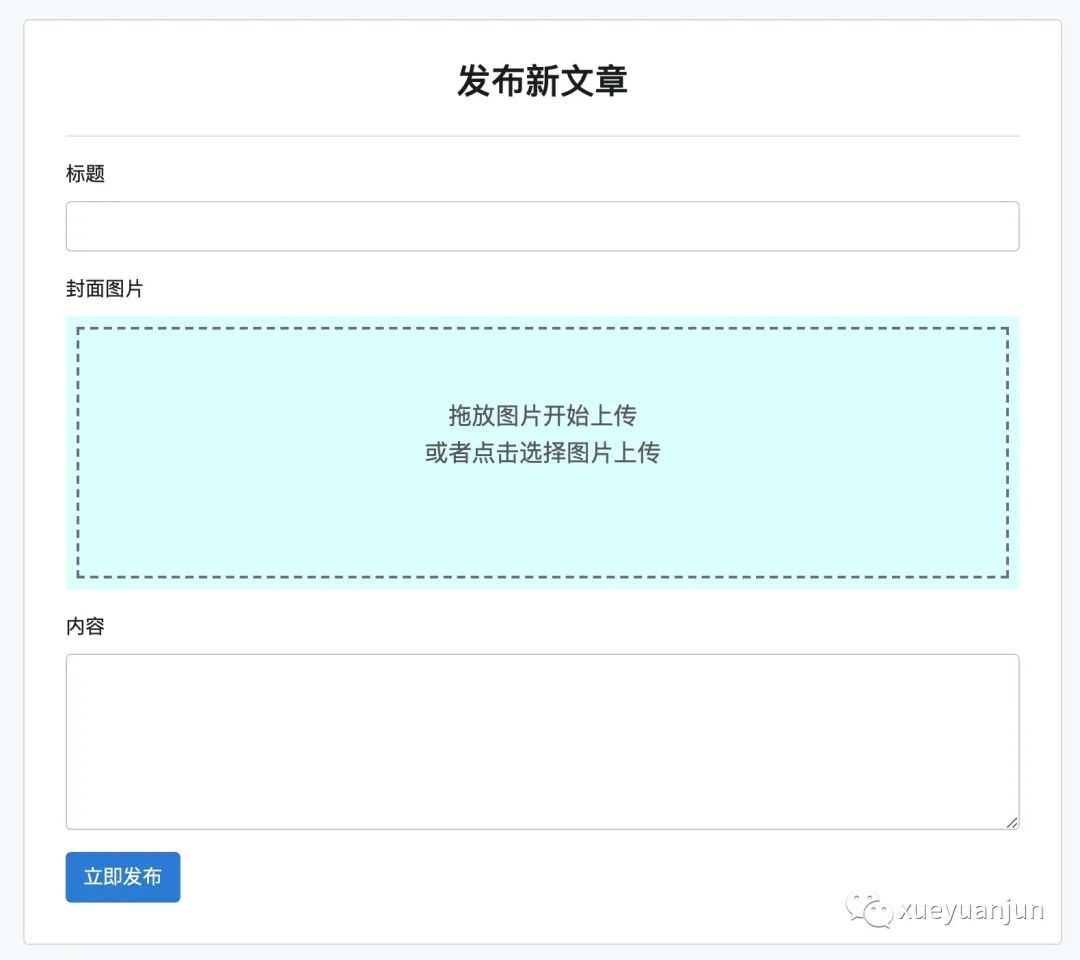
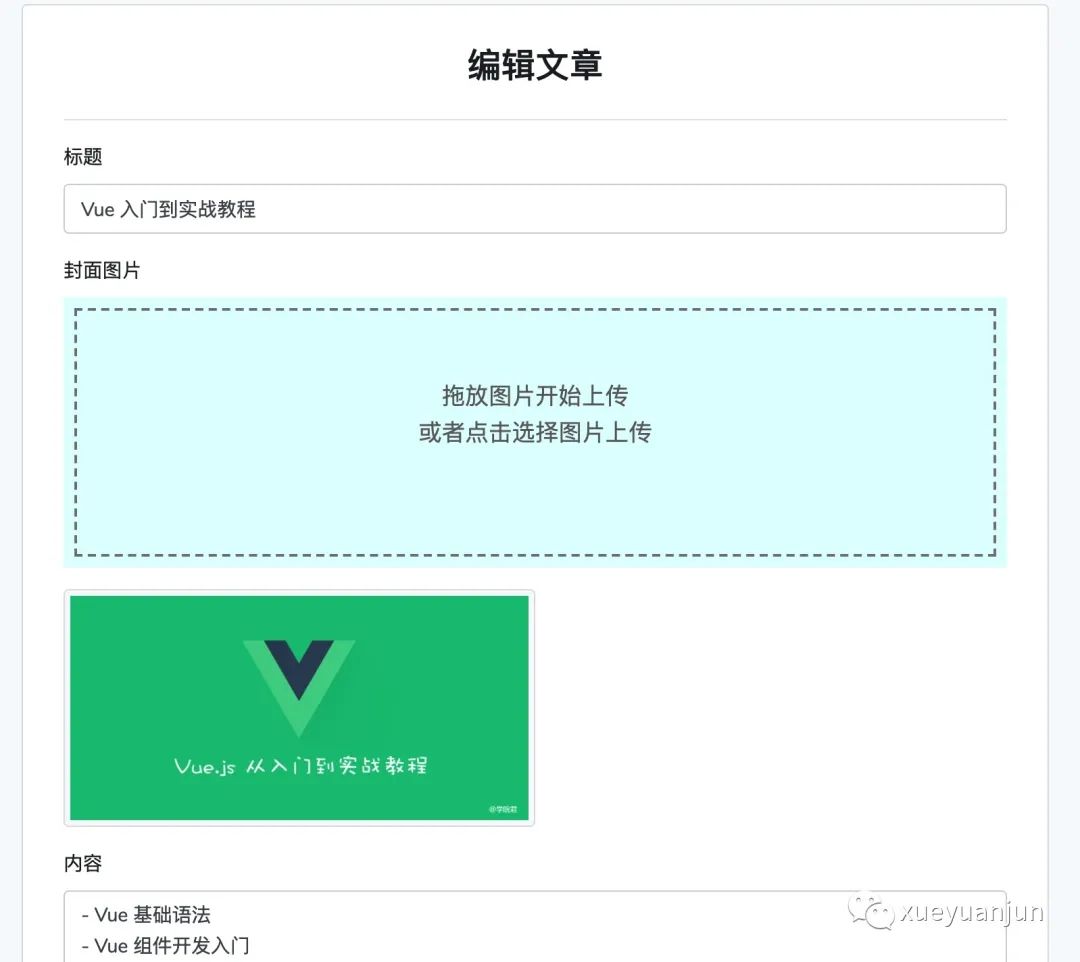
需要注意的是,除了拖放上傳之外,DragImage 組件也支持傳統(tǒng)的點(diǎn)擊->選擇圖片->上傳流程,不同于之前的點(diǎn)擊按鈕,現(xiàn)在點(diǎn)擊拖放區(qū)域就可以了。
演示圖片拖放式上傳
我們可以簡(jiǎn)單演示下圖片拖放式上傳:
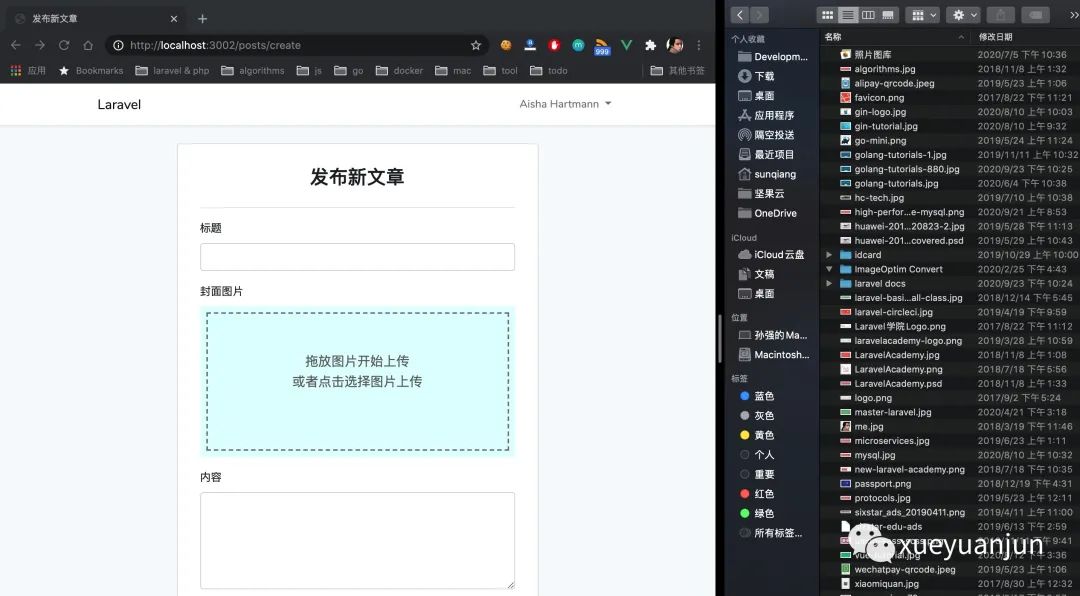
你可以將右側(cè)本地文件系統(tǒng)中的任意圖片拖到左側(cè)瀏覽器封面圖片對(duì)應(yīng)的上傳區(qū)域,完成圖片拖放上傳。
你還可以在此基礎(chǔ)上讓 DragImage 組件支持上傳多張圖片,感興趣的同學(xué)可以自行去研究下如何實(shí)現(xiàn)。
本系列教程首發(fā)在Laravel學(xué)院(laravelacademy.org),你可以點(diǎn)擊頁(yè)面左下角閱讀原文鏈接查看最新更新的教程。