
基于 Serverless 架構(gòu)的頭像漫畫(huà)風(fēng)處理小程序
后臺(tái)回復(fù) 手冊(cè) 即刻免費(fèi)下載 2022 Serverless 工具書(shū)

我一直都想要有一個(gè)漫畫(huà)版的頭像,奈何手太笨,用了很多軟件 “捏不出來(lái)”,所以就在想著,是否可以基于 AI 實(shí)現(xiàn)這個(gè)功能,并部署到 Serverless 架構(gòu)上讓更多人來(lái)嘗試使用呢?
項(xiàng)目開(kāi)發(fā)
「01」
后端項(xiàng)目
from PIL import Image
import io
import torch
import base64
import bottle
import random
import json

cacheDir = '/tmp/'
modelDir = './model/bryandlee_animegan2-pytorch_main'
getModel = lambda modelName: torch.hub.load(modelDir, "generator", pretrained=modelName, source='local')
models = {
    'celeba_distill': getModel('celeba_distill'),
    'face_paint_512_v1': getModel('face_paint_512_v1'),
    'face_paint_512_v2': getModel('face_paint_512_v2'),
    'paprika': getModel('paprika')
}
randomStr = lambda num=5: "".join(random.sample('abcdefghijklmnopqrstuvwxyz', num))
face2paint = torch.hub.load(modelDir, "face2paint", size=512, source='local')


@bottle.route('/images/comic_style', method='POST')
def getComicStyle():
    result = {}
    try:
        postData = json.loads(bottle.request.body.read().decode("utf-8"))
        style = postData.get("style", 'celeba_distill')
        image = postData.get("image")
        localName = randomStr(10)

        # 圖片獲取
        imagePath = cacheDir + localName
        with open(imagePath, 'wb') as f:
            f.write(base64.b64decode(image))

        # 內(nèi)容預(yù)測(cè)
        model = models[style]
        imgAttr = Image.open(imagePath).convert("RGB")
        outAttr = face2paint(model, imgAttr)
        img_buffer = io.BytesIO()
        outAttr.save(img_buffer, format='JPEG')
        byte_data = img_buffer.getvalue()
        img_buffer.close()
        result["photo"] = 'data:image/jpg;base64, %s' % base64.b64encode(byte_data).decode()
    except Exception as e:
        print("ERROR: ", e)
        result["error"] = True

    return result


app = bottle.default_app()
if __name__ == "__main__":
bottle.run(host='localhost', port=8099)實(shí)例初始化的時(shí)候,進(jìn)行模型的加載,已經(jīng)可能的減少頻繁的冷啟動(dòng)帶來(lái)的影響情況; 在函數(shù)模式下,往往只有
/tmp目錄是可寫(xiě)的,所以圖片會(huì)被緩存到/tmp目錄下;雖然說(shuō)函數(shù)計(jì)算是“無(wú)狀態(tài)”的,但是實(shí)際上也有復(fù)用的情況,所有數(shù)據(jù)在存儲(chǔ)到
tmp的時(shí)候進(jìn)行了隨機(jī)命名;雖然部分云廠商支持二進(jìn)制的文件上傳,但是大部分的 Serverless 架構(gòu)對(duì)二進(jìn)制上傳支持的并不友好,所以這里依舊采用 Base64 上傳的方案;
import bottle

@bottle.route('/system/styles', method='GET')
def styles():
    return {
      "AI動(dòng)漫風(fēng)": {
        'color': 'red',
        'detailList': {
          "風(fēng)格1": {
            'uri': "images/comic_style",
            'name': 'celeba_distill',
            'color': 'orange',
            'preview': 'https://serverless-article-picture.oss-cn-hangzhou.aliyuncs.com/1647773808708_20220320105649389392.png'
          },
          "風(fēng)格2": {
            'uri': "images/comic_style",
            'name': 'face_paint_512_v1',
            'color': 'blue',
            'preview': 'https://serverless-article-picture.oss-cn-hangzhou.aliyuncs.com/1647773875279_20220320105756071508.png'
          },
          "風(fēng)格3": {
            'uri': "images/comic_style",
            'name': 'face_paint_512_v2',
            'color': 'pink',
            'preview': 'https://serverless-article-picture.oss-cn-hangzhou.aliyuncs.com/1647773926924_20220320105847286510.png'
          },
          "風(fēng)格4": {
            'uri': "images/comic_style",
            'name': 'paprika',
            'color': 'cyan',
            'preview': 'https://serverless-article-picture.oss-cn-hangzhou.aliyuncs.com/1647773976277_20220320105936594662.png'
          },
        }
      },
    }


app = bottle.default_app()
if __name__ == "__main__":
bottle.run(host='localhost', port=8099)AI 模型加載速度慢,如果把獲取AI處理列表的接口集成進(jìn)去,勢(shì)必會(huì)影響該接口的性能; AI 模型所需配置的內(nèi)存會(huì)比較多,而獲取 AI 處理列表的接口所需要的內(nèi)存非常少,而內(nèi)存會(huì)和計(jì)費(fèi)有一定的關(guān)系,所以分開(kāi)有助于成本的降低;
模型所需要的依賴(lài),可能涉及到一些二進(jìn)制編譯的過(guò)程,所以導(dǎo)致無(wú)法直接跨平臺(tái)使用; 模型文件比較大 (單純的 Pytorch 就超過(guò) 800M),函數(shù)計(jì)算的上傳代碼最多才 100M,所以這個(gè)項(xiàng)目無(wú)法直接上傳;
請(qǐng)參考:
https://www.serverless-devs.com/fc/yaml/readme
完成 s.yaml 的編寫(xiě):
edition: 1.0.0
name: start-ai
access: "default"

vars: # 全局變量
  region: cn-hangzhou
  service:
    name: ai
    nasConfig:                  # NAS配置, 配置后function可以訪問(wèn)指定NAS
      userId: 10003             # userID, 默認(rèn)為10003
      groupId: 10003            # groupID, 默認(rèn)為10003
      mountPoints:              # 目錄配置
        - serverAddr: 0fe764bf9d-kci94.cn-hangzhou.nas.aliyuncs.com # NAS 服務(wù)器地址
          nasDir: /python3
          fcDir: /mnt/python3
    vpcConfig:
      vpcId: vpc-bp1rmyncqxoagiyqnbcxk
      securityGroupId: sg-bp1dpxwusntfryekord6
      vswitchIds:
        - vsw-bp1wqgi5lptlmk8nk5yi0

services:
  image:
    component:  fc
    props: #  組件的屬性值
      region: ${vars.region}
      service: ${vars.service}
      function:
        name: image_server
        description: 圖片處理服務(wù)
        runtime: python3
        codeUri: ./
        ossBucket: temp-code-cn-hangzhou
        handler: index.app
        memorySize: 3072
        timeout: 300
        environmentVariables:
          PYTHONUSERBASE: /mnt/python3/python
      triggers:
        - name: httpTrigger
          type: http
          config:
            authType: anonymous
            methods:
              - GET
              - POST
              - PUT
      customDomains:
        - domainName: avatar.aialbum.net
          protocol: HTTP
          routeConfigs:
            - path: /*
然后進(jìn)行:
s build --use-dockers deploys nas command mkdir /mnt/python3/python
s nas upload -r 本地依賴(lài)路徑 /mnt/python3/python另外,微信小程序需要 https 的后臺(tái)接口,所以這里還需要配置 https 相關(guān)的證書(shū)信息,此處不做展開(kāi)。
「02」
小程序項(xiàng)目
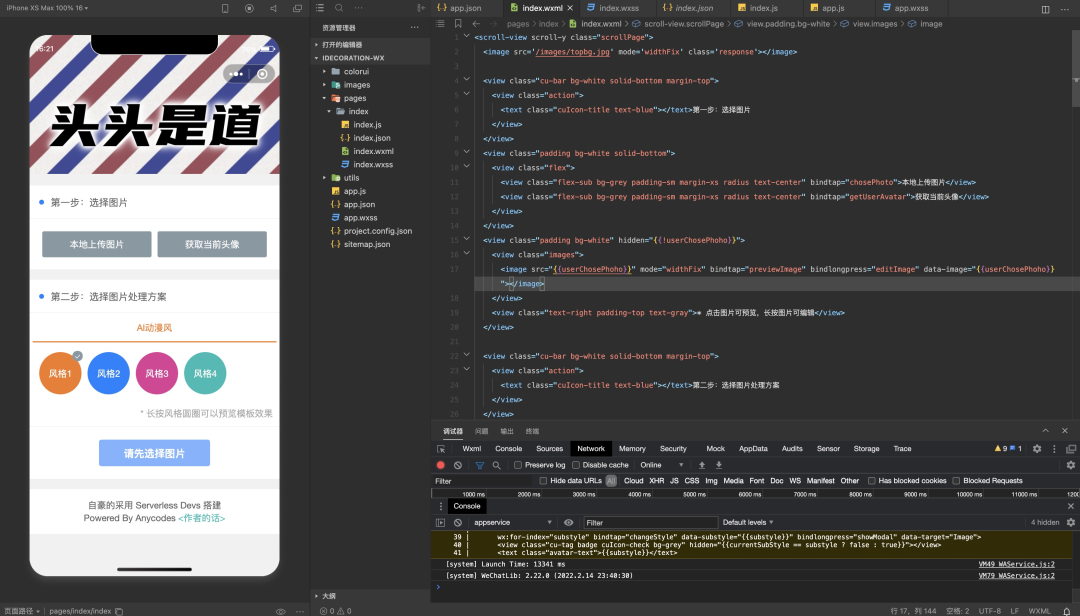
<scroll-view scroll-y class="scrollPage">
  <image src='/images/topbg.jpg' mode='widthFix' class='response'></image>

  <view class="cu-bar bg-white solid-bottom margin-top">
    <view class="action">
      <text class="cuIcon-title text-blue"></text>第一步:選擇圖片
    </view>
  </view>
  <view class="padding bg-white solid-bottom">
    <view class="flex">
      <view class="flex-sub bg-grey padding-sm margin-xs radius text-center" bindtap="chosePhoto">本地上傳圖片</view>
      <view class="flex-sub bg-grey padding-sm margin-xs radius text-center" bindtap="getUserAvatar">獲取當(dāng)前頭像</view>
    </view>
  </view>
  <view class="padding bg-white" hidden="{{!userChosePhoho}}">
    <view class="images">
      <image src="{{userChosePhoho}}" mode="widthFix" bindtap="previewImage" bindlongpress="editImage" data-image="{{userChosePhoho}}"></image>
    </view>
    <view class="text-right padding-top text-gray">* 點(diǎn)擊圖片可預(yù)覽,長(zhǎng)按圖片可編輯</view>
  </view>

  <view class="cu-bar bg-white solid-bottom margin-top">
    <view class="action">
      <text class="cuIcon-title text-blue"></text>第二步:選擇圖片處理方案
    </view>
  </view>
  <view class="bg-white">
    <scroll-view scroll-x class="bg-white nav">
      <view class="flex text-center">
        <view class="cu-item flex-sub {{style==currentStyle?'text-orange cur':''}}" wx:for="{{styleList}}"
          wx:for-index="style" bindtap="changeStyle" data-style="{{style}}">
          {{style}}
        </view>
      </view>
    </scroll-view>
  </view>
  <view class="padding-sm bg-white solid-bottom">
    <view class="cu-avatar round xl bg-{{item.color}} margin-xs" wx:for="{{styleList[currentStyle].detailList}}"
      wx:for-index="substyle" bindtap="changeStyle" data-substyle="{{substyle}}" bindlongpress="showModal" data-target="Image">
      <view class="cu-tag badge cuIcon-check bg-grey" hidden="{{currentSubStyle == substyle ? false : true}}"></view>
      <text class="avatar-text">{{substyle}}</text>
    </view>
    <view class="text-right padding-top text-gray">* 長(zhǎng)按風(fēng)格圓圈可以預(yù)覽模板效果</view>
  </view>

  <view class="padding-sm bg-white solid-bottom">
    <button class="cu-btn block bg-blue margin-tb-sm lg" bindtap="getNewPhoto" disabled="{{!userChosePhoho}}"
      type="">{{ userChosePhoho ? (getPhotoStatus ? 'AI將花費(fèi)較長(zhǎng)時(shí)間' : '生成圖片') : '請(qǐng)先選擇圖片' }}</button>
  </view>

  <view class="cu-bar bg-white solid-bottom margin-top" hidden="{{!resultPhoto}}">
    <view class="action">
      <text class="cuIcon-title text-blue"></text>生成結(jié)果
    </view>
  </view>
  <view class="padding-sm bg-white solid-bottom" hidden="{{!resultPhoto}}">
    <view wx:if="{{resultPhoto == 'error'}}">
      <view class="text-center padding-top">服務(wù)暫時(shí)不可用,請(qǐng)稍后重試</view>
      <view class="text-center padding-top">或聯(lián)系開(kāi)發(fā)者微信:<text class="text-blue" data-data="zhihuiyushaiqi" bindtap="copyData">zhihuiyushaiqi</text></view>
    </view>
    <view wx:else>
      <view class="images">
        <image src="{{resultPhoto}}" mode="aspectFit" bindtap="previewImage" bindlongpress="saveImage" data-image="{{resultPhoto}}"></image>
      </view>
      <view class="text-right padding-top text-gray">* 點(diǎn)擊圖片可預(yù)覽,長(zhǎng)按圖片可保存</view>
    </view>
  </view>

  <view class="padding bg-white margin-top margin-bottom">
    <view class="text-center">自豪的采用 Serverless Devs 搭建</view>
    <view class="text-center">Powered By Anycodes <text bindtap="showModal" class="text-cyan" data-target="Modal">{{"<"}}作者的話{{">"}}</text></view>
  </view>

  <view class="cu-modal {{modalName=='Modal'?'show':''}}">
  <view class="cu-dialog">
    <view class="cu-bar bg-white justify-end">
      <view class="content">作者的話</view>
      <view class="action" bindtap="hideModal">
        <text class="cuIcon-close text-red"></text>
      </view>
    </view>
    <view class="padding-xl text-left">
      大家好,我是劉宇,很感謝您可以關(guān)注和使用這個(gè)小程序,這個(gè)小程序是我用業(yè)余時(shí)間做的一個(gè)頭像生成小工具,基于“人工智障”技術(shù),反正現(xiàn)在怎么看怎么別扭,但是我會(huì)努力讓這小程序變得“智能”起來(lái)的。如果你有什么好的意見(jiàn)也歡迎聯(lián)系我<text class="text-blue" data-data="[email protected]" bindtap="copyData">郵箱</text>或者<text class="text-blue" data-data="zhihuiyushaiqi" bindtap="copyData">微信</text>,另外值得一提的是,本項(xiàng)目基于阿里云Serverless架構(gòu),通過(guò)Serverless Devs開(kāi)發(fā)者工具建設(shè)。
    </view>
  </view>
</view>

<view class="cu-modal {{modalName=='Image'?'show':''}}">
  <view class="cu-dialog">
    <view class="bg-img" style="background-image: url("{{previewStyle}}");height:200px;">
      <view class="cu-bar justify-end text-white">
        <view class="action" bindtap="hideModal">
          <text class="cuIcon-close "></text>
        </view>
      </view>
    </view>
    <view class="cu-bar bg-white">
      <view class="action margin-0 flex-sub  solid-left" bindtap="hideModal">關(guān)閉預(yù)覽</view>
    </view>
  </view>
</view>

</scroll-view>// index.js
// 獲取應(yīng)用實(shí)例
const app = getApp()
Page({
data: {
styleList: {},
currentStyle: "動(dòng)漫風(fēng)",
currentSubStyle: "v1模型",
userChosePhoho: undefined,
resultPhoto: undefined,
previewStyle: undefined,
getPhotoStatus: false
},
// 事件處理函數(shù)
bindViewTap() {
wx.navigateTo({
url: '../logs/logs'
})
},
onLoad() {
const that = this
wx.showLoading({
title: '加載中',
})
app.doRequest(`system/styles`, {}, option = {
method: "GET"
}).then(function (result) {
wx.hideLoading()
that.setData({
styleList: result,
currentStyle: Object.keys(result)[0],
currentSubStyle: Object.keys(result[Object.keys(result)[0]].detailList)[0],
})
})
},
changeStyle(attr) {
this.setData({
"currentStyle": attr.currentTarget.dataset.style || this.data.currentStyle,
"currentSubStyle": attr.currentTarget.dataset.substyle || Object.keys(this.data.styleList[attr.currentTarget.dataset.style].detailList)[0]
})
},
chosePhoto() {
const that = this
wx.chooseImage({
count: 1,
sizeType: ['compressed'],
sourceType: ['album', 'camera'],
complete(res) {
that.setData({
userChosePhoho: res.tempFilePaths[0],
resultPhoto: undefined
})
}
})
},
headimgHD(imageUrl) {
imageUrl = imageUrl.split('/'); //把頭像的路徑切成數(shù)組
//把大小數(shù)值為 46 || 64 || 96 || 132 的轉(zhuǎn)換為0
if (imageUrl[imageUrl.length - 1] && (imageUrl[imageUrl.length - 1] == 46 || imageUrl[imageUrl.length - 1] == 64 || imageUrl[imageUrl.length - 1] == 96 || imageUrl[imageUrl.length - 1] == 132)) {
imageUrl[imageUrl.length - 1] = 0;
}
imageUrl = imageUrl.join('/'); //重新拼接為字符串
return imageUrl;
},
getUserAvatar() {
const that = this
wx.getUserProfile({
desc: "獲取您的頭像",
success(res) {
const newAvatar = that.headimgHD(res.userInfo.avatarUrl)
wx.getImageInfo({
src: newAvatar,
success(res) {
that.setData({
userChosePhoho: res.path,
resultPhoto: undefined
})
}
})
}
})
},
previewImage(e) {
wx.previewImage({
urls: [e.currentTarget.dataset.image]
})
},
editImage() {
const that = this
wx.editImage({
src: this.data.userChosePhoho,
success(res) {
that.setData({
userChosePhoho: res.tempFilePath
})
}
})
},
getNewPhoto() {
const that = this
wx.showLoading({
title: '圖片生成中',
})
this.setData({
getPhotoStatus: true
})
app.doRequest(this.data.styleList[this.data.currentStyle].detailList[this.data.currentSubStyle].uri, {
style: this.data.styleList[this.data.currentStyle].detailList[this.data.currentSubStyle].name,
image: wx.getFileSystemManager().readFileSync(this.data.userChosePhoho, "base64")
}, option = {
method: "POST"
}).then(function (result) {
wx.hideLoading()
that.setData({
resultPhoto: result.error ? "error" : result.photo,
getPhotoStatus: false
})
})
},
saveImage() {
wx.saveImageToPhotosAlbum({
filePath: this.data.resultPhoto,
success(res) {
wx.showToast({
title: "保存成功"
})
},
fail(res) {
wx.showToast({
title: "異常,稍后重試"
})
}
})
},
onShareAppMessage: function () {
return {
title: "頭頭是道個(gè)性頭像",
}
},
onShareTimeline() {
return {
title: "頭頭是道個(gè)性頭像",
}
},
showModal(e) {
if(e.currentTarget.dataset.target=="Image"){
const previewSubStyle = e.currentTarget.dataset.substyle
const previewSubStyleUrl = this.data.styleList[this.data.currentStyle].detailList[previewSubStyle].preview
if(previewSubStyleUrl){
this.setData({
previewStyle: previewSubStyleUrl
})
}else{
wx.showToast({
title: "暫無(wú)模板預(yù)覽",
icon: "error"
})
return
}
}
this.setData({
modalName: e.currentTarget.dataset.target
})
},
hideModal(e) {
this.setData({
modalName: null
})
},
copyData(e) {
wx.setClipboardData({
data: e.currentTarget.dataset.data,
success(res) {
wx.showModal({
title: '復(fù)制完成',
content: `已將${e.currentTarget.dataset.data}復(fù)制到了剪切板`,
})
}
})
},
})
因?yàn)轫?xiàng)目會(huì)請(qǐng)求比較多次的后臺(tái)接口,所以,我將請(qǐng)求方法進(jìn)行額外的抽象:
// 統(tǒng)一請(qǐng)求接口
  doRequest: async function (uri, data, option) {
    const that = this
    return new Promise((resolve, reject) => {
      wx.request({
        url: that.url + uri,
        data: data,
        header: {
          "Content-Type": 'application/json',
        },
        method: option && option.method ? option.method : "POST",
        success: function (res) {
          resolve(res.data)
        },
        fail: function (res) {
          reject(null)
        }
      })
    })
  }
完成之后配置一下后臺(tái)接口,發(fā)布審核即可。
項(xiàng)目體驗(yàn)

RECRUITMENT
極速上手 Serverless
隨著 Serverless 熱度不斷升高,越來(lái)越多人期望在實(shí)際工作中能快速上手。為了讓更多 Serverless 初學(xué)者真正學(xué)會(huì) Serverless 理論知識(shí),在工作中根據(jù)需要靈活應(yīng)用 Serverless 技術(shù),阿里云 Serverless 團(tuán)隊(duì)推出技術(shù)圖譜,本課程包含機(jī)頻、動(dòng)手實(shí)驗(yàn)、電子書(shū)、直播、開(kāi)源項(xiàng)目多種形式內(nèi)容,讓各位開(kāi)發(fā)者即學(xué)即用,跑步入場(chǎng)享受 Serverless 技術(shù)紅利!點(diǎn)擊“閱讀原文”即刻學(xué)習(xí)。