
自動搶票之 12306 登錄篇
文 | 某某白米飯
來源:Python 技術「ID: pythonall」

逢年過節(jié) 12306 的票總是要靠搶,前幾天小編就在搶周一去上海的票,實在是搶不到呀,就擼了一個自動搶票的腳本。
搶票的思路就是使用 selenium 模擬用戶登錄 12306 網站購票行為,登錄后抓取 12306 網站火車票數據并自動購票。

準備工作
首先需要做一些準備工作,安裝一些第三方庫類和下載 chromedriver.exe 文件:
下載和 Chrome 瀏覽器相同版本的 chromedriver.exe 文件 pip install selenium 超級鷹打碼,識別圖片驗證碼
用戶名和密碼
用 https://kyfw.12306.cn/otn/resources/login.html 做為起始登錄頁。網頁的默認登錄就是掃碼,我們需要賬號登錄網站。這里用 selenium 模擬點擊賬號登錄按鈕。
賬號登錄的流程就是輸入用戶名和密碼然后調用超級鷹 API 獲取圖片驗證的坐標后,點擊登錄按鈕。
from selenium import webdriver
from selenium.webdriver.support.ui import WebDriverWait
from selenium.webdriver.support import expected_conditions as EC
from selenium.webdriver.common.by import By

class Ticket(object):

    def __init__(self, username, password):
        self.username = username
        self.password = password
        self.login_url = 'https://kyfw.12306.cn/otn/resources/login.html'


    def findElement(self, type, id):
        # 查找元素
        return EC.visibility_of_element_located((type, id))

    def login(self):
        self.driver = webdriver.Chrome(executable_path='D:\chromedriver.exe')

        self.wait = WebDriverWait(self.driver, 10, 0.1)
        self.driver.get(self.login_url)

        self.wait.until(self.findElement(By.LINK_TEXT,'賬號登錄')).click()

        self.wait.until(self.findElement(By.ID, 'J-userName')).send_keys(self.username)

        self.wait.until(self.findElement(By.ID, 'J-password')).send_keys(self.password)

if __name__ == '__main__':
    username = 'xxxx'
    password = 'xxxx'

    ticket = Ticket(username, password)
    ticket.login()
圖片驗證碼
上面這段代碼就是將用戶名和密碼放入文本框。下面我們調用超級鷹(https://www.chaojiying.com/)API 識別圖片驗證碼。它的驗證碼類型是 9004。

下面就是超級鷹的 Python 示例代碼,把它改造成為 chaojiying 類。
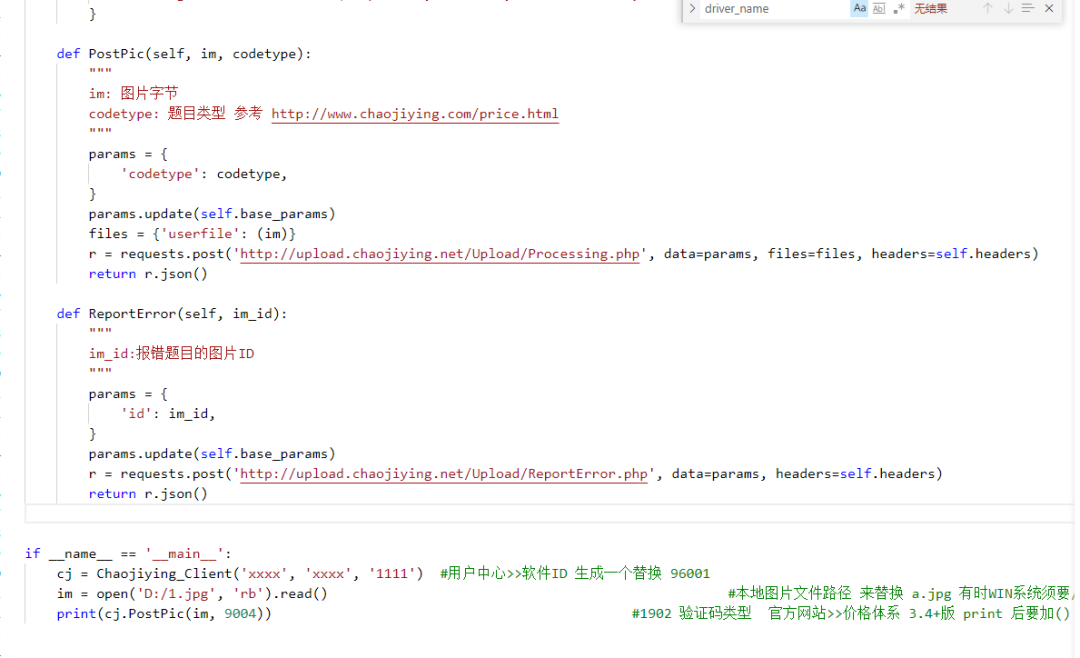
它返回的格式是這樣的 JSON 串,pic_id 和 pic_str 都是我們需要的,pic_id 用來打錯碼后返還消費的題分,pic_str 是驗證碼的坐標軸。
{'err_no': 0, 'err_str': 'OK', 'pic_id': '1147820166678300023', 'pic_str': '51,83|167,180', 'md5': '3a3a43edc56d5fb2e5370db186ddf299'}
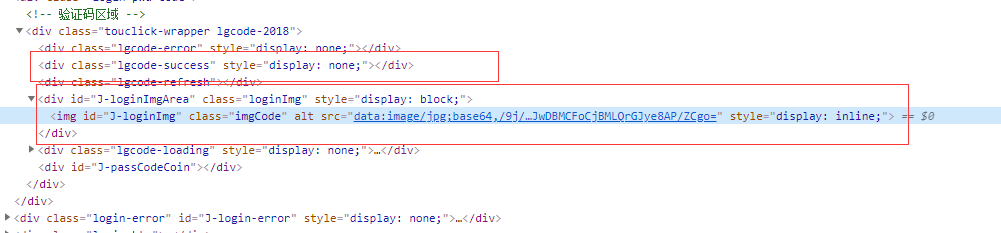
12306 網站上圖片是 base64 的,它上面的 class=lgcode-success 元素 style 可以用來判斷驗證是否通過,不通過可以繼續(xù)調用打碼 API。
import time,base64
import chaojiying
from selenium.webdriver import ActionChains

success_flag = self.wait.until(EC.presence_of_element_located((By.CLASS_NAME, 'lgcode-success'))).get_attribute('style')

while success_flag == 'display: none;':
    img = self.wait.until(EC.visibility_of_element_located((By.ID, 'J-loginImg')))

    base64Img = img.get_attribute('src')
    base64Img = base64Img.replace('data:image/jpg;base64,', '')
    imgdata=base64.urlsafe_b64decode(base64Img)
    file=open('1.jpg','wb')
    file.write(imgdata)
    file.close()

    cj = chaojiying.Chaojiying_Client('xxxx', 'xxxx', 'xxxx')
    im = open('1.jpg', 'rb').read()
    cjy_result = cj.PostPic(im, 9004)
    print(cjy_result)
    x_y = cjy_result['pic_str']
    pic_id = cjy_result['pic_id']

    all_list = []
    for i in x_y.split('|'):
        all_list.append([int(i.split(',')[0]), int(i.split(',')[1])])

    for rangle in all_list:
        ActionChains(self.driver).move_to_element_with_offset(img, rangle[0], rangle[1]).click().perform()

    self.wait.until(self.findElement(By.ID, 'J-login')).click()
    success_flag = self.driver.find_element_by_class_name('lgcode-success').get_attribute('style')

    if success_flag == 'display: none;':
        cj.ReportError(pic_id)

滑塊
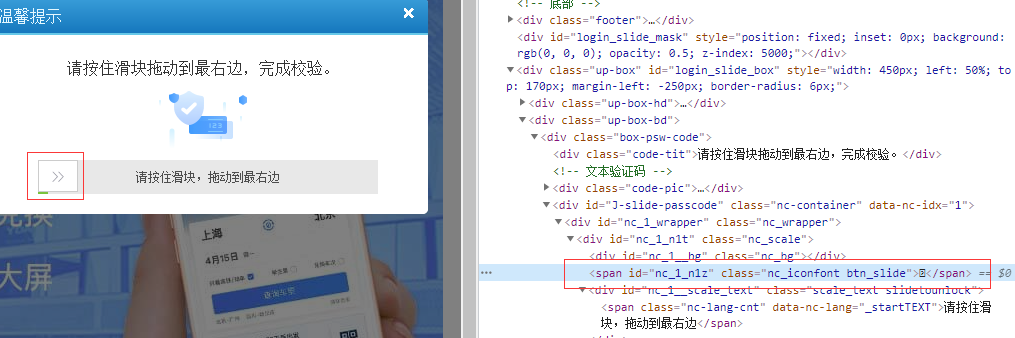
登錄之后又出現了滑塊驗證,這個問題不大, selenium 下的 ActionChains 可以完美解決。實驗了幾次之后居然一直不通過,一番 google 之后。才驚覺現在的滑塊驗證碼是如此的狡猾,居然可以識別是不是用戶滑動的。最后參考 《selenium篇之滑動驗證碼》① 這篇文章可以模擬用戶先快速滑動然后慢下來的滑動行為。
from selenium.webdriver import ActionChains

nc_1_n1z = self.wait.until(self.findElement((By.ID, 'nc_1_n1z')))
tracks = [6,16,31,52,72,52,62,50]

action = ActionChains(self.driver)

action.click_and_hold(nc_1_n1z).perform()
for track in tracks:
    action.move_by_offset(track, 0)
time.sleep(0.5)
action.release().perform()
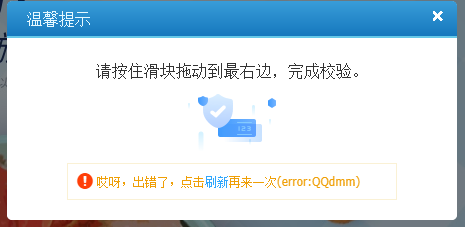
然后又又又出問題了,模擬用戶滑塊驗證之后,居然還是沒通過滑塊驗證。再次 google 一番,原來 selenium 容易被識別出來。參考 《最完美方案!模擬瀏覽器如何正確隱藏特征》② 這篇文章。安裝了 Node Js,生成 stealth.min.js(注:已經放在了 github 上),并在瀏覽器打開登錄頁面加載 stealth.min.js。
def login(self):
    self.driver = webdriver.Chrome(executable_path='D:\chromedriver.exe')

    with open('D:\stealth.min.js') as f:
        stealth = f.read()
    self.driver.execute_cdp_cmd('Page.addScriptToEvaluateOnNewDocument', {"source": stealth})
    # 下面是登錄代碼
    # ....
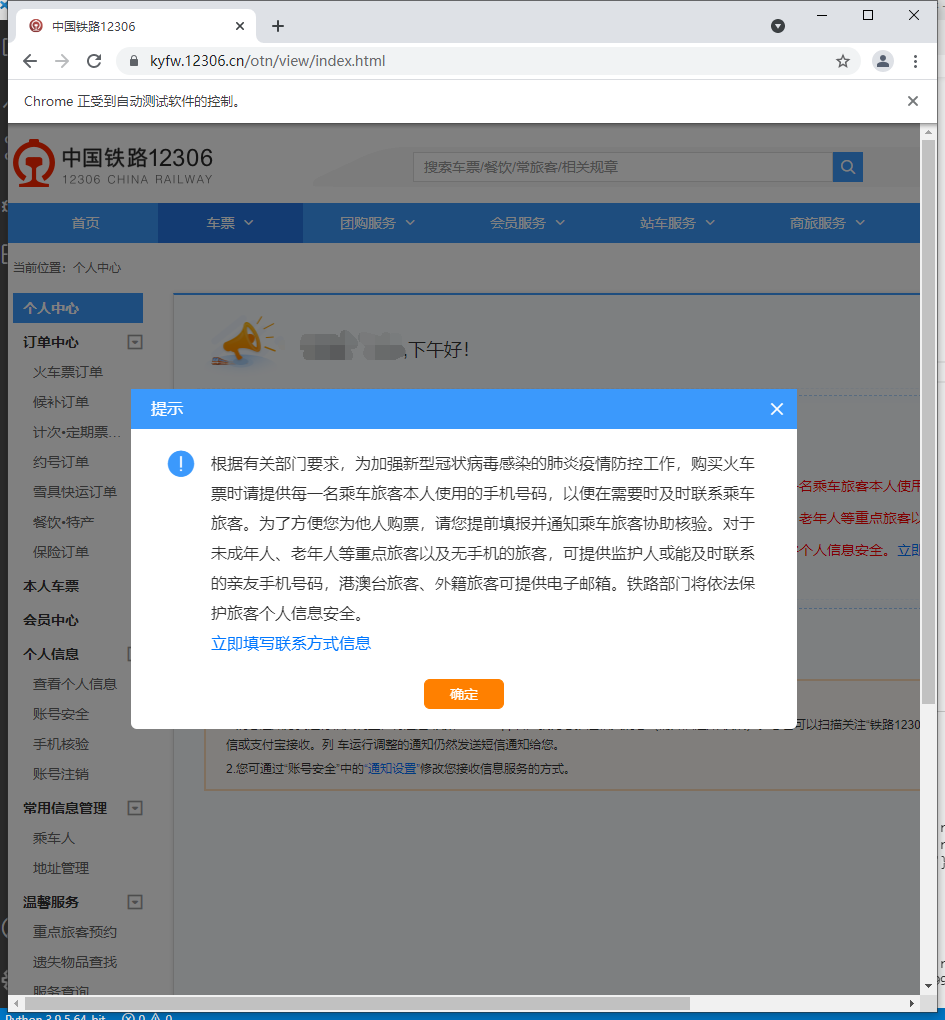
歷經千辛萬苦,終于登錄成功啦。
總結
12306 的登錄是越來越嚴格了,不僅有圖片驗證碼,還有滑塊驗證碼。逢年過節(jié)買票是真真真的難。
參考資料
[1] selenium篇之滑動驗證碼: https://www.cnblogs.com/jackzz/p/11443193.html [2] 最完美方案!模擬瀏覽器如何正確隱藏特征: https://cloud.tencent.com/developer/article/1755513
PS:公號內回復「Python」即可進入Python 新手學習交流群,一起 100 天計劃!
老規(guī)矩,兄弟們還記得么,右下角的 “在看” 點一下,如果感覺文章內容不錯的話,記得分享朋友圈讓更多的人知道!


【代碼獲取方式】