
Chrome 震撼新特性:文檔畫中畫!(不光是視頻)
Anthony Fu 大佬分享了一個讓人亢奮的消息!
Google Chrome 推出了文檔畫中畫(不光是視頻)的一系列支持。
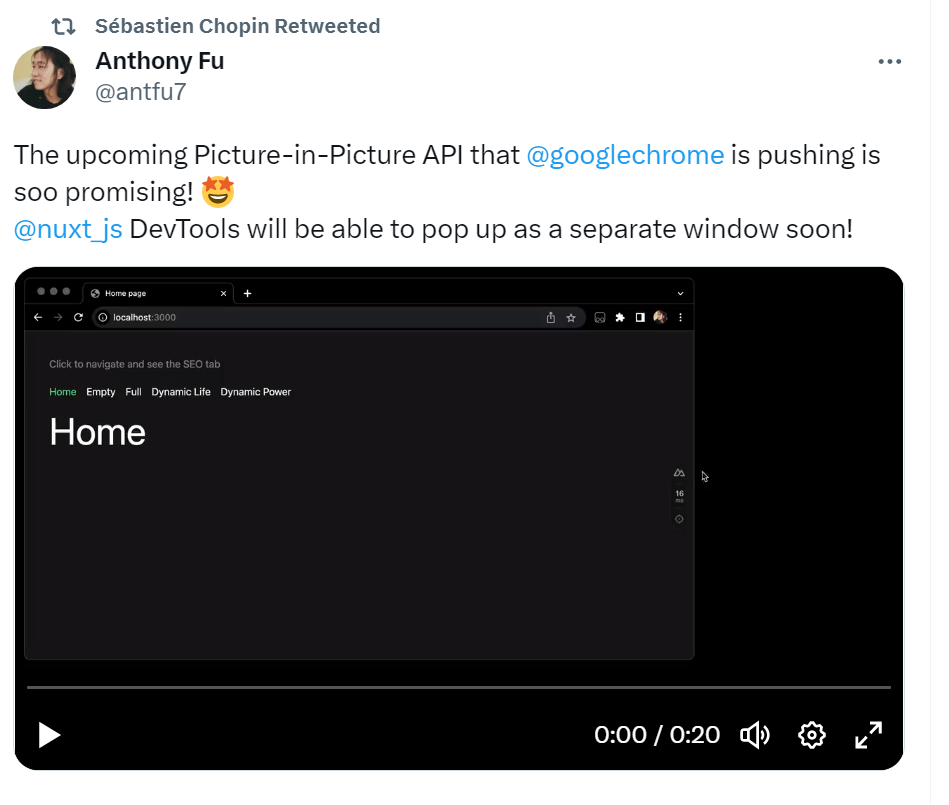
咱們通過 Gif 來看一下:
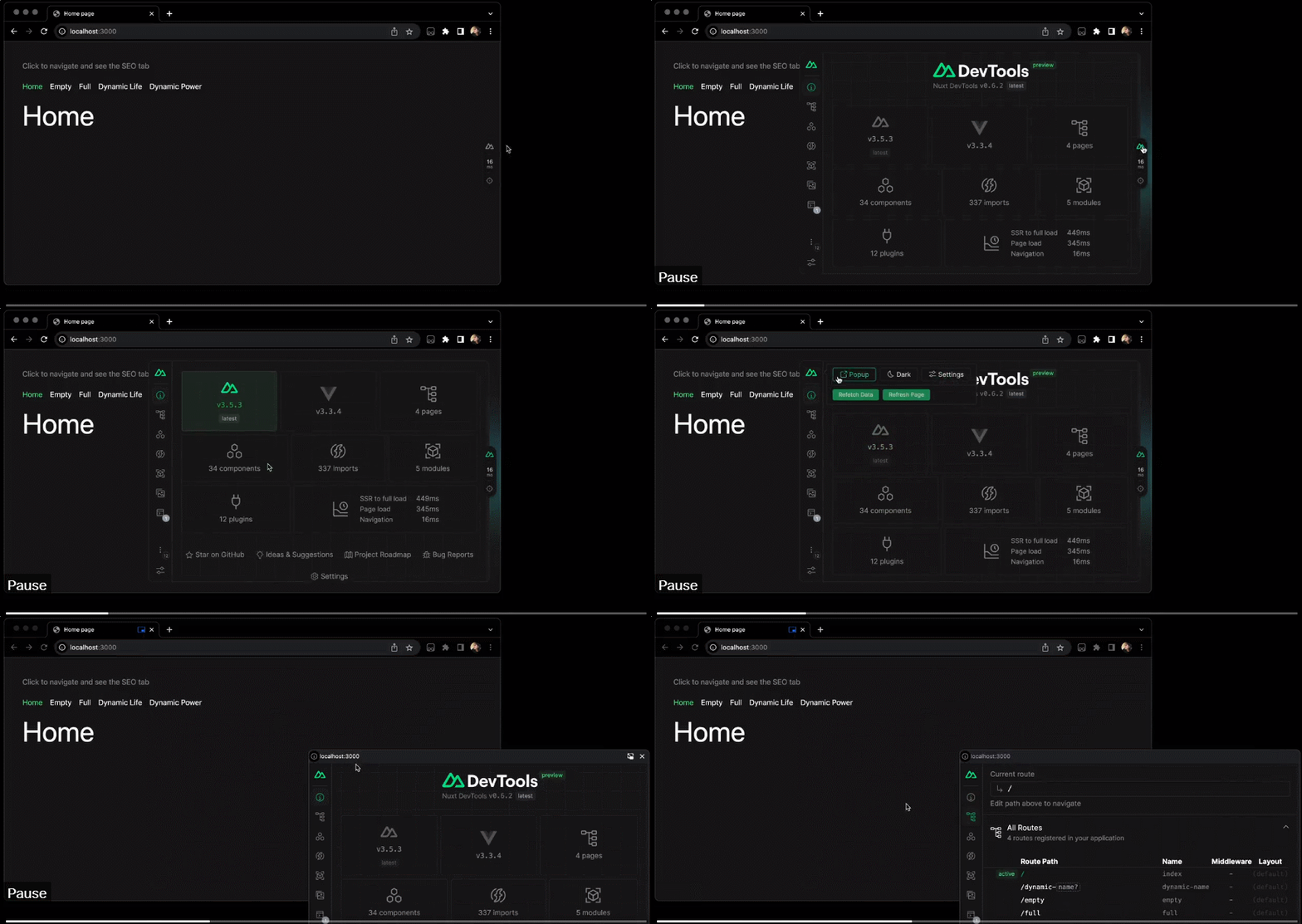
簡單來說,就是把一個網(wǎng)頁中 Nuxt Devtool 那一小部分的元素,直接用畫中畫的方式剝離到了置頂?shù)男〈翱谥姓故尽_@也太實用了,以前只有 video 元素可以這樣做,這個新功能給了 Web 內(nèi)容更無邊的想象空間!
文檔畫中畫(Document Picture-in-Picture)API[1]現(xiàn)在可以在彈出置頂?shù)男〈翱谥姓故救我?HTML 內(nèi)容。它擴展了現(xiàn)有的視頻畫中畫(Picture-in-Picture)API[2],后者僅允許將 HTML 的video元素放入畫中畫窗口中。
谷歌針對這個特性,發(fā)布了一個詳細的文檔Picture-in-Picture for any Element, not just video[3],接下來就由我來給大家分享一下:
Picture-in-Picture for any Element文檔畫中畫 API 中的畫中畫窗口類似于通過`window.open()`[4]打開的空白同源窗口,但存在一些區(qū)別:
- 畫中畫窗口浮動在其他窗口之上。
- 畫中畫窗口不會超過打開它的窗口的生命周期。
- 無法導航畫中畫窗口。
- 網(wǎng)站無法設置畫中畫窗口的位置。
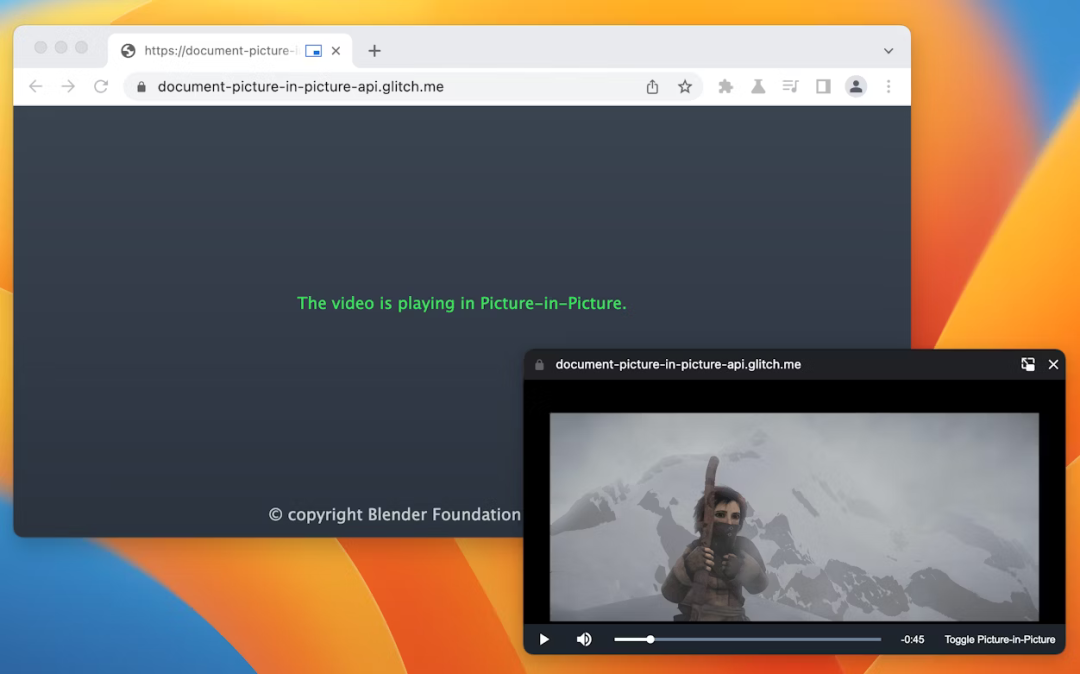
使用文檔畫中畫 API 創(chuàng)建的畫中畫窗口(示例[5])。
當前狀態(tài)
| 步驟 | 狀態(tài) |
|---|---|
| 1. 創(chuàng)建說明文檔 | 完成 [6] |
| 2. 創(chuàng)建規(guī)范初始草案 | 進行中 [7] |
| 3. 收集反饋并迭代設計 | 進行中 [8] |
| 4.?原型試驗 | 已開始 [9] |
| 5. 發(fā)布 | 未開始 |
在桌面上嘗試 API
在試用階段,你可以通過以下兩種方法在桌面上測試這個 API。
本地測試
要在本地嘗試文檔畫中畫 API,無需原型試驗 Token,只需啟用chrome://flags/#document-picture-in-picture-api標志。
注冊原型試驗
從 Chrome 111 版本開始,文檔畫中畫 API 可以作為原型試驗[10]使用。預計該試驗將于 Chrome 115 版本(2023 年 9 月 8 日)結(jié)束。在此注冊[11]。
應用場景
自定義視頻播放器
網(wǎng)站可以利用現(xiàn)有的video 畫中畫 API[12]提供畫中畫視頻體驗,但其功能非常有限。現(xiàn)有的畫中畫窗口接受的輸入較少,并且在樣式方面的能力也有限。通過完整的畫中畫文檔,網(wǎng)站可以提供自定義的控件和輸入選項(例如字幕[13]、播放列表、時間軸、視頻點贊和踩),來改善用戶的畫中畫視頻體驗。
視頻會議
在視頻會議期間,用戶通常出于各種原因(例如展示另一個選項卡以進行通話或多任務處理)而離開瀏覽器標簽,但仍希望保持通話的可見性,因此這是畫中畫的一個主要應用場景。再次強調(diào),當前視頻會議網(wǎng)站通過video 畫中畫 API[14]提供的體驗在樣式和輸入方面有限。通過完整的畫中畫文檔,網(wǎng)站可以輕松將多個視頻流合并到單個畫中畫窗口中,而無需依賴Canvas 技巧[15],并提供自定義控件,例如發(fā)送消息、靜音其他用戶或舉手等功能。
提高生產(chǎn)力
研究表明,用戶需要更多在網(wǎng)絡上提高生產(chǎn)力的方式。畫中畫中的文檔使 Web 應用程序具備了更大的靈活性來完成更多任務。無論是文本編輯、記筆記、任務列表、消息和聊天,還是設計和開發(fā)工具,Web 應用程序現(xiàn)在都可以始終保持內(nèi)容的可訪問性。
接口
屬性
documentPictureInPicture.window
返回當前的畫中畫窗口(如果有)。否則,返回null。
方法
documentPictureInPicture.requestWindow(options)
返回一個 Promise,在打開畫中畫窗口時解析。如果在用戶沒有進行操作的情況下調(diào)用該方法,Promise 將被拒絕。options字段包含以下可選成員:
width
設置畫中畫窗口的初始寬度。
height
設置畫中畫窗口的初始高度。
事件
documentPictureInPicture.onenter
在打開畫中畫窗口時,在documentPictureInPicture上觸發(fā)。
示例
以下 HTML 代碼設置了一個自定義視頻播放器和一個按鈕元素,用于在畫中畫窗口中打開視頻播放器。
        <div?id=
        "playerContainer"
        >

??<div?id=
        "player"
        >

????<video?id=
        "video"
        ></video>

??</div>

</div>

<button?id=
        "pipButton"
        >打開畫中畫窗口</button>
打開畫中畫窗口
以下 JavaScript 代碼在用戶點擊按鈕時調(diào)用documentPictureInPicture.requestWindow(),以打開一個空白的畫中畫窗口。返回的 Promise 將解析為一個畫中畫窗口的 JavaScript 對象。使用append\(\)[16]方法將視頻播放器移動到該窗口中。
        pipButton.addEventListener(
        "click"
        ,?async?()?=>?{

??const?player?=?document.querySelector(
        "#player"
        );


??//?打開一個畫中畫窗口。

??const?pipWindow?=?await?documentPictureInPicture.requestWindow();


??//?將播放器移動到畫中畫窗口中。

??pipWindow.document.body.append(player);

});
設置畫中畫窗口的大小
要設置畫中畫窗口的大小,請將documentPictureInPicture.requestWindow()的width和height選項設置為所需的畫中畫窗口大小。如果選項值太大或太小,無法適應用戶友好的窗口大小,Chrome 可能會截斷展示它們。
        pipButton.addEventListener(
        "click"
        ,?async?()?=>?{

??const?player?=?document.querySelector(
        "#player"
        );


??//?打開一個與播放器大小相同的畫中畫窗口。

??const?pipWindow?=?await?documentPictureInPicture.requestWindow({

????width:?player.clientWidth,

????height:?player.clientHeight,

??});


??//?將播放器移動到畫中畫窗口中。

??pipWindow.document.body.append(player);

});
將樣式表復制到畫中畫窗口
要從原始窗口復制所有 CSS 樣式表,請循環(huán)遍歷初始文檔的styleSheets[17],把它們添加到畫中畫窗口中。請注意,這是個一次性的復制。
        pipButton.addEventListener(
        "click"
        ,?async?()?=>?{

??const?player?=?document.querySelector(
        "#player"
        );


??//?打開一個畫中畫窗口。

??const?pipWindow?=?await?documentPictureInPicture.requestWindow();


??//?從初始文檔中復制樣式表,以使播放器外觀相同。

??const?allCSS?=?[...document.styleSheets]

????.map((styleSheet)?=>?{

??????try?{

????????
        return
        ?[...styleSheet.cssRules].map((r)?=>?r.cssText).join(
        ""
        );

??????}?catch?(e)?{

????????const?link?=?document.createElement(
        "link"
        );

????????link.rel?=?
        "stylesheet"
        ;

????????link.type?=?styleSheet.type;

????????link.media?=?styleSheet.media;

????????link.href?=?styleSheet.href;

????????pipWindow.document.head.appendChild(link);

??????}

????})

????.filter(Boolean)

????.join(
        "\n"
        );

??const?style?=?document.createElement(
        "style"
        );

??style.textContent?=?allCSS;

??pipWindow.document.head.appendChild(style);


??//?將播放器移動到畫中畫窗口中。

??pipWindow.document.body.append(player);

});
copyStyleSheets選項在先前版本的規(guī)范中得到支持。現(xiàn)在棄用了(詳情請參閱GitHub Pull Request[18])。
處理畫中畫窗口關(guān)閉時的情況
通過監(jiān)聽窗口的"pagehide"事件,可以了解畫中畫窗口何時關(guān)閉(無論是因為網(wǎng)站啟動還是用戶手動關(guān)閉)。Evnet 事件可以很方便的知曉用戶何時從畫中畫返回,如下所示:
        pipButton.addEventListener(
        "click"
        ,?async?()?=>?{

??const?player?=?document.querySelector(
        "#player"
        );


??//?打開一個畫中畫窗口。

??const?pipWindow?=?await?documentPictureInPicture.requestWindow();


??//?將播放器移動到畫中畫窗口中。

??pipWindow.document.body.append(player);


??//?當畫中畫窗口關(guān)閉時,將播放器移回原位置。

??pipWindow.addEventListener(
        "pagehide"
        ,?(event)?=>?{

????const?playerContainer?=?document.querySelector(
        "#playerContainer"
        );

????const?pipPlayer?=?event.target.querySelector(
        "#player"
        );

????playerContainer.append(pipPlayer);

??});

});
使用`close()`[19]方法以編程方式關(guān)閉畫中畫窗口。
        //?以編程方式關(guān)閉畫中畫窗口。

//?
        "pagehide"
        事件將正常觸發(fā)。

pipWindow.close();
監(jiān)聽網(wǎng)站進入畫中畫模式
監(jiān)聽documentPictureInPicture的"enter"事件,可以知道用戶何時打開畫中畫窗口。事件包含一個window對象,可用于訪問畫中畫窗口。
        documentPictureInPicture.addEventListener(
        "enter"
        ,?(event)?=>?{

??const?pipWindow?=?event.window;

});
訪問畫中畫窗口中的元素
要訪問畫中畫窗口中的元素,可以使用documentPictureInPicture.requestWindow()返回的對象,或者如下所示使用documentPictureInPicture.window。
        const?pipWindow?=?documentPictureInPicture.window;

if
        ?(pipWindow)?{

??//?靜音在畫中畫窗口中播放的視頻。

??const?pipVideo?=?pipWindow.document.querySelector(
        "#video"
        );

??pipVideo.muted?=?
        true
        ;

}
處理來自畫中畫窗口的事件
像通常在 JavaScript 中那樣,創(chuàng)建按鈕和控件,并響應用戶的輸入事件,如"click"。
        //?向畫中畫窗口添加
        "mute"
        按鈕。

const?pipMuteButton?=?pipWindow.document.createElement(
        "button"
        );

pipMuteButton.textContent?=?
        "Mute"
        ;

pipMuteButton.addEventListener(
        "click"
        ,?()?=>?{

??const?pipVideo?=?pipWindow.document.querySelector(
        "#video"
        );

??pipVideo.muted?=?
        true
        ;

});

pipWindow.document.body.append(pipMuteButton);
特性檢測
要檢查是否支持文檔畫中畫 API,請使用:
        if
        ?(
        "documentPictureInPicture"
        ?
        in
        ?window)?{

??//?支持文檔畫中畫API。

}
演示
VideoJS 播放器
你可以使用文檔畫中畫 API 的VideoJS 播放器演示[20]進行嘗試。歡迎查看源代碼[21]。
番茄鐘
Tomodoro[22],一個番茄鐘網(wǎng)絡應用程序,在可用時也利用了文檔畫中畫 API(請參閱GitHub Pull Request[23])。
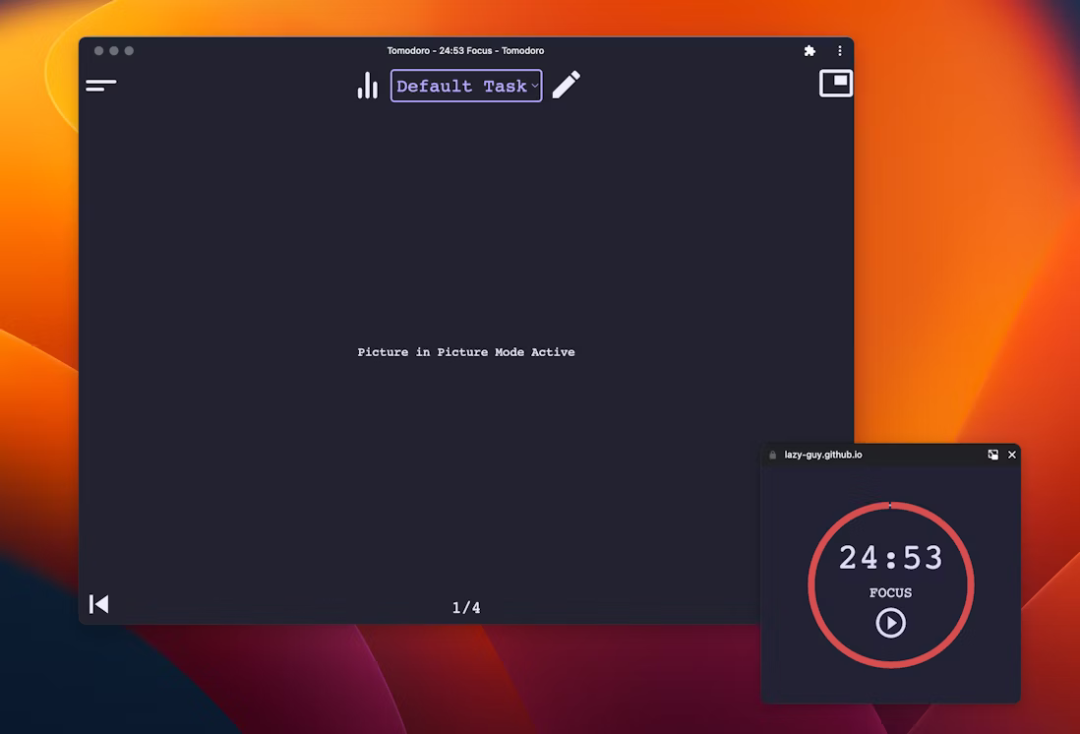 番茄時鐘 Tomodoro
反饋
在這個階段,開發(fā)者的反饋非常重要,請在 GitHub 上提交問題[24],提出建議和問題。
學習資料
- 公開說明 [25]
- WICG 規(guī)范 [26]
- Chromium 跟蹤問題 [27]
- ChromeStatus.com 條目 [28]
- Blink 組件:\`Blink>Media>PictureInPicture\`[29]
- TAG Review [30]
- Intent to Experiment [31]
參考資料
向下滑動查看
[1]
文檔畫中畫(Document Picture-in-Picture)API:?https://wicg.github.io/document-picture-in-picture/
[2]視頻畫中畫(Picture-in-Picture)API:?https://developer.chrome.com/blog/watch-video-using-picture-in-picture/
[3]Picture-in-Picture for any Element, not just video:?https://developer.chrome.com/docs/web-platform/document-picture-in-picture/
[4]undefined:?undefined
[5]示例:?https://document-picture-in-picture-api.glitch.me/
[6]完成:?https://github.com/WICG/document-picture-in-picture/blob/main/README.md
[7]進行中:?https://wicg.github.io/document-picture-in-picture/
[8]undefined:?undefined
[9]已開始:?https://developer.chrome.com/origintrials/#/view_trial/1885882343961395201
[10]原型試驗:?https://developer.chrome.com/docs/web-platform/origin-trials/
[11]在此注冊:?https://developer.chrome.com/origintrials/#/view_trial/1885882343961395201
[12]video 畫中畫 API:?https://developer.chrome.com/blog/watch-video-using-picture-in-picture/
[13]字幕:?https://bugs.chromium.org/p/chromium/issues/detail?id=854935
[14]video 畫中畫 API:?https://developer.chrome.com/blog/watch-video-using-picture-in-picture/
[15]Canvas 技巧:?https://developer.chrome.com/blog/watch-video-using-picture-in-picture/#show-canvas-element-in-picture-in-picture-window
[16]append():?https://developer.mozilla.org/docs/Web/API/Element/append
[17]styleSheets:?https://developer.mozilla.org/docs/Web/API/Document/styleSheets
[18]GitHub Pull Request:?https://github.com/WICG/document-picture-in-picture/pull/79
[19]undefined:?undefined
[20]VideoJS 播放器演示:?https://document-picture-in-picture-api.glitch.me/
[21]源代碼:?https://glitch.com/edit/#!/document-picture-in-picture-api?path=script.js
[22]Tomodoro:?https://lazy-guy.github.io/tomodoro/index.html
[23]GitHub Pull Request:?https://github.com/lazy-guy/tomodoro/pull/2
[24]提交問題:?https://github.com/WICG/document-picture-in-picture/issues
[25]公開說明:?https://github.com/WICG/document-picture-in-picture/blob/main/README.md
[26]WICG 規(guī)范:?https://wicg.github.io/document-picture-in-picture/
[27]Chromium 跟蹤問題:?https://bugs.chromium.org/p/chromium/issues/detail?id=1315352
[28]ChromeStatus.com 條目:?https://chromestatus.com/feature/5755179560337408
[29]undefined:?undefined
[30]TAG Review:?https://github.com/w3ctag/design-reviews/issues/798
[31]Intent to Experiment:?https://groups.google.com/a/chromium.org/g/blink-dev/c/Tz1gUh92dXs
- EOF -

加主頁君微信,不僅前端技能+1

主頁君日常還會在個人微信分享前端開發(fā)學習資源和技術(shù)文章精選,不定期分享一些有意思的活動、崗位內(nèi)推以及如何用技術(shù)做業(yè)余項目
加個微信,打開一扇窗
1、如何在 Axios 中去控制 Loading?大有學問!
覺得本文對你有幫助?請分享給更多人
推薦關(guān)注「前端大全」,提升前端技能
點贊和在看就是最大的支持 ??