<kbd id="afajh"><form id="afajh"></form></kbd>
<strong id="afajh"><dl id="afajh"></dl></strong>
    <del id="afajh"><form id="afajh"></form></del>
        1. <th id="afajh"><progress id="afajh"></progress></th>
          <b id="afajh"><abbr id="afajh"></abbr></b>
          <th id="afajh"><progress id="afajh"></progress></th>

          漂亮的GitHub個人總覽 ,原來這么容易實現(xiàn)

          共 3011字,需瀏覽 7分鐘

           ·

          2021-02-10 14:52

          前段時間,GitHub悄悄地發(fā)布了一個新功能:Profile README.

          翻譯成中文即簡歷型README,好聽一點就是個人自述型簡歷,簡單點就是個人GitHub總覽

          下面給大家講講怎么通過 GitHub API 創(chuàng)建一個能夠自更新的總覽。

          1.首先,創(chuàng)建一個GitHub倉庫:

          創(chuàng)建一個與你的GitHub帳戶同名的存儲庫:
          (在我的情況下為?github.com/Ckend/Ckend

          向其添加一個README.md,我寫入了以下內容:

          "To be continued..."

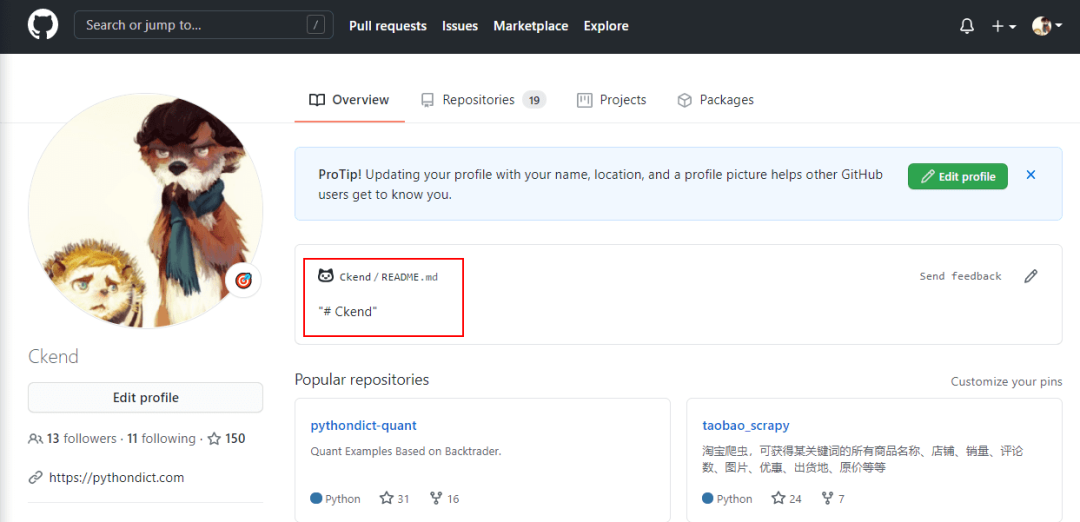
          如圖所示:
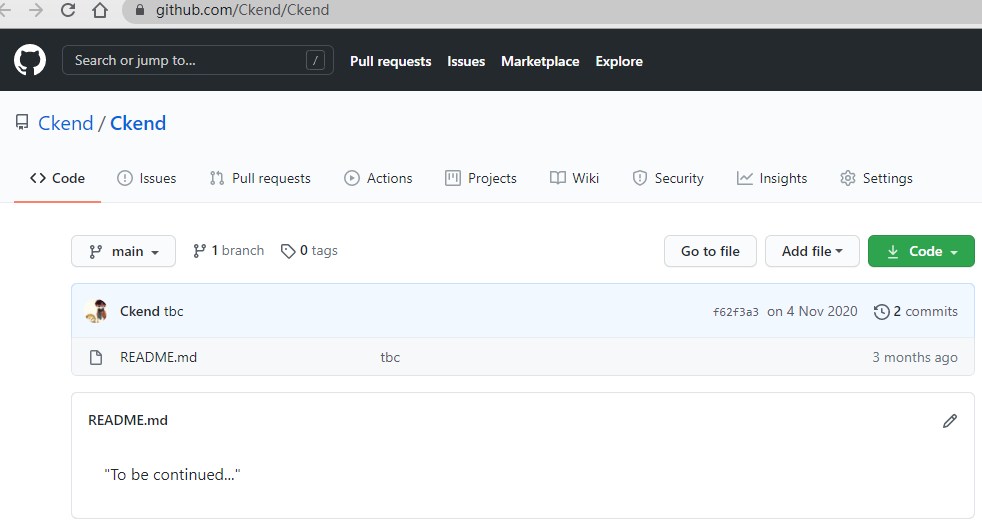

          然后GitHub將在你的個人資料頁面頂部呈現(xiàn)該README內容,對我來說就是?github.com/Ckend


          如圖所示,用戶名的這個倉庫的?README.md?將成為你的個人資料首頁的展示內容。

          2.美化你的展示內容

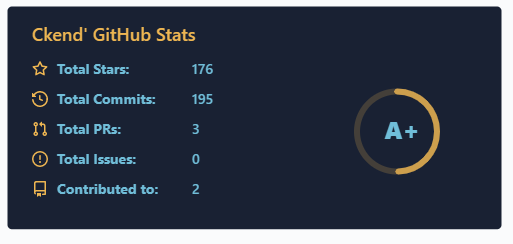
          首先,我們可以加一個GitHub的基本統(tǒng)計信息

          這是官方給出的統(tǒng)計組件API,使用起來很方便,你只需要往你的README.md里添加下述代碼即可:

          <img?align="left"?src="https://github-readme-stats.vercel.app/api?username=你的賬號用戶名&include_all_commits=true&count_private-true&custom_title=你的賬號用戶名'%20GitHub%20Stats&line_height=30&show_icons=true&hide_border=true&bg_color=192133&title_color=efb752&icon_color=efb752&text_color=70bed9">


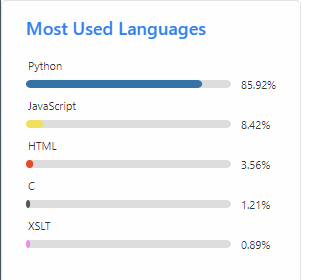
          此外GitHub官方還提供了一個展示自己最常用語言的接口。


          你可以在README.md里添加下述內容展示這個圖表:

          <img?align="right"?src="https://github-readme-stats.vercel.app/api/top-langs/?username=ckend">


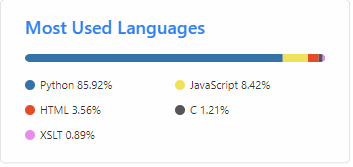
          你還可以帶一個?&layout=compact?參數(shù)展示橫版圖表:


          <img?align="right"?src="https://github-readme-stats.vercel.app/api/top-langs/?username=ckend&layout=compact">


          另外,我們還可以加上技術棧圖標:


          利用?https://img.shields.io?提供的圖標,可以輕松實現(xiàn)這點,在README鍵入以下內容即可:


          ### 技術棧

          ![Python](https://img.shields.io/badge/-Python-192133?style=flat-square&logo=python&logoColor=white)
          ![Django](https://img.shields.io/badge/-Django-192133?style=flat-square&logo=figma&logoColor=white)
          ![PHP](https://img.shields.io/badge/-PHP-192133?style=flat-square&logo=figma&logoColor=white)
          ![MySQL](https://img.shields.io/badge/-MySQL-192133?style=flat-square&logo=mysql&logoColor=white)
          ![Redis](https://img.shields.io/badge/-Redis-192133?style=flat-square&logo=redis&logoColor=white)
          ![Elasticsearch](https://img.shields.io/badge/-Elasticsearch-192133?style=flat-square&logo=elasticsearch&logoColor=white)
          ![Kafka](https://img.shields.io/badge/-Kafka-192133?style=flat-square&logo=apache-kafka&logoColor=white)


          當然,你要根據(jù)自己的情況做修改。

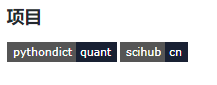
          此外,shields網站還能自定義圖標,可以用于展示自己的項目:
          ### 項目
          [![pythondict-quant](https://img.shields.io/badge/pythondict-quant-192133?style=flat-square)](https://github.com/Ckend/pythondict-quant)

          [![scihub-cn](https://img.shields.io/badge/scihub-cn-192133?style=flat-square)](https://github.com/Ckend/scihub-cn)


          你可以按照自己的情況選擇以上任意一種組件來美化總覽。

          完成一個漂亮的總覽,能讓你更有動力去維護GitHub倉庫,所以一定要動手試試。

          下面給大家提供一份我的總覽完整版:
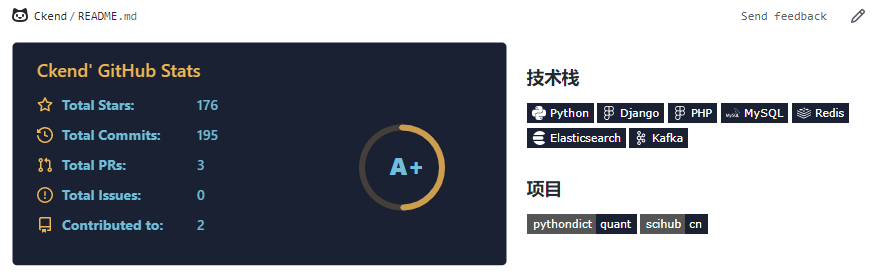
          完整版代碼如下:

          <img?align="left"?src="https://github-readme-stats.vercel.app/api?username=Ckend&include_all_commits=true&count_private-true&custom_title=Ckend'%20GitHub%20Stats&line_height=30&show_icons=true&hide_border=true&bg_color=192133&title_color=efb752&icon_color=efb752&text_color=70bed9">

          ### 技術棧

          ![Python](https://img.shields.io/badge/-Python-192133?style=flat-square&logo=python&logoColor=white)
          ![Django](https://img.shields.io/badge/-Django-192133?style=flat-square&logo=figma&logoColor=white)
          ![PHP](https://img.shields.io/badge/-PHP-192133?style=flat-square&logo=figma&logoColor=white)
          ![MySQL](https://img.shields.io/badge/-MySQL-192133?style=flat-square&logo=mysql&logoColor=white)
          ![Redis](https://img.shields.io/badge/-Redis-192133?style=flat-square&logo=redis&logoColor=white)
          ![Elasticsearch](https://img.shields.io/badge/-Elasticsearch-192133?style=flat-square&logo=elasticsearch&logoColor=white)
          ![Kafka](https://img.shields.io/badge/-Kafka-192133?style=flat-square&logo=apache-kafka&logoColor=white)

          ### 項目
          [![pythondict-quant](https://img.shields.io/badge/pythondict-quant-192133?style=flat-square)](https://github.com/Ckend/pythondict-quant)
          [![scihub-cn](https://img.shields.io/badge/scihub-cn-192133?style=flat-square)](https://github.com/Ckend/scihub-cn)


          大家可以參考這個方案進行修改,繪制一個屬于自己的漂亮總覽。

          我們的文章到此就結束啦,如果你喜歡今天的Python 實戰(zhàn)教程,請持續(xù)關注Python實用寶典。

          有任何問題,可以在公眾號后臺回復:加群,回答相應紅字驗證信息,進入互助群詢問。

          原創(chuàng)不易,希望你能在下面點個贊和在看支持我繼續(xù)創(chuàng)作,謝謝!

          點擊下方閱讀原文可獲得更好的閱讀體驗

          Python實用寶典?(pythondict.com)
          不只是一個寶典
          歡迎關注公眾號:Python實用寶典

          瀏覽 113
          點贊
          評論
          收藏
          分享

          手機掃一掃分享

          分享
          舉報
          評論
          圖片
          表情
          推薦
          點贊
          評論
          收藏
          分享

          手機掃一掃分享

          分享
          舉報
          <kbd id="afajh"><form id="afajh"></form></kbd>
          <strong id="afajh"><dl id="afajh"></dl></strong>
            <del id="afajh"><form id="afajh"></form></del>
                1. <th id="afajh"><progress id="afajh"></progress></th>
                  <b id="afajh"><abbr id="afajh"></abbr></b>
                  <th id="afajh"><progress id="afajh"></progress></th>
                  亚洲免费观看在线 | 伊人电影综合网 | 91人妻人人爽 | 一区二区熟女 | 天堂8资源8在线8 |