
#PyQt5# Python的GUI庫
“ ?文章所涉及內(nèi)容更多來自網(wǎng)絡(luò),在此聲明,并感謝知識的貢獻(xiàn)者!”
pyqt5 簡介—
PyQt5 簡介
PyQt是Qt框架的Python語言實現(xiàn),由Riverbank Computing開發(fā),是最強(qiáng)大的GUI庫之一。PyQt提供了一個設(shè)計良好的窗口控件集合,每一個PyQt控件都對應(yīng)一個Qt控件,因此PyQt的API接口與Qt的API接口很接近,但PyQt不再使用QMake系統(tǒng)和Q_OBJECT宏。
—
PyQt5 特性
PyQt5特性如下:
基于高性能的Qt的GUI控件集。
能夠跨平臺運行在Linux、Window和Mac OS系統(tǒng)上。
使用信號槽機(jī)制進(jìn)行通信。
對Qt庫進(jìn)行完全封裝。
可以使用成熟的IDE進(jìn)行界面設(shè)計,并自動生成可執(zhí)行的Python代碼。
提供一整套種類齊全的窗口控件。
—
PyQt5 模塊
PyQt5是由一系列Python模塊組成,有超過620個類,6000個函數(shù)和方法,主要模塊如下:
QtCore:包含了核心的非 GUI 的功能。主要和時間、文件與文件夾、各種數(shù)據(jù)、流、URLs、mime 類文件、進(jìn)程與線程一起使用。
QtGui:包含了窗口系統(tǒng)、事件處理、2D 圖像、基本繪畫、字體和文字類。
QtWidgets:包含了一系列創(chuàng)建桌面應(yīng)用的 UI 元素。
QtMultimedia:包含了處理多媒體的內(nèi)容和調(diào)用攝像頭 API 的類。
QtBluetooth:包含了查找和連接藍(lán)牙的類。
QtNetwork:包含了網(wǎng)絡(luò)編程的類,這些工具能讓 TCP/IP 和 UDP 開發(fā)變得更加方便和可靠。
QtPositioning:包含了定位的類,可以使用衛(wèi)星、WiFi 甚至文本。
Enginio:包含了通過客戶端進(jìn)入和管理 Qt Cloud 的類。
QtWebSockets:包含了 WebSocket 協(xié)議的類。
QtWebKit:包含了一個基 WebKit2 的 web 瀏覽器。
QtWebKitWidgets:包含了基于 QtWidgets 的 WebKit1 的類。
QtXml:包含了處理 xml 的類,提供了 SAX 和 DOM API 的工具。
QtSvg:提供了顯示 SVG 內(nèi)容的類,Scalable Vector Graphics (SVG) 是一種是一種基于可擴(kuò)展標(biāo)記語言 (XML),用于描述二維矢量圖形的圖形格式(這句話來自于維基百科)。
QtSql:提供了處理數(shù)據(jù)庫的工具。
QtTest:提供了測試 PyQt5 應(yīng)用的工具。
—
PyQt5安裝:
pip install -i https://pypi.tuna.tsinghua.edu.cn/simple pyqt5
pip install -i https://pypi.tuna.tsinghua.edu.cn/simple pyqt5-tools
pip install -i https://pypi.tuna.tsinghua.edu.cn/simple PyQtWebEngine ?
pip install pyQtDataVisualization
pip install pyqtchart
—
PyQt5 開發(fā):
--基于QtDesigner開發(fā)UI界面
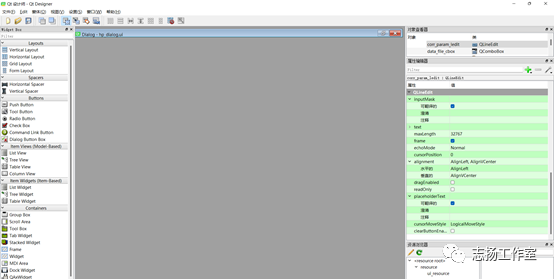
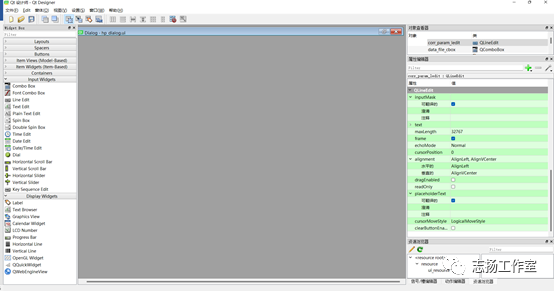
Qt Designer 是通過拖拽的方式放置控件,并實時查看控件效果進(jìn)行快速UI設(shè)計。
整個畫面的構(gòu)成:
左側(cè)的“Widget Box”就是各種可以自由拖動的組件
中間的“MainWindow – untitled”窗體就是畫布
右上方的”O(jiān)bject Inspector”可以查看當(dāng)前ui的結(jié)構(gòu)
右側(cè)中部的”Property Editor”可以設(shè)置當(dāng)前選中組件的屬性
右下方的”Resource Browser”可以添加各種素材,比如圖片,背景等等
最終生成.ui文件(實質(zhì)上是XML格式的文件),可直接使用,也可以通過pyuic5工具轉(zhuǎn)換成.py文件。
--通過pyuic5工具將UI文件轉(zhuǎn)換成.py文件
PyUIC主要是把Qt Designer生成的.ui文件換成.py文件。
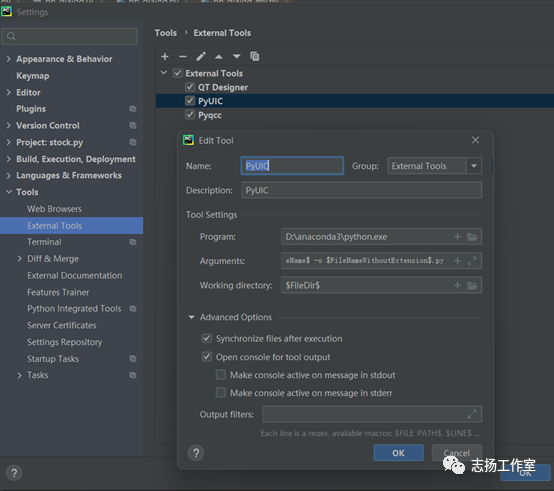
在Pycharm中,依次打開 File – Settings – Tools – External Tools,點擊 + Create Tool,配置
Program : D:\Program Files\Python36\python.exe # 當(dāng)前Python目錄,請根據(jù)實際修改
Arguments: -m PyQt5.uic.pyuic $FileName$ -o $FileNameWithoutExtension$.py
Working directory: $FileDir$
--通過pyrcc5工具將UI文件的資源文件qrc轉(zhuǎn)換成.py文件
PyRCC主要是把編寫的.qrc資源文件換成.py文件。
在Pycharm中,依次打開 File – Settings – Tools – External Tools,點擊 + Create Tool,配置如下:
Name: PyRCC
Program: D:\Program Files\Python36\pyrcc5.exe # 當(dāng)前rcc工具目錄,請根據(jù)實際修改
Arguments: $FileName$ -o $FileNameWithoutExtension$_rc.py
Working directory: $FileDir$
—
PyQt5 組件
基于QtDesigner設(shè)計UI
一、QMainWindow
QMainWindow、QWidget、QDialog用于創(chuàng)建窗口,可以直接使用,也可以派生使用。
QMainWindow窗口包含菜單欄、工具欄、狀態(tài)欄、標(biāo)題欄等,是最常見的窗口形式。
QDialog是對話框窗口的基類,主要用于執(zhí)行短期任務(wù),或與用戶進(jìn)行交互,可以是模態(tài)或非模態(tài)的。QDialog對話框沒有菜單欄、工具欄、狀態(tài)欄等。
QWidget是Qt圖形組件的基類,可以作為頂層窗口,也可以嵌入到其它組件中。
QMainWindow實例
import sys
from PyQt5.QtWidgets import QMainWindow, QApplication, QWidget, QLabel, QDesktopWidget, QToolBar
class MainWindow(QMainWindow):
??? def __init__(self, parent=None):
??????? super().__init__(parent)
??????? # 菜單欄設(shè)置
??????? self.menuBar = self.menuBar()
??????? self.menuBar.addAction("File")
??????? self.menuBar.addAction("View")
??????? # 工具欄設(shè)置
??????? open = QToolBar()
??????? open.addAction("OPen")
??????? self.addToolBar(open)
??????? close = QToolBar()
??????? close.addAction("Close")
??????? self.addToolBar(close)
??????? # 中央組件設(shè)置
??????? self.window = QWidget()
??????? self.setCentralWidget(self.window)
??????? # 狀態(tài)欄設(shè)置
??????? self.statusBar = self.statusBar()
??????? self.statusBar.showMessage("This is an status message.", 5000)
??????? label = QLabel("permanent status")
??????? self.statusBar.addPermanentWidget(label)
??????? self.resize(800, 600)
??????? self.setWindowTitle("MainWindow Demo")
??????? self.center()
??? def center(self):
??????? screen = QDesktopWidget().screenGeometry()
??????? size = self.geometry()
??????? self.move((screen.width() - size.width()) / 2, (screen.height() - size.height()) / 2)
if __name__ == "__main__":
??? app = QApplication(sys.argv)
??? window = MainWindow()
??? window.show()
??? sys.exit(app.exec_())
二、QWidget
1、QWidget簡介
QWidget是所有GUI界面組件的基類,所有窗口和控件都直接或間接繼承自QWidget基類。
2、窗口坐標(biāo)系統(tǒng)
Qt使用統(tǒng)一的坐標(biāo)系統(tǒng)來定位窗口控件的位置和大小,坐標(biāo)系統(tǒng)如下:
PyQt5快速入門(三)PyQt5基本窗口組件_PyQt 基礎(chǔ)窗口部件_02
以屏幕的左上角為原點,即(0,0),從左向右為X軸正向,從上向下為Y軸正向,屏幕的坐標(biāo)系統(tǒng)用于定位頂層窗口。窗口內(nèi)部有自己的坐標(biāo)系統(tǒng),窗口坐標(biāo)系統(tǒng)以左上角為原點,即(0,0),從左向右為X軸正向,從上向下為Y軸正向,原點、X軸、Y軸圍成的區(qū)域為客戶區(qū),在客戶區(qū)的周圍是標(biāo)題欄、邊框。
QWidget實例
import sys
from PyQt5.QtWidgets import QApplication, QWidget, QLabel, QDesktopWidget, QToolBar
class MainWidget(QWidget):
??? def __init__(self, parent=None):
??????? super().__init__(parent)
??????? self.setWindowTitle("MainWidget")
??????? self.resize(800, 600)
??????? self.center()
??? def center(self):
??????? screen = QDesktopWidget().screenGeometry()
??????? size = self.geometry()
??????? self.move((screen.width() - size.width()) / 2, (screen.height() - size.height()) / 2)
??? def dispalyGeometry(self):
??????? x = self.x()
??????? y = self.y()
??????? print("x: {0}, y: {1}".format(x, y))
??????? x = self.pos().x()
??????? y = self.pos().y()
??????? print("x: {0}, y: {1}".format(x, y))
??????? x = self.frameGeometry().x()
??????? y = self.frameGeometry().y()
??????? print("x: {0}, y: {1}".format(x, y))
??????? x = self.geometry().x()
??????? y = self.geometry().y()
??????? print("x: {0}, y: {1}".format(x, y))
??????? print("geometry: ", self.geometry())
??????? print("frameGemetry: ", self.frameGeometry())
if __name__ == "__main__":
??? app = QApplication(sys.argv)
??? window = MainWidget()
??? window.show()
??? window.dispalyGeometry()
??? sys.exit(app.exec_())
三、QLabel
1、QLabel簡介
QLabel作為一個占位符可以顯示不可編輯的文本、圖片、GIF動畫,QLabel是界面的標(biāo)簽類,繼承自QFrame。
QLabel實例
import sys
from PyQt5.QtWidgets import QApplication, QLabel
from PyQt5.QtCore import Qt
from PyQt5.QtGui import QPalette
if __name__ == "__main__":
??? app = QApplication(sys.argv)
??? window = QLabel()
??? window.setWindowTitle("QLabel Demo")
??? window.setText("www.baidu.com")
??? window.setOpenExternalLinks(True)
??? pallette = QPalette()
??? pallette.setColor(QPalette.Window, Qt.blue)
??? window.setPalette(pallette)
??? window.setAlignment(Qt.AlignCenter)
??? window.setAutoFillBackground(True)
??? window.resize(400, 200)
??? window.show()
??? sys.exit(app.exec_())
四、文本框控件
1、QLineEdit
QLineEdit是單行文本框控件,可以編輯單行字符串,用于接收用戶輸入。
2、QTextEdit
QTextEdit是一個多行文本框編輯控件,可以顯示、編輯多行文本編輯內(nèi)容,當(dāng)文本內(nèi)容超出控件顯示范圍時,可以顯示水平和垂直滾動條,QTextEdit不僅可以顯示文本,還可以顯示HTML文檔。
QTextEdit示例
import sys
from PyQt5.QtWidgets import QApplication, QTextEdit, QWidget, QLabel
from PyQt5.QtCore import Qt
from PyQt5.QtGui import QIntValidator
class MainWidget(QWidget):
??? def __init__(self, parent=None):
??????? super().__init__(parent)
??????? label = QLabel("input: ", self)
??????? label.move(0, 0)
??????? self.textEdit = QTextEdit(self)
??????? self.textEdit.move(50, 0)
??????? self.textEdit.setPlainText("Hello, PyQt5")
??????? self.textEdit.textChanged.connect(self.displayText)
??? def displayText(self):
??????? print(self.textEdit.toPlainText())
if __name__ == "__main__":
??? app = QApplication(sys.argv)
??? window = MainWidget()
??? window.resize(400, 200)
??? window.show()
??? sys.exit(app.exec_())
五、按鈕控件
1、QPushButton
QPushButton繼承自QAbstractButton,形狀為長方形,文本、圖標(biāo)顯示在長方形區(qū)域。
2、QRadioButton
QRadioButton繼承自QAbstractButton,提供了一組可選的按鈕和標(biāo)簽,用戶可以選擇其中一個選項,標(biāo)簽用于顯示對應(yīng)的文本信息。QRadioButton是一種開關(guān)按鈕,可以切換為on或off,即checked或unchecked。在單選按鈕組里,一次只能選擇一個單選按鈕,如果需要多個獨占的按鈕組合,需要將其放到QGroupBox或QButtonGroup中。
3、QCheckBox
QCheckBox繼承自QAbstractButton,提供一組帶文本標(biāo)簽的復(fù)選框,用戶可以選擇多個選項,復(fù)選框可以顯示文本和圖標(biāo)。
除了選中、未選中,QCheckBox有第三種狀態(tài):半選中,表示沒有變化。
六、QComboBox
QComboBox是下拉列表框。
七、QSpinBox
QSpinBox是一個計數(shù)器控件,允許用戶選擇一個整數(shù)值,通過單擊向上、向下按鈕或鍵盤的上下箭頭來增加減少當(dāng)前顯示的值,用戶也可以從編輯框輸入當(dāng)前值。默認(rèn)情況下,QSpinBox的取值范圍為0——99,每次改變的步長值為1。
八、QSlider
QSlider控件提供了一個垂直或水平的滑動條,是一個用于控制有界值的控件,允許用戶沿著水平或垂直方向在某一范圍內(nèi)移動滑塊,并將滑塊所在的位置轉(zhuǎn)換成一個合法范圍內(nèi)的整數(shù)值。
九、對話框控件
1、QDialog
QDialog是對話框類,提供了三種窗口模態(tài),非模態(tài),模態(tài)和應(yīng)用程序模態(tài),使用setWindowModality方法設(shè)置窗口模態(tài)。
(1)非模態(tài)
非模態(tài)可以和應(yīng)用程序的其它窗×××互,使用Qt.NonModal進(jìn)行設(shè)置。
(2)窗口模態(tài)
窗口模態(tài)在未處理完成當(dāng)前對話框時,將阻止和對話框的父窗口進(jìn)行交互,使用Qt.Modal進(jìn)行設(shè)置。
(3)應(yīng)用程序模態(tài)
應(yīng)用程序模態(tài)阻止任何和其它窗口進(jìn)行交互,使用Qt.ApplicationModal。
QDialog及其派生類對話框在ESC按鍵按下時,對話框窗口將會默認(rèn)調(diào)用QDialog.reject方法,關(guān)閉對話框。
setWindowModality()方法可以設(shè)置窗口是否是模態(tài)窗口,Qt::WindowModality默認(rèn)值為Qt::NonModal,如果沒有設(shè)置Qt::WindowModality屬性值,每次用show()方法顯示出的窗口都是非模態(tài)窗口。
使用exec()方法顯示的對話框為模態(tài)對話框,同時會阻塞窗口的響應(yīng)直到用戶關(guān)閉對話框,并且返回DialogCode(包括Accepted和Rejected兩個值)結(jié)果。
如果沒有設(shè)置Qt::WindowModality屬性值,使用exec()方法顯示出的對話框默認(rèn)為應(yīng)用程序級模態(tài)對話框。所有使用exec()方法顯示的對話框在窗口關(guān)閉前會阻塞整個程序所有窗口的響應(yīng)。調(diào)用exec()方法后,對話框會阻塞,直到對話框關(guān)閉才會繼續(xù)執(zhí)行。在關(guān)閉對話框后exec()方法會返回Accepted或者Rejected,一般程序根據(jù)返回不同的結(jié)果進(jìn)行相應(yīng)的操作。
模式對話框有自己的事件循環(huán),exec() 方法內(nèi)部先設(shè)置modal屬性為Qt::ApplicationModal,然后調(diào)用 show() 顯示對話框,最后啟用事件循環(huán)來阻止exec() 方法的結(jié)束。直到窗口關(guān)閉,得到返回結(jié)果(DialogCode),退出事件循環(huán),最后exec()方法調(diào)用結(jié)束,exec()方法后的代碼將繼續(xù)執(zhí)行。
2、QMessageBox
QMessageBox是一種通用的彈出式對話框,用于顯示消息,允許用戶通過點擊不同的標(biāo)準(zhǔn)按鈕對消息進(jìn)行反饋,QMessageBox提供了五種常用消息對話框的顯示方法。
warning(self, QWidget, p_str, p_str_1, buttons, QMessageBox_StandardButtons=None, QMessageBox_StandardButton=None, *args, **kwargs)
創(chuàng)建警告消息對話框
critical(self, QWidget, p_str, p_str_1, buttons, QMessageBox_StandardButtons=None, QMessageBox_StandardButton=None, *args, **kwargs)
創(chuàng)建關(guān)鍵錯誤消息對話框
information(self, QWidget, p_str, p_str_1, buttons, QMessageBox_StandardButtons=None, QMessageBox_StandardButton=None, *args, **kwargs)
創(chuàng)建信息消息對話框
question(self, QWidget, p_str, p_str_1, buttons, QMessageBox_StandardButtons=None, QMessageBox_StandardButton=None, *args, **kwargs)
創(chuàng)建詢問消息對話框
about(self, QWidget, p_str, p_str_1)
創(chuàng)建關(guān)于信息對話框
3、QInputDialog
QInputDialog是一個標(biāo)準(zhǔn)對話框控件,由一個文本框和兩個按鈕(OK和Cancel)組成,用戶單擊OK按鈕或按下Enter鍵后,在父窗口可以接收通過QInputDialog輸入的信息。
QInputDialog.getInt從控件中獲取標(biāo)準(zhǔn)整型輸入
QInputDialog.getItem從控件中獲取列表的選項輸入
QInputDialog.getText從控件中獲取標(biāo)準(zhǔn)字符串輸入
QInputDialog.getDouble從控件中獲取標(biāo)準(zhǔn)浮點數(shù)輸入
4、QFontDialog
QFontDialog是字體選擇對話框,可以讓用戶選擇所顯示的文本的字號大小、樣式和格式。QFontDialog.getFont可以從字體選擇對話框中獲取文本的顯示字號、樣式和格式。
5、QFileDialog
QFileDialog是用于打開和保存文件的標(biāo)準(zhǔn)對話框,QFileDialog在打開文件時使用文件過濾器,用于顯示指定擴(kuò)展名的文件。
—
PyQt5 案例
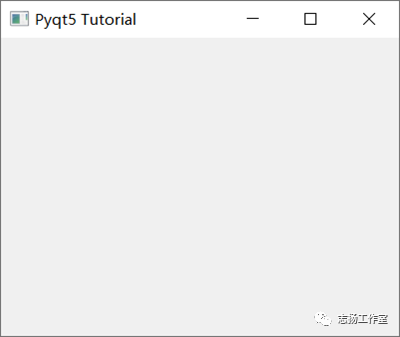
import sys
from PyQt5.QtWidgets import QApplication, QMainWindow, QLabel
app = QApplication(sys.argv)
win = QMainWindow()
win.setGeometry(400, 400, 400, 300)
win.setWindowTitle("Pyqt5 Tutorial")
win.show()
sys.exit(app.exec_())
?
其中:
Qapplication():每個GUI都必須包含一個Qapplication,argv表示獲取命令行參數(shù),如果不用獲取,則可以使用[]代替。
QMainWindow():類似一個容器(窗口)用來包含按鈕、文本、輸入框等widgets。arg標(biāo)識可以獲取命令行執(zhí)行時的參數(shù)。
SetGeometry是用來定義 QMainWindow() 窗口的尺寸, 語法:setGeometry(x, y, width, height ),其中x,y為屏幕上的坐標(biāo)點。
show():用來顯示窗口
exit(app.exec_()):設(shè)置窗口一直運行指導(dǎo)使用關(guān)閉按鈕進(jìn)行關(guān)閉
—
PyQt5 打包
將.py文件打包成可執(zhí)行的exe在Python中稱為freezing,常用的工具有:PyInstaller, py2exe, cx_Freeze, bbfreze, py2app等。功能對比:
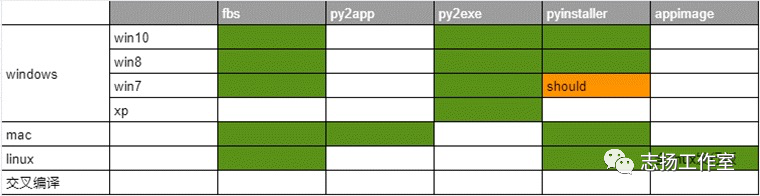
py2exe:軟件更新已經(jīng)不活躍,因此也就略過。
pyinstaller:明確支持win8、win10、理論上支持win7,,支持apple Macos, linux。pyinsaller可以打包成文件夾形式內(nèi)含exe入口執(zhí)行文件的形式,也可以是一個單獨的exe文件。
fbs[15]:基于PyInstaller,使用起來更加方便
—
參考資料:
https://www.52dianzi.com/category/article/37/653666.html
https://blog.51cto.com/quantfabric/2422601
QT Designer配置:
https://blog.csdn.net/nima1994/article/details/79579062
Pycharm配置:
https://blog.csdn.net/wu_l_v/article/details/79016139
QTDesigner與PyUIC配置
https://www.cnblogs.com/lsdb/p/9121903.html
將ui轉(zhuǎn)成對應(yīng)的py
https://blog.csdn.net/jasoncrawford/article/details/102787489
PyCharm怎樣設(shè)置Pyqcc
https://jingyan.baidu.com/article/5553fa8298b99c65a23934dd.html
將ui和qrc文件生成對應(yīng)的py文件
https://www.cnblogs.com/aziji/archive/2004/01/13/11996111.html
PYQT5配置:
QTDesigner與PyUIC配置
https://www.cnblogs.com/lsdb/p/9121903.html
將ui轉(zhuǎn)成對應(yīng)的py
https://blog.csdn.net/jasoncrawford/article/details/102787489
PYQT5案例:
https://blog.csdn.net/qq_30683995/article/details/90081370
PYQT5教程:
http://code.py40.com/2052.html
基于PYQT5添加背景圖片:
https://blog.csdn.net/cxj540947672/article/details/99857518
基于QT Designer, 控件隨窗口大小變化一直居中顯示:
https://www.cnblogs.com/dcb3688/p/4311138.html
https://jingyan.baidu.com/article/60ccbceb741d5064cab19719.html
pyuic轉(zhuǎn)換ui文件為py‘文件報錯No such file or directory:
https://blog.csdn.net/qq_44030336/article/details/89147183
PyCharm怎樣設(shè)置Pyqcc
https://jingyan.baidu.com/article/5553fa8298b99c65a23934dd.html
將ui和qrc文件生成對應(yīng)的py文件
https://www.cnblogs.com/aziji/archive/2004/01/13/11996111.html
Table Widget Item 顏色和字體設(shè)置
https://blog.csdn.net/qq_45690024/article/details/104417646
https://www.cnblogs.com/shiqi17/p/12175763.html
基于QChartView畫圖
https://www.pianshen.com/article/49071276716/
https://blog.csdn.net/dakey2008/article/details/106234667/
TortoiseSVN 使用教程:
https://www.runoob.com/svn/tortoisesvn-intro.html
Pyqt5 消息框
https://blog.csdn.net/qq_38161040/article/details/89394187?utm_medium=distribute.pc_relevant.none-task-blog-baidujs_title-3&spm=1001.2101.3001.4242
https://blog.csdn.net/wang_jiankun/article/details/83269859
https://www.jb51.net/article/138471.htm
Pyqt5 Table Widget 自動填充大小
https://www.jb51.net/article/181132.htm
pymysql 數(shù)據(jù)庫操作:
https://www.cnblogs.com/shanger/p/12982357.html
https://blog.csdn.net/weixin_33881050/article/details/92413426?utm_medium=distribute.pc_relevant.none-task-blog-baidujs_title-3&spm=1001.2101.3001.4242
https://www.cnblogs.com/ccorz/p/5711955.html
PyQT5 開發(fā)第一課:
https://blog.csdn.net/monsterlih/article/details/104235354
Qt模態(tài)界面設(shè)置setWindowModality禁止其他界面響應(yīng)
https://blog.csdn.net/u010058695/article/details/101011907
https://blog.csdn.net/zhuoyue008/article/details/82704572?utm_medium=distribute.pc_relevant_t0.none-task-blog-BlogCommendFromBaidu-1.control&depth_1-utm_source=distribute.pc_relevant_t0.none-task-blog-BlogCommendFromBaidu-1.control
https://blog.csdn.net/tomorrowsummer/article/details/106266614
ComboBox設(shè)置
https://blog.csdn.net/samenmoer/article/details/80384004
TableWidget 使用
https://www.cnblogs.com/eclipsexcs/p/12170134.html
PyQt5不同窗口之間的值傳遞
https://blog.csdn.net/qq_39560620/article/details/105711799
https://blog.csdn.net/sinat_36188088/article/details/102855170
https://blog.csdn.net/qq_27694835/article/details/112183376