如何使用React創(chuàng)建視頻和動(dòng)畫(huà)
點(diǎn)擊上方關(guān)注 TianTianUp,一起學(xué)習(xí),天天進(jìn)步
大家好,我是小弋。
分享的內(nèi)容是:
如何使用 React Remotion 來(lái)創(chuàng)建視頻的,如果你之前對(duì)視頻很感興趣的話,這篇文章可以參考。
正文
Remotion是一個(gè)最近推出的庫(kù),它允許您使用 React 創(chuàng)建視頻和動(dòng)態(tài)圖形。作為一名 Web 開(kāi)發(fā)人員,我發(fā)現(xiàn)它非常有趣,因?yàn)樗鼮槲覀冏约簞?chuàng)建視頻和動(dòng)畫(huà)打開(kāi)了一扇新的大門(mén)。
它的官網(wǎng):
https://www.remotion.dev/
簡(jiǎn)介
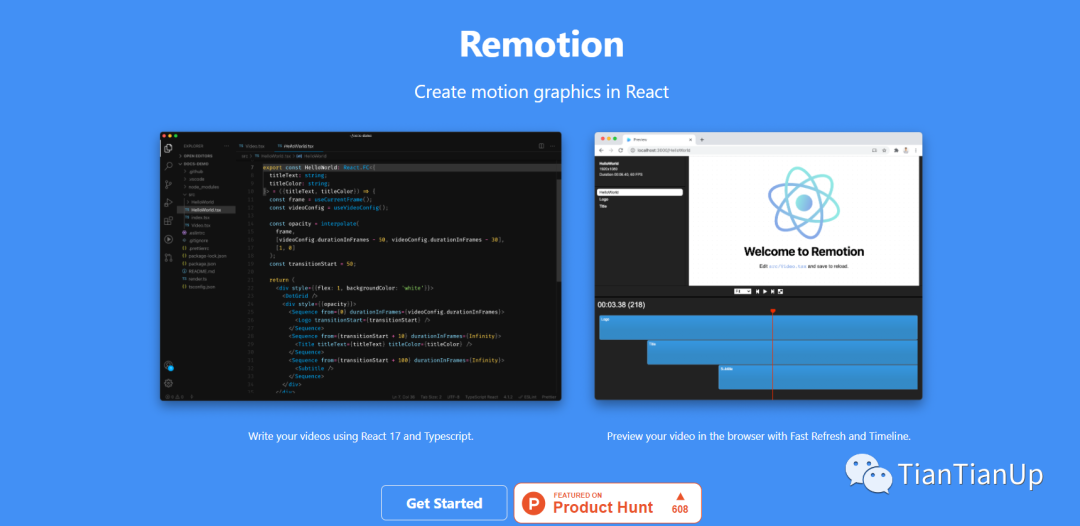
正如我提到的,Remotion是最近推出的一個(gè)令人興奮的庫(kù),它允許你使用你最喜歡的網(wǎng)絡(luò)技術(shù),如HTML、CSS、JavaScript、TypeScript等來(lái)創(chuàng)建視頻和動(dòng)畫(huà)。
除此之外,你還可以使用你所有關(guān)于編程、函數(shù)、算法、API的知識(shí)來(lái)為視頻添加各種效果。作為一個(gè)基于React的庫(kù),Remotion能夠最大限度地利用Reacts的特性,如可重用的組件、強(qiáng)大的組合和快速重載。
Remotion還配備了一個(gè)被稱為Remotion Player的播放器,它給你帶來(lái)了真正的視頻編輯器的感覺(jué),它可以用瀏覽器來(lái)播放和審查你的視頻。
如何設(shè)置Remotion?
創(chuàng)建一個(gè)新的Remotion項(xiàng)目是非常簡(jiǎn)單的。但有兩個(gè)依賴項(xiàng)你應(yīng)該先安裝。
步驟1:安裝NodeJS和FFMPEG
由于安裝NodeJS是非常常見(jiàn)的,我將重點(diǎn)介紹安裝FFMPEG。首先,你需要從他們的下載頁(yè)面下載合適版本的FFMPEG。
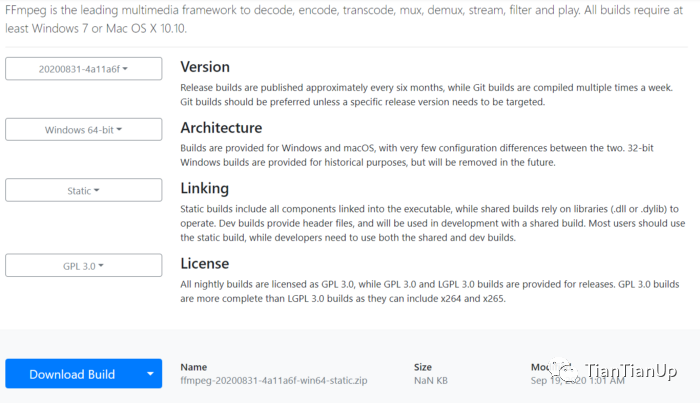
然后將其解壓到你選擇的文件夾中,并在CMD中以管理員權(quán)限運(yùn)行以下命令(在windows中)來(lái)更新你的路徑變量。
setx /M PATH "path\to\ffmpeg\bin;%PATH%"
第2步:?jiǎn)?dòng)新項(xiàng)目
安裝完上述依賴后,初始化一個(gè)新的Remotion視頻只需要一個(gè)命令,你可以使用yarn或npm來(lái)實(shí)現(xiàn)。
yarn create video
or
npm init video
你已經(jīng)成功地初始化了你的第一個(gè)Remotion項(xiàng)目,你可以使用npm run start來(lái)啟動(dòng)該項(xiàng)目。
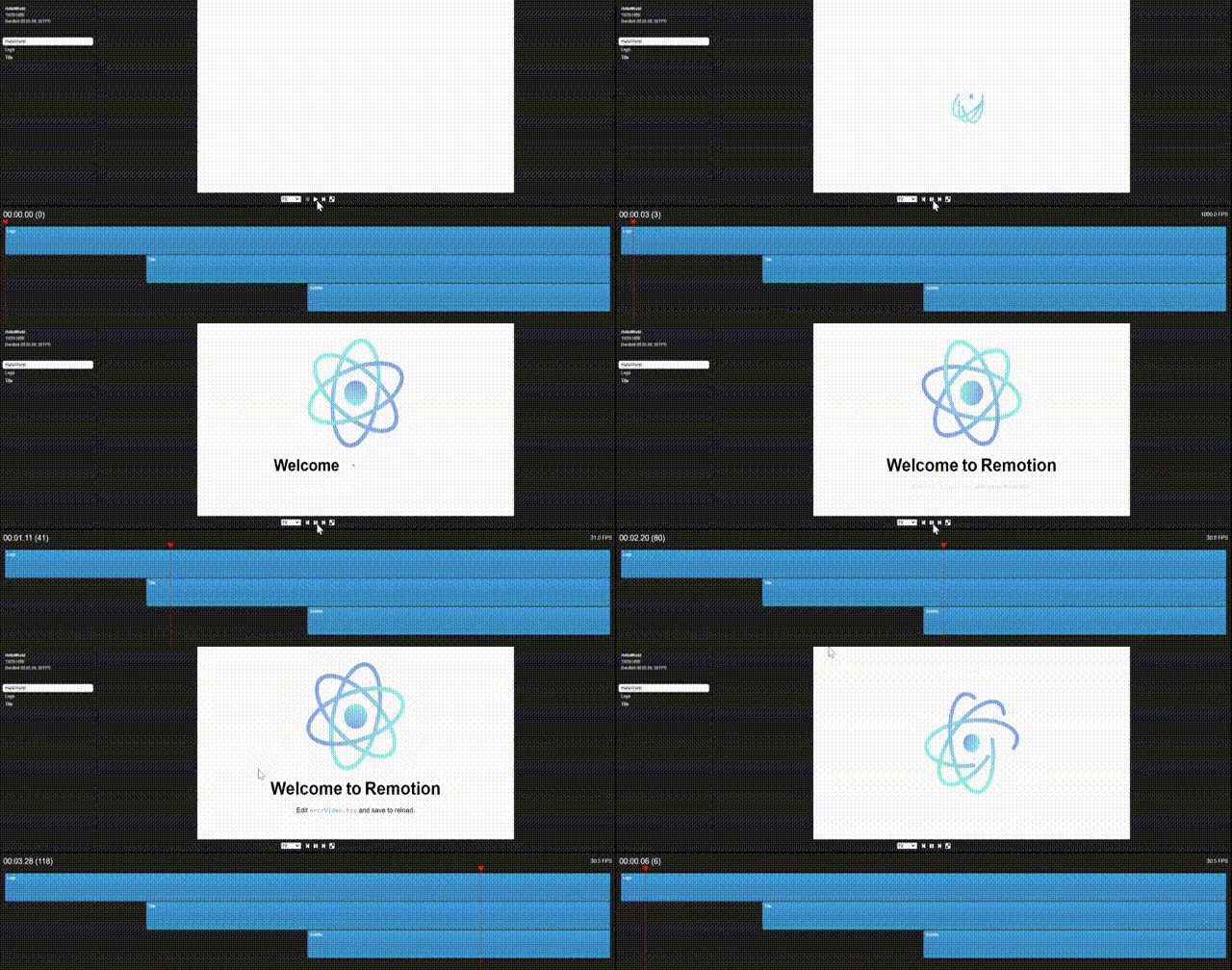
Remotion的基礎(chǔ)知識(shí)
既然你已經(jīng)啟動(dòng)了你的Remotion項(xiàng)目,你可以開(kāi)始創(chuàng)建你的視頻。但我認(rèn)為在這之前,如果你對(duì)Remotion的基礎(chǔ)知識(shí)有一定的了解會(huì)更好。
Video Properties
Width, height, durationInFrames, fps是由Remotion提供的視頻屬性。
你可以在組件中使用這些屬性來(lái)配置組件的像素大小,該組件應(yīng)該播放多少幀,以及每秒鐘的幀數(shù)。
import { useVideoConfig } from “remotion”;export const ExampleVideo = () => {
 const { fps, durationInFrames, width, height } = useVideoConfig();return (
 <div style={{ flex: 1, justifyContent: “center”, alignItems: “center” }}>
   This video is {durationInFrames / fps} seconds long.
 </div>
 );
};
建議使用useVideoConfig派生這些屬性,就像上面的例子一樣,使你的組件可以重復(fù)使用。
Compositions
Compositions也是Remotion中的一種組件,在這里你可以使用上述屬性作為元數(shù)據(jù)。
import {Composition} from 'remotion';
import {HelloReaders} from './HelloReaders';export const RemotionVideo: React.FC = () => {
 return (
   <>
    <Composition
     id=”HelloReaders”
     component={HelloReaders}
     durationInFrames={150}
     fps={30}
     width={1024}
     height={720}
     defaultProps={{
      titleText: ‘Welcome to My Blog’,
      titleColor: ‘black’,
     }}
    />
    <Composition
     ...
    />
    <Composition
     ...
    />
  </>
 );
}
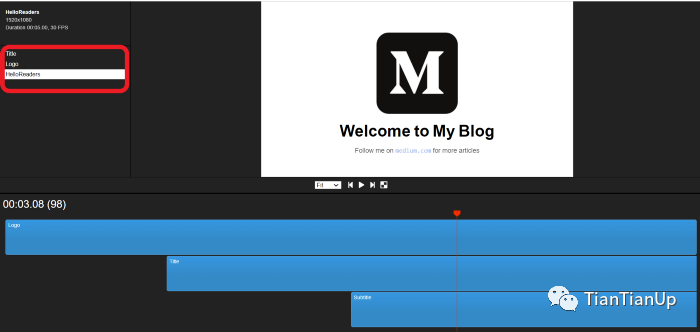
如果你觀察項(xiàng)目中的Video.tsx文件,你會(huì)看到3個(gè)Composition組件,每個(gè)組件中都有元數(shù)據(jù),包括視頻屬性。
同時(shí),這些組合也顯示在Remotion Player的左上角。
Animation Properties
當(dāng)涉及到視頻時(shí),動(dòng)畫(huà)是最重要的,而Remotion為您提供了配置一些驚人的動(dòng)畫(huà)的自由。例如,如果你需要一個(gè)簡(jiǎn)單的臉部效果,你可以逐幀調(diào)整幀的不透明度。
const frame = useCurrentFrame();
const opacity = frame >= 20 ? 1 : (frame / 20);
return (
 <div style={{
   opacity: opacity
 }}>
  Hello Readers!
 </div>
)
除此之外,Remotion還有2個(gè)內(nèi)建的函數(shù),名為interpolate和spring,你可以用它們來(lái)建立更高級(jí)的動(dòng)畫(huà)。
插值函數(shù)接受4個(gè)輸入?yún)?shù),包括輸入值(主要是幀),輸入可以承擔(dān)的范圍值,你想把輸入映射到的數(shù)值范圍,以及一個(gè)可選參數(shù)。
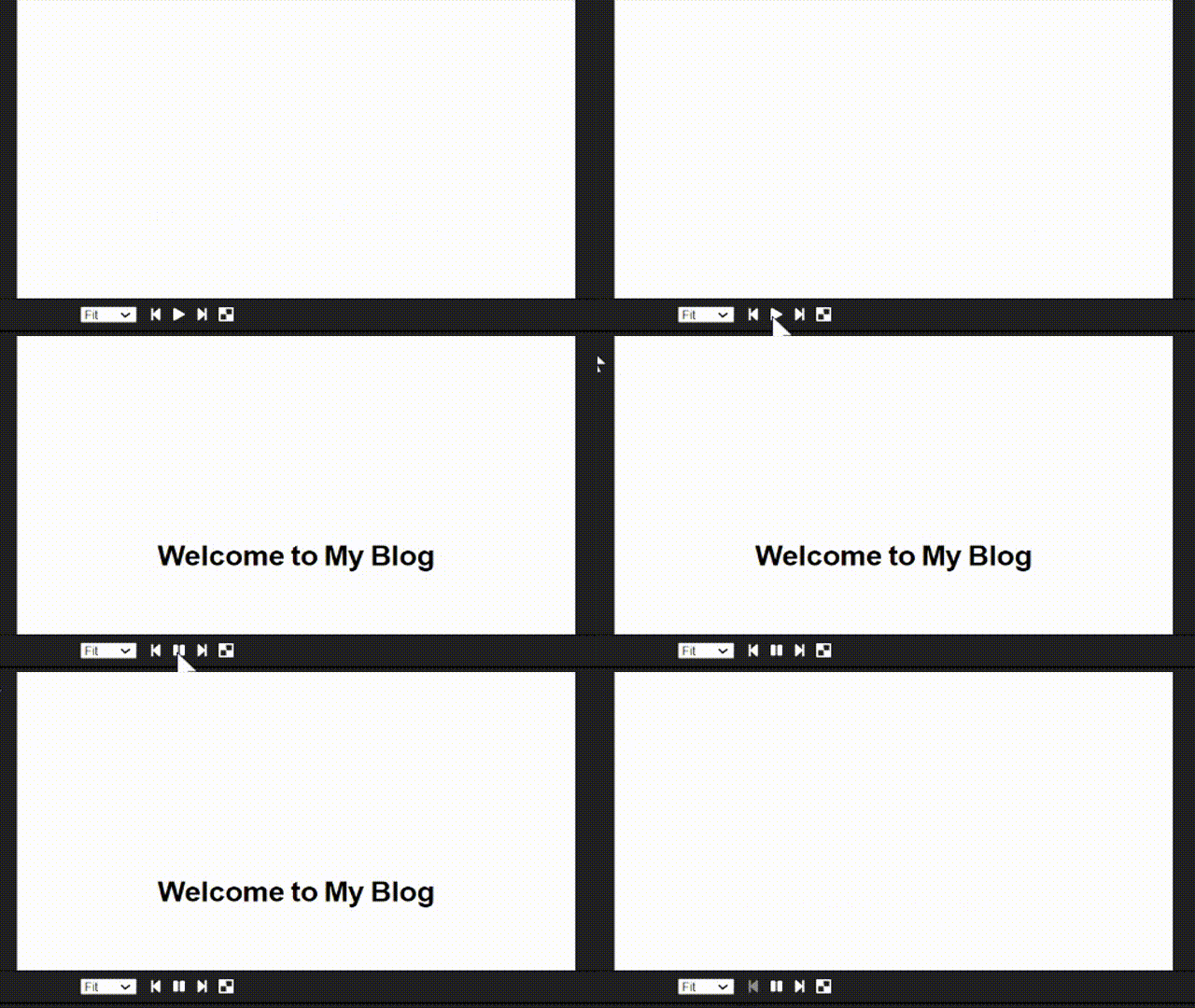
彈簧動(dòng)畫(huà)通過(guò)使動(dòng)畫(huà)更自然,讓你在演示中更有創(chuàng)意。例如,下面的彈簧動(dòng)畫(huà)配置會(huì)給你的文本添加一個(gè)小的縮放效果。
const {fps} = useVideoConfig();
const scale = spring({
  fps,
  from: 0,
  to: 1,
  frame
});return (
  <span
    style={{
      color: titleColor,
      marginLeft: 10,
      marginRight: 10,
      transform: `scale(${scale})`,
      display: ‘inline-block’,
    }}
  >
  Welcome to My Blog
  </span>
)
Sequence Component
Remotion中的 Sequence組件完成了2個(gè)主要任務(wù)。它主要是用來(lái)給視頻中的元素分配不同的時(shí)間框架。在保持元素之間的聯(lián)系的同時(shí),它也允許你重復(fù)使用同一個(gè)組件。
Sequence組件是一個(gè)高階組件,它有能力容納子組件。除此之外,它還接受3個(gè)prop,包括2個(gè)必需的prop和1個(gè)可選的prop。
name : 這是一個(gè)可選的prop。你指定的名字將出現(xiàn)在Remotion播放器的時(shí)間線上。如果你使用正確的命名模式,你將能夠理解每個(gè)組件是如何連接的。
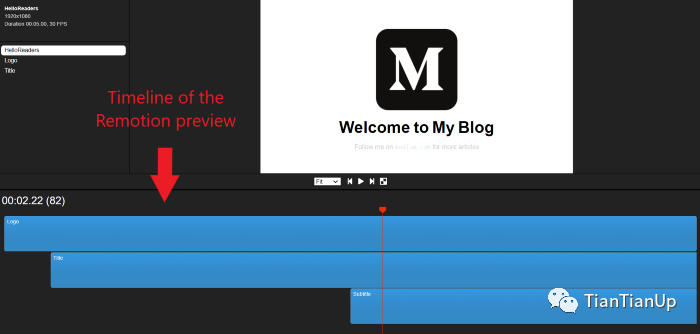
from: 這定義了框架,該組件應(yīng)該出現(xiàn)在視頻中。 durationInFrames: 以幀為單位的Sequence組件的長(zhǎng)度。
例如,下面的Sequence組件將在20幀后出現(xiàn)在視頻中,并將持續(xù)到結(jié)束,因?yàn)閐urationOnFrames是無(wú)限的。
<Sequence from={20} durationInFrames={Infinity}>
   <Title titleText={titleText} titleColor={titleColor} /></Sequence>
由于你現(xiàn)在對(duì)Remotion中的幾個(gè)基本屬性和組件有了基本的了解,我們可以開(kāi)始使用Remotion創(chuàng)建第一個(gè)視頻。
創(chuàng)建一個(gè)簡(jiǎn)單的視頻
正如你在上面的例子中已經(jīng)看到的,我將創(chuàng)建一個(gè)簡(jiǎn)單的視頻來(lái)顯示我的博客的標(biāo)志和歡迎詞,并有一些動(dòng)畫(huà)。
我將使用我們?cè)谖恼麻_(kāi)頭創(chuàng)建的默認(rèn)項(xiàng)目布局。
步驟1
首先,我為我的視頻中的3個(gè)元素創(chuàng)建了3個(gè)組件:Logo.tsx, Title.tsx和SubText.tsx。
Logo.tsx file:
import {spring, useCurrentFrame, useVideoConfig} from ‘remotion’;
import {Img} from ‘remotion’;
import image from ‘./logo.png’
export const Logo: React.FC<{
transitionStart: number;
 }> = ({transitionStart}) => {

  const videoConfig = useVideoConfig();
  const frame = useCurrentFrame();
   return (
   <div
    style={{
     textAlign: ‘center’,
     marginTop: ‘10%’,
     width: videoConfig.width,
     height: videoConfig.height,
    }}
   >
   <Img
    style={{
     transform:`scale(${spring({
      fps: videoConfig.fps,
      frame: frame — transitionStart,
      config: {
       damping: 100,
       stiffness: 200,
       mass: 0.5,
      },
     })})`,
    }}
    src={image}></Img>
   </div>
 );
};
Title.tsx file:
import {spring, useCurrentFrame, useVideoConfig} from 'remotion';export const Title: React.FC<{
 titleText: string;
 titleColor: string;
}> = ({titleText, titleColor}) => { const videoConfig = useVideoConfig();
 const frame = useCurrentFrame();
 const text = titleText.split(‘ ‘).map((text) => ` ${text} `);
 return (
  <h1
   style={{
    fontFamily: ‘Helvetica, Arial’,
    fontWeight: ‘bold’,
    fontSize: 110,
    textAlign: ‘center’,
    position: ‘a(chǎn)bsolute’,
    bottom: 160,
    width: ‘100%’,
   }}
  >
  {text.map((text, i) => {
   return (
    <span
     key={text}
     style={{
      color: titleColor,
      marginLeft: 10,
      marginRight: 10,
      transform: `scale(${spring({
       fps: videoConfig.fps,
       frame: frame — i * 5,
       config: {
        damping: 100,
        stiffness: 200,
        mass: 0.5,
       },
      })})`,
      display: ‘inline-block’,
     }}
    >
    {text}
    </span>
   );
  })}
 </h1>
);
};
SubText.tsx file:
import {interpolate, useCurrentFrame} from 'remotion';export const Title: React.FC<{
 titleText: string;
 titleColor: string;
}> = ({titleText, titleColor}) => {

 const frame = useCurrentFrame();
 const opacity = interpolate(frame, [0, 30], [0, 1]);return (
  <div
   style={{
    fontFamily: 'Helvetica, Arial',
    fontSize: 40,
    textAlign: 'center',
    position: 'absolute',
    bottom: 140,
    width: '100%',
    opacity,
   }}
  >
   Follow me on{' '}<code> medium.com </code>{' '} for more articles
  </div>
 );
};
步驟2
然后,我把這3個(gè)組件導(dǎo)入到MyVideo.tsx中,并用Sequence組件包裝,為每個(gè)組件分配相關(guān)的時(shí)間框架。除此之外,我還將幾個(gè)prop和動(dòng)畫(huà)傳遞給子組件。
import {interpolate, Sequence, useCurrentFrame, useVideoConfig} from ‘remotion’;
import {Logo} from ‘./components/Logo’;
import {SubText} from ‘./components/SubText’;
import {Title} from ‘./components/Title’;export const MyVideo: React.FC<{
titleText: string;
titleColor: string;
}> = ({titleText, titleColor}) => {const frame = useCurrentFrame();
const videoConfig = useVideoConfig();
const opacity =
 interpolate(
  frame,
  [videoConfig.durationInFrames — 25,
   videoConfig.durationInFrames
   15
  ],
  [1, 0],
  {extrapolateLeft: ‘clamp’,extrapolateRight: ‘clamp’,}
 );
const transitionStart = 0;return (
 <div style={{flex: 1, backgroundColor: ‘white’}}>
 <div style={{opacity}}>  <Sequence
   from={0}
   durationInFrames={videoConfig.durationInFrames}>
    <Logo transitionStart={transitionStart} />
  </Sequence>  <Sequence
   from={transitionStart + 35}
   durationInFrames={Infinity}>
    <Title titleText={titleText} titleColor={titleColor} />
  </Sequence>  <Sequence
   from={transitionStart + 75}
   durationInFrames={Infinity}>
    <SubText />
  </Sequence>
 </div>
 </div>
);
};
步驟3
最后,我將上述所有文件導(dǎo)入Video.tsx,并使用Composition組件傳遞相關(guān)元數(shù)據(jù)。
import {Composition} from ‘remotion’;
import {MyVideo} from ‘./MyVideo’;
import {Logo} from ‘./components/Logo’;
import {SubText} from ‘./components/SubText’;
export const RemotionVideo: React.FC = () => {
 return (
  <>
   <Composition
    id=”HelloReaders”
    component={HelloReaders}
    durationInFrames={150}
    fps={30}
    width={1920}
    height={1080}
    defaultProps={{
     titleText: ‘Welcome to My Blog’,
     titleColor: ‘black’,
    }}
   />
   <Composition
    id=”Logo”
    component={Logo}
    durationInFrames={200}
    fps={30}
    width={1920}
    height={1080}
   />
   <Composition
    id=”Title”
    component={SubText}
    durationInFrames={100}
    fps={30}
    width={1920}
    height={1080}
   />
  </>
 );
};
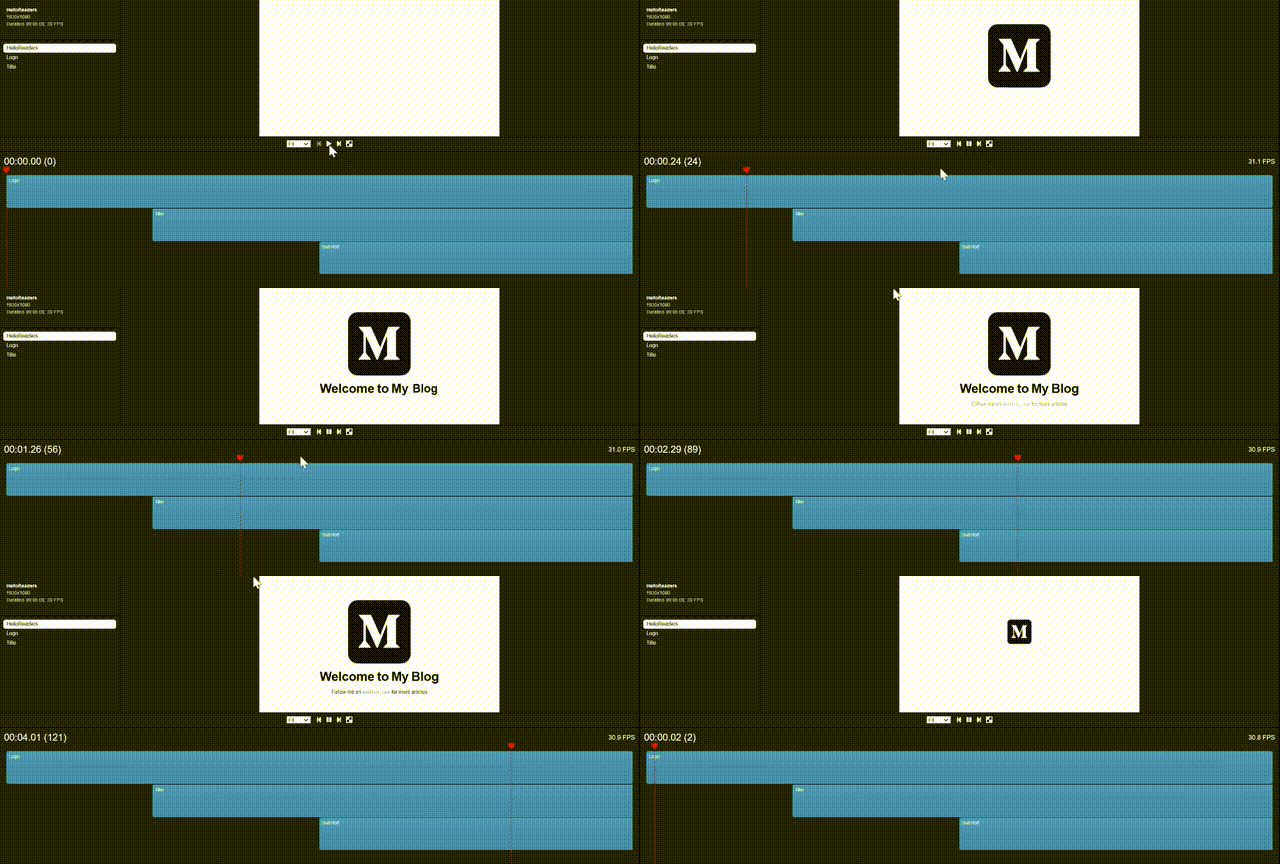
現(xiàn)在,你就可以運(yùn)行你的第一個(gè)Remotion視頻了。你可以使用npm run start在開(kāi)發(fā)模式下看到它,或者使用npm run build保存為mp4文件。
結(jié)論
雖然Remotion還很年輕,但它已經(jīng)有了一些驚人的功能。它可能還達(dá)不到專業(yè)視頻編輯器的質(zhì)量。但我們肯定可以期待一些驚喜的到來(lái)。
此外,Remotion還有像參數(shù)化渲染、服務(wù)器端渲染和數(shù)據(jù)獲取這樣的功能,這些對(duì)于開(kāi)發(fā)者來(lái)說(shuō)是非常熟悉的。他們可以利用自己的經(jīng)驗(yàn),從這個(gè)工具中獲得最大的收益。
最重要的是,對(duì)于那些尋求創(chuàng)建個(gè)人使用的小視頻或動(dòng)畫(huà)的方法的人來(lái)說(shuō),它是一個(gè)很好的選擇。
在我看來(lái),我們可以利用Remotion來(lái)創(chuàng)建簡(jiǎn)單的視頻和動(dòng)畫(huà),用我們所掌握的網(wǎng)絡(luò)開(kāi)發(fā)知識(shí)。但在視頻編輯功能方面,很多東西需要改進(jìn)和簡(jiǎn)化。
不過(guò),我強(qiáng)烈建議你下載Remotion,并給它一個(gè)機(jī)會(huì)。這將是一種全新的體驗(yàn)。
謝謝您的閱讀!!!
最后
面試交流群持續(xù)開(kāi)放,分享了近 許多 個(gè)面經(jīng)。
加我微信: DayDay2021,備注面試,拉你進(jìn)群。
我是 小弋,我們下篇見(jiàn)~