10 個(gè) Python 腳本來(lái)自動(dòng)化你的日常任務(wù)
點(diǎn)擊上方“菜學(xué)Python”,選擇“星標(biāo)”公眾號(hào)
超級(jí)無(wú)敵干貨,第一時(shí)間送達(dá)!!!
英文 | https://python.plainenglish.io/10-python-scripts-to-automate-your-daily-task-de1496fdf64a | Haider Imtiaz
翻譯 | 楊小愛(ài)
在這個(gè)自動(dòng)化時(shí)代,我們有很多重復(fù)無(wú)聊的工作要做。 想想這些你不再需要一次又一次地做的無(wú)聊的事情,讓它自動(dòng)化,讓你的生活更輕松。 那么在本文中,我將向您介紹 10 個(gè) Python 自動(dòng)化腳本,以使你的工作更加自動(dòng)化,生活更加輕松。 因此,沒(méi)有更多的重復(fù)任務(wù)將這篇文章放在您的列表中,讓我們開(kāi)始吧。
# Parse and Extract HTML# pip install gazpachoimport gazpacho# Extract HTML from URLurl = 'https://www.example.com/'html = gazpacho.get(url)print(html)# Extract HTML with Headersheaders = {'User-Agent': 'Mozilla/5.0'}html = gazpacho.get(url, headers=headers)print(html)# Parse HTMLparse = gazpacho.Soup(html)# Find single tagstag1 = parse.find('h1')tag2 = parse.find('span')# Find multiple tagstags1 = parse.find_all('p')tags2 = parse.find_all('a')# Find tags by classtag = parse.find('.class')# Find tags by Attributetag = parse.find("div", attrs={"class": "test"})# Extract text from tagstext = parse.find('h1').texttext = parse.find_all('p')[0].text
02、二維碼掃描儀
擁有大量二維碼圖像或只想掃描二維碼圖像,那么此自動(dòng)化腳本將幫助你。該腳本使用 Qrtools 模塊,使你能夠以編程方式掃描 QR 圖像。
# Qrcode Scanner# pip install qrtoolsfrom qrtools import Qrdef Scan_Qr(qr_img):qr = Qr()qr.decode(qr_img)print(qr.data)return qr.dataprint("Your Qr Code is: ", Scan_Qr("qr.png"))
03、截圖
現(xiàn)在,你可以使用下面這個(gè)很棒的腳本以編程方式截取屏幕截圖。使用此腳本,你可以直接截屏或截取特定區(qū)域的屏幕截圖。
# Grab Screenshot# pip install pyautogui# pip install Pillowfrom pyautogui import screenshotimport timefrom PIL import ImageGrab# Grab Screenshot of Screendef grab_screenshot():shot = screenshot()shot.save('my_screenshot.png')# Grab Screenshot of Specific Areadef grab_screenshot_area():area = (0, 0, 500, 500)shot = ImageGrab.grab(area)shot.save('my_screenshot_area.png')# Grab Screenshot with Delaydef grab_screenshot_delay():time.sleep(5)shot = screenshot()shot.save('my_screenshot_delay.png')
04、創(chuàng)建有聲讀物
厭倦了手動(dòng)將您的 PDF 書(shū)籍轉(zhuǎn)換為有聲讀物,那么這是你的自動(dòng)化腳本,它使用 GTTS 模塊將你的 PDF 文本轉(zhuǎn)換為音頻。
# Create Audiobooks# pip install gTTS# pip install PyPDF2from PyPDF2 import PdfFileReader as readerfrom gtts import gTTSdef create_audio(pdf_file):read_Pdf = reader(open(pdf_file, 'rb'))for page in range(read_Pdf.numPages):text = read_Pdf.getPage(page).extractText()tts = gTTS(text, lang='en')tts.save('page' + str(page) + '.mp3')create_audio('book.pdf')
05、PDF 編輯器
使用以下自動(dòng)化腳本使用 Python 編輯 PDF 文件。該腳本使用 PyPDF4 模塊,它是 PyPDF2 的升級(jí)版本,下面我編寫(xiě)了 Parse Text、Remove pages 等常用功能。
當(dāng)你有大量 PDF 文件要編輯或需要以編程方式在 Python 項(xiàng)目中使用腳本時(shí),這是一個(gè)方便的腳本。
# PDF Editor# pip install PyPDf4import PyPDF4# Parse the Text from PDFdef parse_text(pdf_file):reader = PyPDF4.PdfFileReader(pdf_file)for page in reader.pages:print(page.extractText())# Remove Page from PDFdef remove_page(pdf_file, page_numbers):filer = PyPDF4.PdfReader('source.pdf', 'rb')out = PyPDF4.PdfWriter()for index in page_numbers:page = filer.pages[index]out.add_page(page)with open('rm.pdf', 'wb') as f:out.write(f)# Add Blank Page to PDFdef add_page(pdf_file, page_number):reader = PyPDF4.PdfFileReader(pdf_file)writer = PyPDF4.PdfWriter()writer.addPage()with open('add.pdf', 'wb') as f:writer.write(f)# Rotate Pagesdef rotate_page(pdf_file):reader = PyPDF4.PdfFileReader(pdf_file)writer = PyPDF4.PdfWriter()for page in reader.pages:page.rotateClockwise(90)writer.addPage(page)with open('rotate.pdf', 'wb') as f:writer.write(f)# Merge PDFsdef merge_pdfs(pdf_file1, pdf_file2):pdf1 = PyPDF4.PdfFileReader(pdf_file1)pdf2 = PyPDF4.PdfFileReader(pdf_file2)writer = PyPDF4.PdfWriter()for page in pdf1.pages:writer.addPage(page)for page in pdf2.pages:writer.addPage(page)with open('merge.pdf', 'wb') as f:writer.write(f)
06、迷你 Stackoverflow
作為一名程序員,我知道我們每天都需要 StackOverflow,但你不再需要在 Google 上搜索它。現(xiàn)在,在您繼續(xù)處理項(xiàng)目的同時(shí),在你的 CMD 中獲得直接解決方案。通過(guò)使用 Howdoi 模塊,你可以在命令提示符或終端中獲得 StackOverflow 解決方案。你可以在下面找到一些可以嘗試的示例。
Automate Stackoverflowpip install howdoiGet Answers in CMDexample 1howdoi how do i install python3example 2howdoi selenium Enter keysexample 3howdoi how to install modulesexample 4howdoi Parse html with pythonexample 5howdoi int not iterable errorexample 6howdoi how to parse pdf with pythonexample 7howdoi Sort list in pythonexample 8howdoi merge two lists in pythonexample 9howdoi get last element in list pythonexample 10howdoi fast way to sort list
07、自動(dòng)化手機(jī)
此自動(dòng)化腳本將幫助你使用 Python 中的 Android 調(diào)試橋 (ADB) 自動(dòng)化你的智能手機(jī)。下面我將展示如何自動(dòng)執(zhí)行常見(jiàn)任務(wù),例如滑動(dòng)手勢(shì)、呼叫、發(fā)送短信等等。
您可以了解有關(guān) ADB 的更多信息,并探索更多令人興奮的方法來(lái)實(shí)現(xiàn)手機(jī)自動(dòng)化,讓您的生活更輕松。
# Automate Mobile Phones# pip install opencv-pythonimport subprocessdef main_adb(cm):p = subprocess.Popen(cm.split(' '), stdout=subprocess.PIPE, shell=True)(output, _) = p.communicate()return output.decode('utf-8')# Swipedef swipe(x1, y1, x2, y2, duration):cmd = 'adb shell input swipe {} {} {} {} {}'.format(x1, y1, x2, y2, duration)return main_adb(cmd)# Tap or Clickingdef tap(x, y):cmd = 'adb shell input tap {} {}'.format(x, y)return main_adb(cmd)# Make a Calldef make_call(number):cmd = f"adb shell am start -a android.intent.action.CALL -d tel:{number}"return main_adb(cmd)# Send SMSdef send_sms(number, message):cmd = 'adb shell am start -a android.intent.action.SENDTO -d sms:{} --es sms_body "{}"'.format(number, message)return main_adb(cmd)# Download File From Mobile to PCdef download_file(file_name):cmd = 'adb pull /sdcard/{}'.format(file_name)return main_adb(cmd)# Take a screenshotdef screenshot():cmd = 'adb shell screencap -p'return main_adb(cmd)# Power On and Offdef power_off():cmd = '"adb shell input keyevent 26"'return main_adb(cmd)
08、監(jiān)控 CPU/GPU 溫度
你可能使用 CPU-Z 或任何規(guī)格監(jiān)控軟件來(lái)捕獲你的 Cpu 和 Gpu 溫度,但你也可以通過(guò)編程方式進(jìn)行。好吧,這個(gè)腳本使用 Pythonnet 和 OpenhardwareMonitor 來(lái)幫助你監(jiān)控當(dāng)前的 Cpu 和 Gpu 溫度。
你可以使用它在達(dá)到一定溫度時(shí)通知自己,也可以在 Python 項(xiàng)目中使用它來(lái)簡(jiǎn)化日常生活。
# Get CPU/GPU Temperature# pip install pythonnetimport clrclr.AddReference("OpenHardwareMonitorLib")from OpenHardwareMonitorLib import *spec = Computer()spec.GPUEnabled = Truespec.CPUEnabled = Truespec.Open()# Get CPU Tempdef Cpu_Temp():while True:for cpu in range(0, len(spec.Hardware[0].Sensors)):if "/temperature" in str(spec.Hardware[0].Sensors[cpu].Identifier):print(str(spec.Hardware[0].Sensors[cpu].Value))# Get GPU Tempdef Gpu_Temp()while True:for gpu in range(0, len(spec.Hardware[0].Sensors)):if "/temperature" in str(spec.Hardware[0].Sensors[gpu].Identifier):print(str(spec.Hardware[0].Sensors[gpu].Value))
09、Instagram 上傳機(jī)器人
Instagram 是一個(gè)著名的社交媒體平臺(tái),你現(xiàn)在不需要通過(guò)智能手機(jī)上傳照片或視頻。你可以使用以下腳本以編程方式執(zhí)行此操作。
# Upload Photos and Video on Insta# pip install instabotfrom instabot import Botdef Upload_Photo(img):robot = Bot()robot.login(username="user", password="pass")robot.upload_photo(img, caption="Medium Article")print("Photo Uploaded")def Upload_Video(video):robot = Bot()robot.login(username="user", password="pass")robot.upload_video(video, caption="Medium Article")print("Video Uploaded")def Upload_Story(img):robot = Bot()robot.login(username="user", password="pass")robot.upload_story(img, caption="Medium Article")print("Story Photos Uploaded")Upload_Photo("img.jpg")Upload_Video("video.mp4")
10、視頻水印
使用此自動(dòng)化腳本為你的視頻添加水印,該腳本使用 Moviepy,這是一個(gè)方便的視頻編輯模塊。在下面的腳本中,你可以看到如何添加水印并且可以自由使用它。
# Video Watermark with Python# pip install moviepyfrom moviepy.editor import *clip = VideoFileClip("myvideo.mp4", audio=True)width,height = clip.sizetext = TextClip("WaterMark", font='Arial', color='white', fontsize=28)set_color = text.on_color(size=(clip.w + text.w, text.h-10), color=(0,0,0), pos=(6,'center'), col_opacity=0.6)set_textPos = set_color.set_pos( lambda pos: (max(width/30,int(width-0.5* width* pos)),max(5*height/6,int(100* pos))) )Output = CompositeVideoClip([clip, set_textPos])Output.duration = clip.durationOutput.write_videofile("output.mp4", fps=30, codec='libx264')
好書(shū)推薦
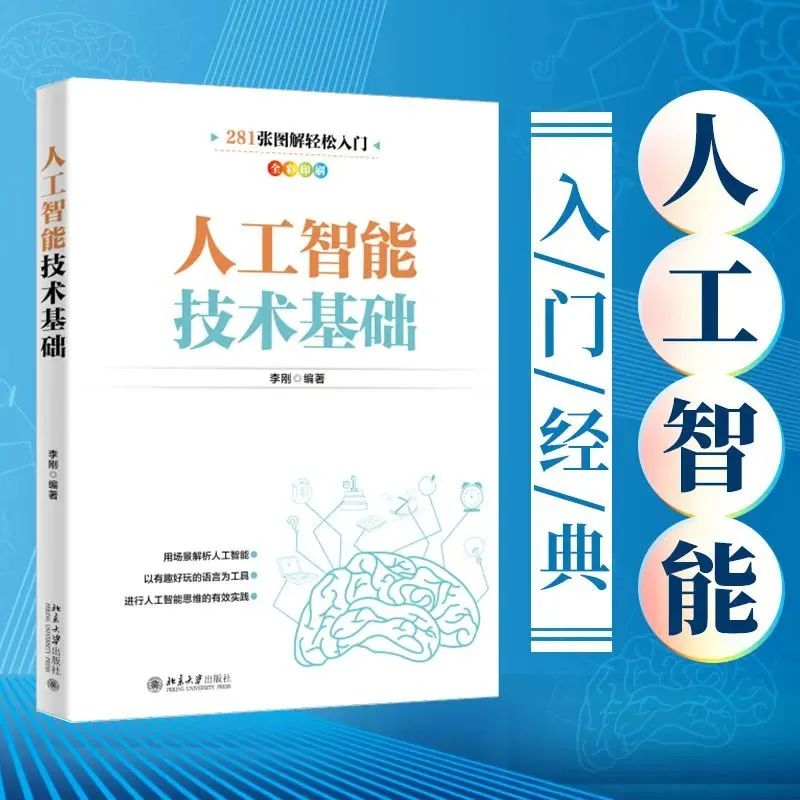
區(qū)別于市場(chǎng)上同類書(shū),本書(shū)不但側(cè)重于理論知識(shí)的普及,也將技術(shù)融合于Python模塊進(jìn)行實(shí)驗(yàn)上的操作與演示。本書(shū)主要內(nèi)容包括:人工智能技術(shù)概述,人臉識(shí)別技術(shù)、物體識(shí)別技術(shù),視頻識(shí)別技術(shù)、語(yǔ)音識(shí)別技術(shù)、文本識(shí)別技術(shù),區(qū)塊鏈技術(shù)等。全書(shū)綜合了各種模塊對(duì)人工智能技術(shù)的實(shí)踐,將分散的技術(shù)點(diǎn)統(tǒng)一起來(lái),并把抽象的原理與適應(yīng)讀者思維的案例相融合,實(shí)現(xiàn)知識(shí)點(diǎn)的充分理解。本書(shū)適合從事數(shù)據(jù)科學(xué)及AI的讀者閱讀。
推薦閱讀:
入門: 最全的零基礎(chǔ)學(xué)Python的問(wèn)題 | 零基礎(chǔ)學(xué)了8個(gè)月的Python | 實(shí)戰(zhàn)項(xiàng)目 |學(xué)Python就是這條捷徑
干貨:爬取豆瓣短評(píng),電影《后來(lái)的我們》 | 38年NBA最佳球員分析 | 從萬(wàn)眾期待到口碑撲街!唐探3令人失望 | 笑看新倚天屠龍記 | 燈謎答題王 |用Python做個(gè)海量小姐姐素描圖 |碟中諜這么火,我用機(jī)器學(xué)習(xí)做個(gè)迷你推薦系統(tǒng)電影
趣味:彈球游戲 | 九宮格 | 漂亮的花 | 兩百行Python《天天酷跑》游戲!
AI: 會(huì)做詩(shī)的機(jī)器人 | 給圖片上色 | 預(yù)測(cè)收入 | 碟中諜這么火,我用機(jī)器學(xué)習(xí)做個(gè)迷你推薦系統(tǒng)電影
小工具: Pdf轉(zhuǎn)Word,輕松搞定表格和水印! | 一鍵把html網(wǎng)頁(yè)保存為pdf!| 再見(jiàn)PDF提取收費(fèi)! | 用90行代碼打造最強(qiáng)PDF轉(zhuǎn)換器,word、PPT、excel、markdown、html一鍵轉(zhuǎn)換 | 制作一款釘釘?shù)蛢r(jià)機(jī)票提示器! |60行代碼做了一個(gè)語(yǔ)音壁紙切換器天天看小姐姐!|
年度爆款文案
點(diǎn)閱讀原文,看B站我的視頻!