120 行代碼實(shí)現(xiàn)純 Web 剪輯視頻
翁佳瑞:微醫(yī)前端技術(shù)部前端工程師,一個(gè)愛玩 dota2 的咸魚。
前言
前幾天偶爾看到一篇 webassembly 的相關(guān)文章,對(duì)這個(gè)技術(shù)還是挺感興趣的,在了解一些相關(guān)知識(shí)的基礎(chǔ)上,看下自己能否小小的實(shí)踐下。
什么是 webasembly?
WebAssembly(wasm)就是一個(gè)可移植、體積小、加載快并且兼容 Web 的全新格式。可以將 C,C++等語言編寫的模塊通過編譯器來創(chuàng)建 wasm 格式的文件,此模塊通過二進(jìn)制的方式發(fā)給瀏覽器,然后 js 可以通過 wasm 調(diào)用其中的方法功能。
WebAssembly 的優(yōu)勢(shì)
網(wǎng)上對(duì)于這個(gè)相關(guān)的介紹應(yīng)該有很多了,WebAssembly 優(yōu)勢(shì)性能好,運(yùn)行速度遠(yuǎn)高于 Js,對(duì)于需要高計(jì)算量、對(duì)性能要求高的應(yīng)用場(chǎng)景如圖像/視頻解碼、圖像處理、3D/WebVR/AR 等,優(yōu)勢(shì)非常明顯,們可以將現(xiàn)有的用 C、C++等語言編寫的庫直接編譯成 WebAssembly 運(yùn)行到瀏覽器上,并且可以作為庫被 JavaScript 引用。那就意味著我們可以將很多后端的工作轉(zhuǎn)移到前端,減輕服務(wù)器的壓力。.........
WebAssembly 最簡(jiǎn)單的實(shí)踐調(diào)用
我們編寫一個(gè)最簡(jiǎn)單的 c 文件
int add(int a,int b) {
  return a + b;
}
然后安裝對(duì)于的 Emscripten 編譯器Emscripten 安裝指南
emcc test.c -Os -s WASM=1 -s SIDE_MODULE=1 -o test.wasm
然后我們?cè)?html 中引入使用即可
fetch('./test.wasm').then(response =>
  response.arrayBuffer()
).then(bytes =>
  WebAssembly.instantiate(bytes)
).then(results => {
  const add = results.instance.exports.add
  console.log(add(11,33))
});
這時(shí)我們即可在控制臺(tái)看到對(duì)應(yīng)的打印日志,成功調(diào)用我們編譯的代碼啦
正式開動(dòng)
既然我們已經(jīng)知道如何能快速的調(diào)用到一些已經(jīng)成熟的 C,C++的類庫,那我們離在線剪輯視頻預(yù)期目標(biāo)更進(jìn)一步了。
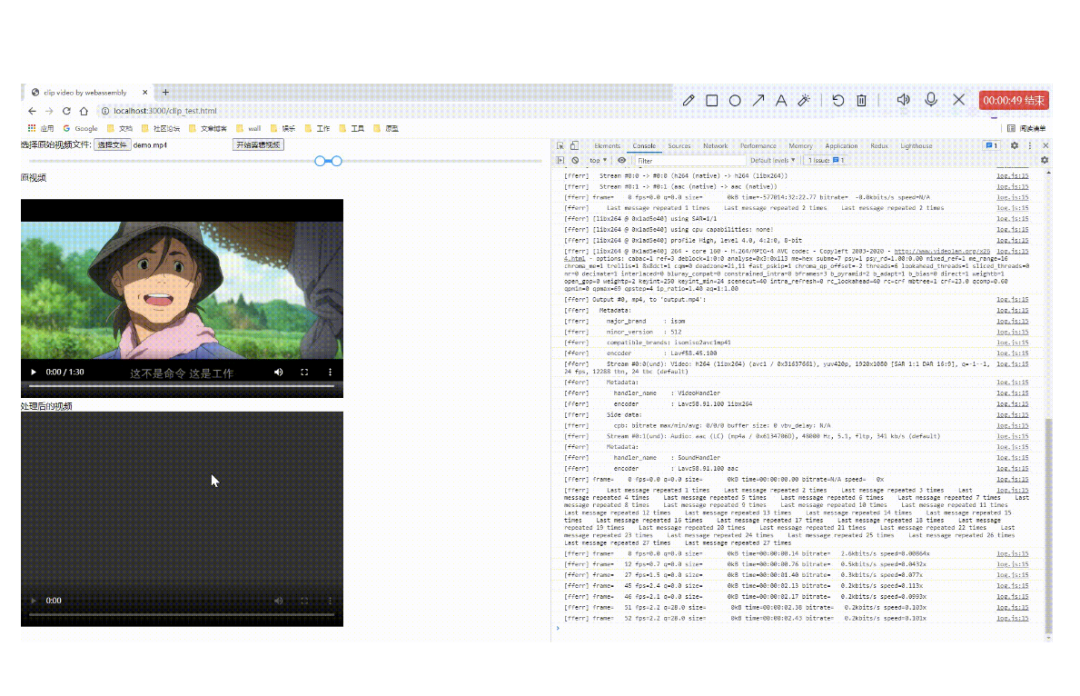
最終 demo 演示
由于錄制操作的電腦 cpu 不太行,所以可能耗時(shí)比較久,但整體的效果還是能看的到滴
demo 倉庫地址(https://github.com/Dseekers/clip-video-by-webassembly)
FFmpeg
在這個(gè)之前你得稍微的了解下啥是 FFmpeg? 以下根據(jù)維基百科的目錄解釋
FFmpeg 是一個(gè)開放源代碼的自由軟件,可以運(yùn)行音頻和視頻多種格式的錄影、轉(zhuǎn)換、流功能[1],包含了 libavcodec——這是一個(gè)用于多個(gè)項(xiàng)目中音頻和視頻的解碼器庫,以及 libavformat——一個(gè)音頻與視頻格式轉(zhuǎn)換庫。
簡(jiǎn)單的說這個(gè)就是由 C 語言編寫的視頻處理軟件,它的用法也是相當(dāng)?shù)魏?jiǎn)單
我主要將這次需要用到的命令給調(diào)了出來,如果你還可能用到別的命令,可以根據(jù)他的官方文檔查看 ,還可以了解下阮一峰大佬的文章 (https://www.ruanyifeng.com/blog/2020/01/ffmpeg.html)
ffmpeg -ss [start] -i [input] -to [end] -c copy [output]
start 為開始時(shí)間 end 為結(jié)束時(shí)間 input 為需要操作的視頻源文件 output 為輸出文件的位置名稱
這一行代碼就是我們需要用到的剪輯視頻的命令了
獲取相關(guān)的FFmpeg的wasm
由于通過 Emscripten 編譯 ffmpeg 成 wasm 存在較多的環(huán)境問題,所以我們這次直接使用在線已經(jīng)編譯好的 CDN 資源
這邊就直接使用了這個(gè)比較成熟的庫 https://github.com/ffmpegwasm/ffmpeg.wasm
為了本地調(diào)試方便,我把其相關(guān)的資源都下了下來 一共 4 個(gè)資源文件
ffmpeg.min.js
ffmpeg-core.js
ffmpeg-core.wasm
ffmpeg-core.worker.js
我們使用的時(shí)候只需引入第一個(gè)文件即可,其它文件會(huì)在調(diào)用時(shí)通過 fetch 方式去拉取資源
最小的功能實(shí)現(xiàn)
前置功能實(shí)現(xiàn):
在我們本地需要實(shí)現(xiàn)一個(gè) node 服務(wù),因?yàn)槭褂?ffmpeg 這個(gè)模塊會(huì)出現(xiàn)如果沒在服務(wù)器端設(shè)置響應(yīng)頭,
會(huì)報(bào)錯(cuò) SharedArrayBuffer is not defined,這個(gè)是因?yàn)橄到y(tǒng)的安全漏洞,瀏覽器默認(rèn)禁用了該 api,若要啟用則需要在 header 頭上設(shè)置
Cross-Origin-Opener-Policy: same-origin
Cross-Origin-Embedder-Policy: require-corp
我們啟動(dòng)一個(gè)簡(jiǎn)易的 node 服務(wù)
const Koa = require('koa');
const path = require('path')
const fs = require('fs')
const router = require('koa-router')();
const static = require('koa-static')
const staticPath = './static'
const app = new Koa();
app.use(static(
    path.join(__dirname, staticPath)
))
// log request URL:
app.use(async (ctx, next) => {
    console.log(`Process ${ctx.request.method} ${ctx.request.url}...`);
    ctx.set('Cross-Origin-Opener-Policy', 'same-origin')
    ctx.set('Cross-Origin-Embedder-Policy', 'require-corp')
    await next();
});

router.get('/', async (ctx, next) => {
    ctx.response.body = '<h1>Index</h1>';
});
router.get('/:filename', async (ctx, next) => {
    console.log(ctx.request.url)
    const filePath = path.join(__dirname, ctx.request.url);
    console.log(filePath)
    const htmlContent = fs.readFileSync(filePath);
    ctx.type = "html";
    ctx.body = htmlContent;
});
app.use(router.routes());
app.listen(3000);
console.log('app started at port 3000...');
我們做一個(gè)最小化的 demo 來實(shí)現(xiàn)下這個(gè)剪輯功能,剪輯視頻的前一秒鐘 新建一個(gè) demo.html 文件,引入相關(guān)資源
<script src="https://cdn.jsdelivr.net/npm/[email protected]/dist/jquery.min.js"></script>
<script src="./assets/ffmpeg.min.js"></script>

<div class="container">
  <div class="operate">
    選擇原始視頻文件:
    <input type="file" id="select_origin_file">
    <button id="start_clip">開始剪輯視頻</button>
  </div>
  <div class="video-container">
    <div class="label">原視頻</div>
    <video class="my-video" id="origin-video" controls></video>
  </div>
  <div class="video-container">
    <div class="label">處理后的視頻</div>
    <video class="my-video" id="handle-video" controls></video>
  </div>
</div>
let originFile
$(document).ready(function () {
  $('#select_origin_file').on('change', (e) => {
    const file = e.target.files[0]
    originFile = file
    const url = window.webkitURL.createObjectURL(file)
    $('#origin-video').attr('src', url)
  })
  $('#start_clip').on('click', async function () {
    const { fetchFile, createFFmpeg } = FFmpeg;
    ffmpeg = createFFmpeg({
      log: true,
      corePath: './assets/ffmpeg-core.js',
    });
    const file = originFile
    const { name } = file;
    if (!ffmpeg.isLoaded()) {
      await ffmpeg.load();
    }
    ffmpeg.FS('writeFile', name, await fetchFile(file));
    await ffmpeg.run('-i', name, '-ss', '00:00:00', '-to', '00:00:01', 'output.mp4');
    const data = ffmpeg.FS('readFile', 'output.mp4');
    const tempURL = URL.createObjectURL(new Blob([data.buffer], { type: 'video/mp4' }));
    $('#handle-video').attr('src', tempURL)
  })
});
其代碼的含義也是相當(dāng)簡(jiǎn)單,通過引入的 FFmpeg 去創(chuàng)建一個(gè)實(shí)例,然后通過 ffmpeg.load()方法去加載對(duì)應(yīng)的 wasm 和 worker 資源 沒有進(jìn)行優(yōu)化的 wasm 的資源是相當(dāng)?shù)未螅镜匚募褂?23MB,這個(gè)若是需要投入生產(chǎn)的可是必須通過 emcc 調(diào)節(jié)打包參數(shù)的方式去掉無用模塊。然后通 fetchFile 方法將選中的 input file 加載到內(nèi)存中去,接下來就可以通過 ffmpeg.run 運(yùn)行和 本地命令行一樣的 ffmpeg 命令行參數(shù)了參數(shù)基本一致
這時(shí)我們的核心功能已經(jīng)實(shí)現(xiàn)完畢了。
做一點(diǎn)小小的優(yōu)化
剪輯的話最好是可以選擇時(shí)間段,我這為了方便直接把 element 的以 cdn 方式引入使用 通過 slider 來截取視頻區(qū)間,我這邊就只貼 js 相關(guān)的代碼了,具體代碼可以去 github 倉庫里面仔細(xì)看下
class ClipVideo {
    constructor() {
        this.ffmpeg = null
        this.originFile = null
        this.handleFile = null
        this.vueInstance = null
        this.currentSliderValue = [0, 0]
        this.init()
    }
    init() {
        console.log('init')
        this.initFfmpeg()
        this.bindSelectOriginFile()
        this.bindOriginVideoLoad()
        this.bindClipBtn()
        this.initVueSlider()
    }
    initVueSlider(maxSliderValue = 100) {
        console.log(`maxSliderValue ${maxSliderValue}`)
        if (!this.vueInstance) {
            const _this = this
            const Main = {
                data() {
                    return {
                        value: [0, 0],
                        maxSliderValue: maxSliderValue
                    }
                },
                watch: {
                    value() {
                        _this.currentSliderValue = this.value
                    }
                },
                methods: {
                    formatTooltip(val) {
                        return _this.transformSecondToVideoFormat(val);
                    }
                }
            }
            const Ctor = Vue.extend(Main)
            this.vueInstance = new Ctor().$mount('#app')
        } else {
            this.vueInstance.maxSliderValue = maxSliderValue
            this.vueInstance.value = [0, 0]
        }
    }
    transformSecondToVideoFormat(value = 0) {
        const totalSecond = Number(value)
        let hours = Math.floor(totalSecond / (60 * 60))
        let minutes = Math.floor(totalSecond / 60) % 60
        let second = totalSecond % 60
        let hoursText = ''
        let minutesText = ''
        let secondText = ''
        if (hours < 10) {
            hoursText = `0${hours}`
        } else {
            hoursText = `${hours}`
        }
        if (minutes < 10) {
            minutesText = `0${minutes}`
        } else {
            minutesText = `${minutes}`
        }
        if (second < 10) {
            secondText = `0${second}`
        } else {
            secondText = `${second}`
        }
        return `${hoursText}:${minutesText}:${secondText}`
    }
    initFfmpeg() {
        const { createFFmpeg } = FFmpeg;
        this.ffmpeg = createFFmpeg({
            log: true,
            corePath: './assets/ffmpeg-core.js',
        });
    }
    bindSelectOriginFile() {
        $('#select_origin_file').on('change', (e) => {
            const file = e.target.files[0]
            this.originFile = file
            const url = window.webkitURL.createObjectURL(file)
            $('#origin-video').attr('src', url)

        })
    }
    bindOriginVideoLoad() {
        $('#origin-video').on('loadedmetadata', (e) => {
            const duration = Math.floor(e.target.duration)
            this.initVueSlider(duration)
        })
    }
    bindClipBtn() {
        $('#start_clip').on('click', () => {
            console.log('start clip')
            this.clipFile(this.originFile)
        })
    }
    async clipFile(file) {
        const { ffmpeg, currentSliderValue } = this
        const { fetchFile } = FFmpeg;
        const { name } = file;
        const startTime = this.transformSecondToVideoFormat(currentSliderValue[0])
        const endTime = this.transformSecondToVideoFormat(currentSliderValue[1])
        console.log('clipRange', startTime, endTime)
        if (!ffmpeg.isLoaded()) {
            await ffmpeg.load();
        }
        ffmpeg.FS('writeFile', name, await fetchFile(file));
        await ffmpeg.run('-i', name, '-ss', startTime, '-to', endTime, 'output.mp4');
        const data = ffmpeg.FS('readFile', 'output.mp4');
        const tempURL = URL.createObjectURL(new Blob([data.buffer], { type: 'video/mp4' }));
        $('#handle-video').attr('src', tempURL)
    }
}
$(document).ready(function () {
    const instance = new ClipVideo()
});
這樣文章開頭的效果就這樣實(shí)現(xiàn)啦
小結(jié)
webassbembly 還是比較新的一項(xiàng)技術(shù),我這邊只是應(yīng)用了其中一小部分功能,值得我們探索的地方還有很多,歡迎大家多多交流哈
參考資料
WebAssembly 完全入門——了解 wasm 的前世今生 (https://juejin.cn/post/6844903709806182413) 使用 FFmpeg 與 WebAssembly 實(shí)現(xiàn)純前端視頻截幀 (https://toutiao.io/posts/7as4kva/preview) 前端視頻幀提取 ffmpeg + Webassembly (https://juejin.cn/post/6854573219454844935)
前往微醫(yī)互聯(lián)網(wǎng)醫(yī)院在線診療平臺(tái),快速問診,3分鐘為你找到三甲醫(yī)生。(https://wy.guahao.com/?channel=influence)

往期推薦


最后
歡迎加我微信,拉你進(jìn)技術(shù)群,長期交流學(xué)習(xí)...
歡迎關(guān)注「前端Q」,認(rèn)真學(xué)前端,做個(gè)專業(yè)的技術(shù)人...