
用Python制作一個相冊播放器(附源碼)
對于相冊播放器,大家應該都不陌生(用于瀏覽多張圖片的一個應用)。
當然還有視頻、音樂播放器,同樣是用來播放多個視頻、音樂文件的。
在Win10系統(tǒng)下,用【照片】這個應用打開一張圖片,就可以瀏覽該圖片所在文件夾中其它圖片了。
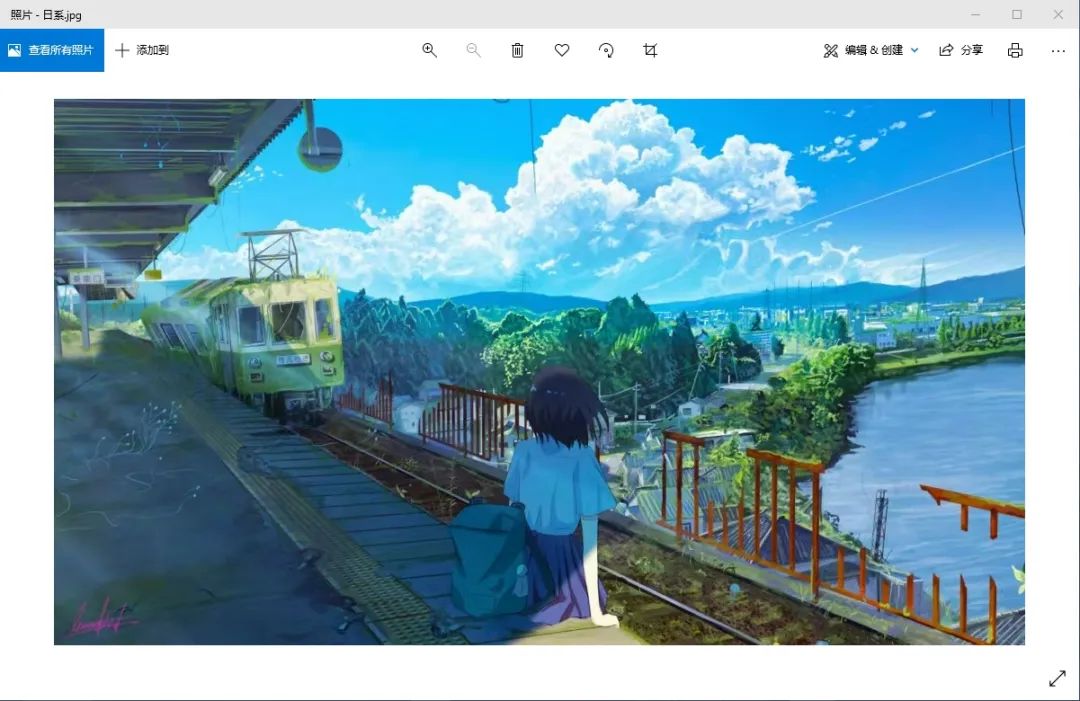
從上面的圖中發(fā)現(xiàn),還有不少其它方面的功能,比如圖片裁剪、編輯、打印等。
今天小F就帶大家學習一個Python制作相冊播放器的實戰(zhàn)項目。
功能嘛,當然沒有系統(tǒng)自帶的好,僅做學習哈。
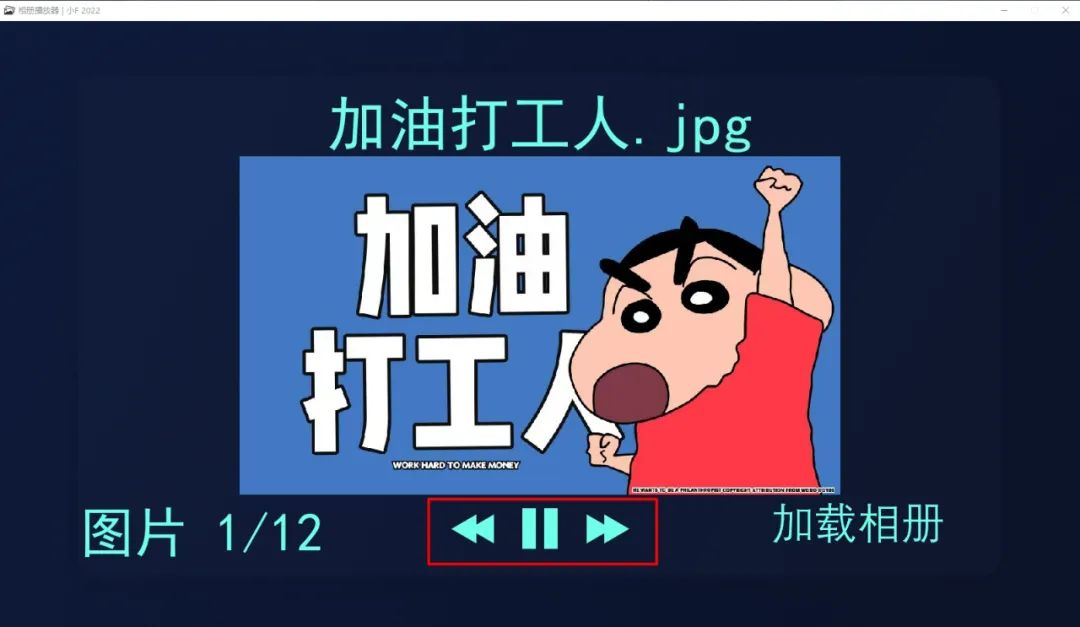
默認5秒切換一張圖片,點擊向前按鈕,可以快速切換到下一張圖片。
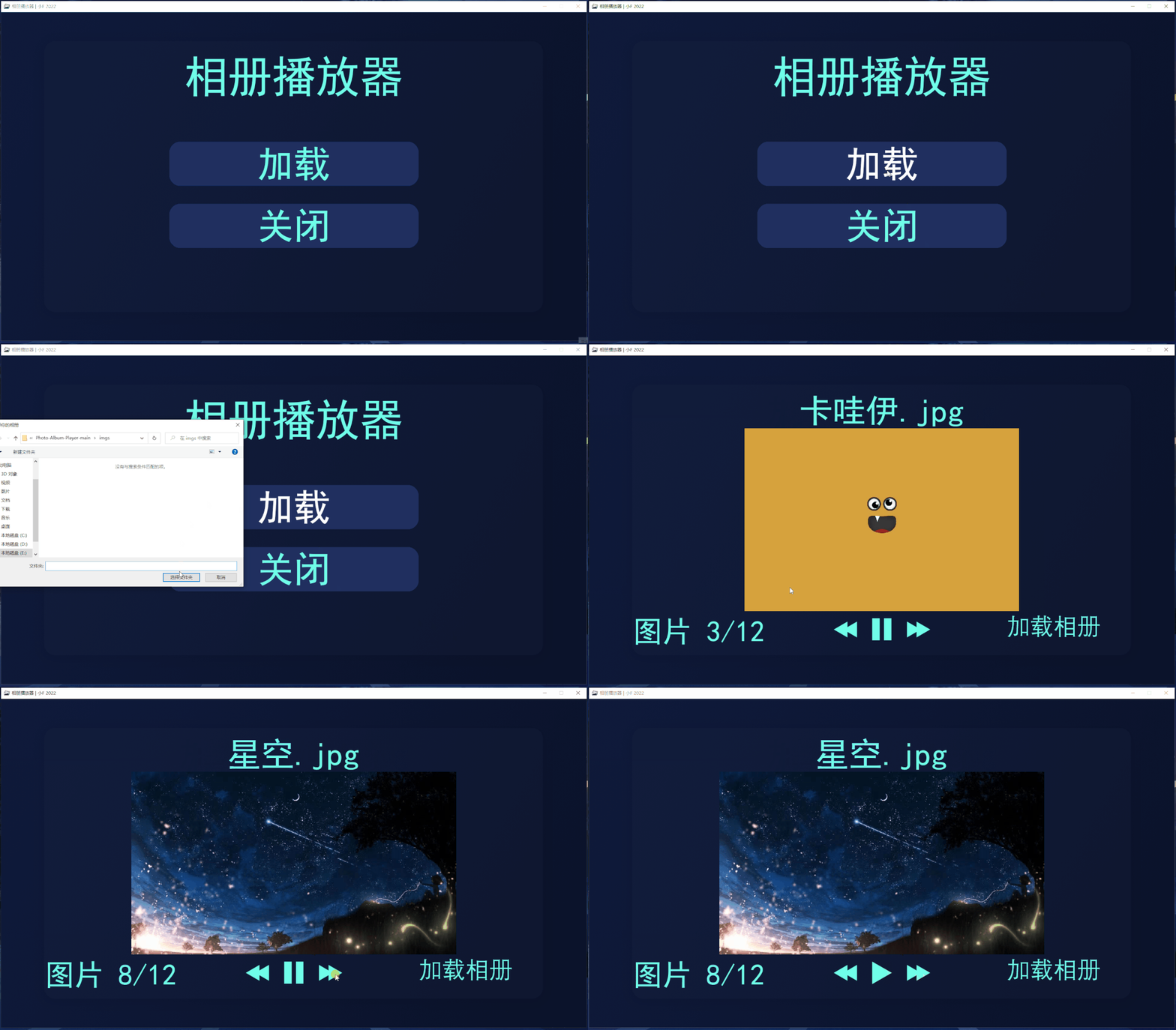
主要使用到Pygame這個庫,創(chuàng)建一個圖形界面。
還有Tkinter庫,因為要添加一個圖片文件夾,使用tkinter的filedialog快速選取本地文件夾。
#?安裝
pip?install?pygame
pip?install?tkinter
好了,接下來就給大家介紹一下。
導入相關庫。
import?os
import?sys
import?glob
import?pygame
import?tkinter
import?os.path
from?button?import?Button
from?tkinter?import?filedialog
初始化,設置圖形界面的寬為1600,高為900。
添加標題欄圖表和標題欄文字,以及中文字體,這里用宋體,所以界面顯得有些丑...
最后設置文字背景色和背景圖片。
#?初始化
pygame.init()

#?設置寬,?高,?標題欄
WIDTH,?HEIGHT?=?1600,?900
SCREEN?=?pygame.display.set_mode((WIDTH,?HEIGHT))
pygame.display.set_caption("相冊播放器?|?小F?2022")


#?添加中文字體
def?bold_font(size):
????os.chdir(sys.path[0])
????return?pygame.font.Font("assets/simhei.ttf",?size)


def?regular_font(size):
????return?pygame.font.SysFont("simhei",?size)

#?設置文字背景色,?背景圖片
BASE_TEXT_COLOR?=?"#6fffe9"
BACKGROUND_IMAGE?=?pygame.image.load("assets/background.png")
SCREEN.blit(BACKGROUND_IMAGE,?(0,?0))
#?更新
pygame.display.update()

#?設置標題欄圖標
WINDOW_ICON?=?pygame.image.load("assets/window_icon.png")
pygame.display.set_icon(WINDOW_ICON)
效果如下,空空蕩蕩。

加載部分按鈕的圖標。
#?設置按鈕背景色,?向后按鈕,?暫停按鈕,?播放按鈕,?向前按鈕,?加載新相冊按鈕
MAIN_MENU_BUTTON_BACKGROUND?=?pygame.image.load("assets/main_menu_button_bg.png")
REWIND_ICON_SURFACE?=?pygame.image.load("assets/rewind_icon.png")
PAUSE_ICON_SURFACE?=?pygame.image.load("assets/pause_icon.png")
PLAY_ICON_SURFACE?=?pygame.image.load("assets/play_icon.png")
SEEK_ICON_SURFACE?=?pygame.image.load("assets/seek_icon.png")
LOAD_NEW_ALBUM_SURFACE?=?pygame.image.load("assets/load_new_album_icon.png")
設置按鈕背景色,向后按鈕,暫停按鈕,播放按鈕,向前按鈕,加載新相冊按鈕。
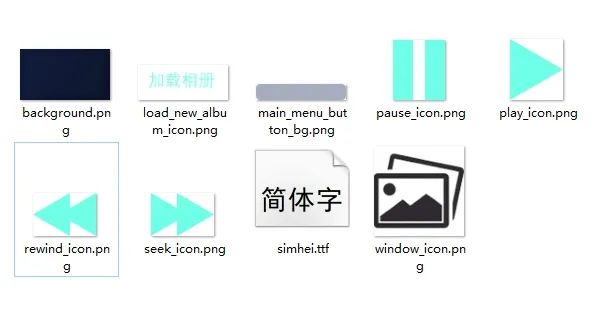
其次定義各個按鈕的功能函數。
#?加載按鈕函數
def?load_button():
????#?打開文件管理器,?選擇文件夾
????filedialogwindow?=?tkinter.Tk()
????filedialogwindow.withdraw()
????filepath?=?filedialog.askdirectory(title="選擇你的相冊")
????filedialogwindow.destroy()
????album_player(filepath)


#?關閉按鈕
def?quit_button():
????pygame.quit()
????sys.exit()


#?向后按鈕
def?rewind_button(current_image_index):
????if?current_image_index?>?0:
????????current_image_index?-=?1
????rewind_button_pressed?=?True
????return?rewind_button_pressed,?current_image_index


#?向前按鈕
def?seek_button(current_image_index,?image_names):
????if?current_image_index+1?????????current_image_index?+=?1
????seek_button_pressed?=?True
????return?seek_button_pressed,?current_image_index


#?播放按鈕
def?play_button():
????paused?=?False
????unpaused?=?True
????return?paused,?unpaused


#?暫停按鈕
def?pause_button():
????paused?=?True
????unpaused?=?False
????return?paused,?unpaused
加載按鈕,添加相冊;
關閉按鈕,退出播放器;
向后按鈕,向后切換一張圖片;
向前按鈕,向前切換一張圖片;
播放按鈕,開始播放相冊中的圖片;
暫停按鈕,暫停相冊圖片的播放;
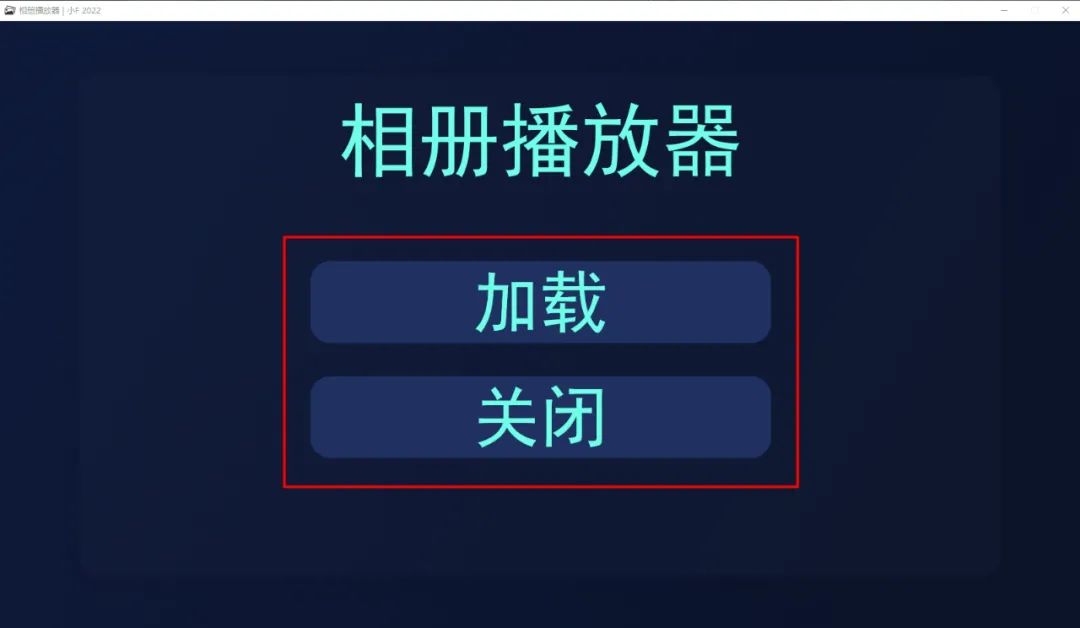
設置主界面,包含主頁標題欄,加載按鈕,關閉按鈕文字屬性。
同時還需要監(jiān)聽鼠標點擊事件。
#?主界面
def?main_menu():
????#?主頁標題欄
????TITLE_TEXT_SURFACE?=?bold_font(120).render("相冊播放器",?True,?BASE_TEXT_COLOR)
????TITLE_TEXT_RECT?=?TITLE_TEXT_SURFACE.get_rect(center=(WIDTH/2,?175))
????SCREEN.blit(TITLE_TEXT_SURFACE,?TITLE_TEXT_RECT)
????#?加載按鈕
????LOAD_BUTTON?=?Button(
????????surface=MAIN_MENU_BUTTON_BACKGROUND,?pos=(WIDTH/2,?415),?text_input="加載",
????????font=bold_font(100),?base_color=BASE_TEXT_COLOR,?hovering_color="white"
????)
????#?關閉按鈕
????QUIT_BUTTON?=?Button(
????????surface=MAIN_MENU_BUTTON_BACKGROUND,?pos=(WIDTH/2,?585),?text_input="關閉",
????????font=bold_font(100),?base_color=BASE_TEXT_COLOR,?hovering_color="white"
????)
????while?True:
????????#?監(jiān)聽鼠標點擊事件
????????current_mouse_pos?=?pygame.mouse.get_pos()
????????LOAD_BUTTON.update(SCREEN)
????????QUIT_BUTTON.update(SCREEN)
????????#?根據鼠標點擊情況,?是否點擊右上角的關閉
????????for?event?in?pygame.event.get():
????????????if?event.type?==?pygame.QUIT:
????????????????pygame.quit()
????????????????sys.exit()
????????????#?根據鼠標點擊情況,?點擊加載或關閉按鈕
????????????if?event.type?==?pygame.MOUSEBUTTONDOWN:
????????????????if?LOAD_BUTTON.check_for_input(current_mouse_pos):
????????????????????load_button()
????????????????if?QUIT_BUTTON.check_for_input(current_mouse_pos):
????????????????????quit_button()

????????#?當鼠標放置在按鈕上,?按鈕顏色發(fā)生改變
????????LOAD_BUTTON.change_color(current_mouse_pos)
????????QUIT_BUTTON.change_color(current_mouse_pos)
????????pygame.display.update()
根據鼠標點擊情況, 是否點擊右上角的關閉;
根據鼠標點擊情況, 點擊加載或關閉按鈕;
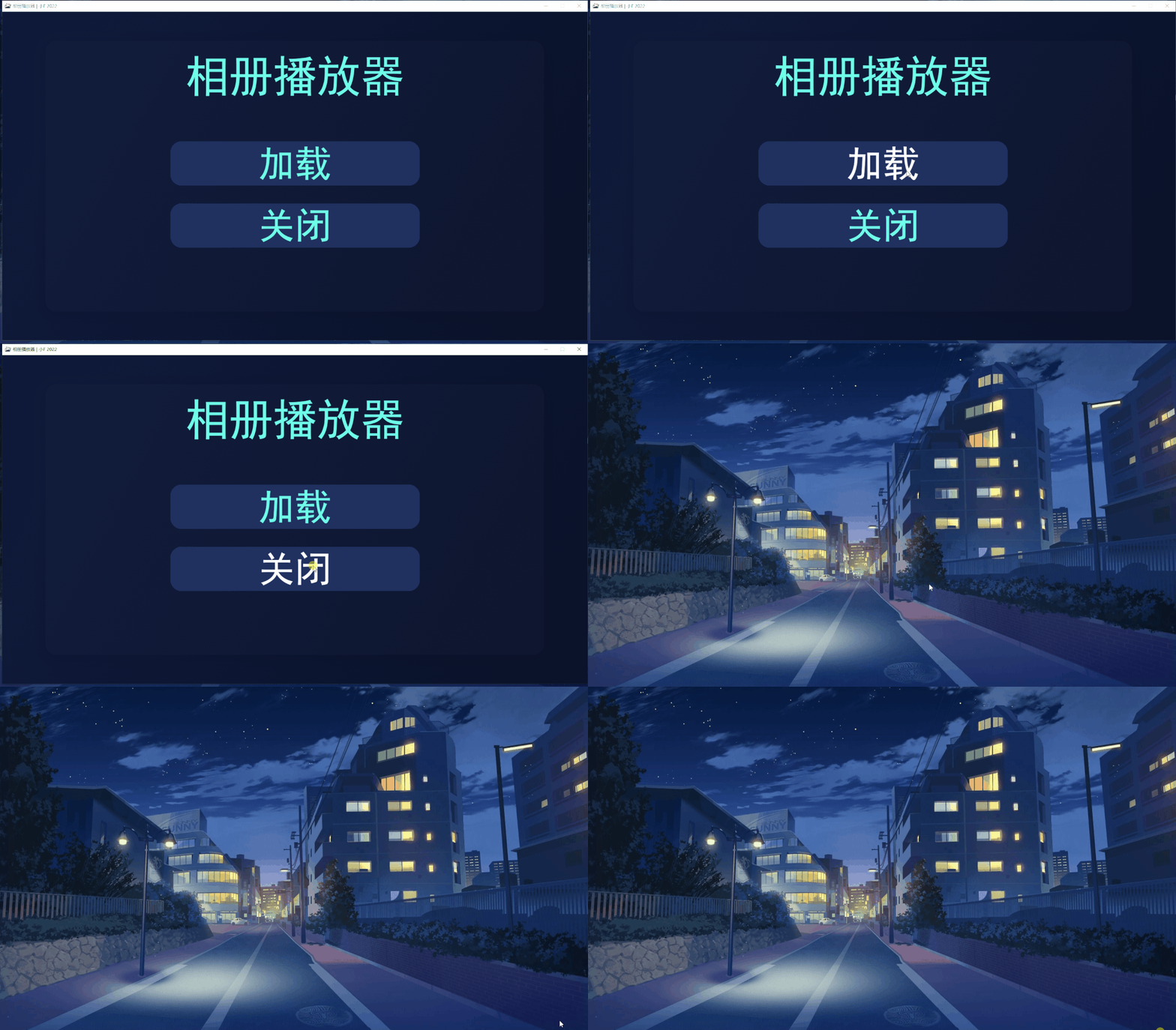
當鼠標放置在按鈕上, 按鈕顏色發(fā)生改變,變成白色。點擊關閉,應用會關閉掉。
最后是相冊播放器的功能函數,設置每5s切換一張圖片。
此外還要調整圖片的尺寸大小,方便在播放器中查看。
#?相冊播放器功能函數
def?album_player(folder_path):
????SCREEN.blit(BACKGROUND_IMAGE,?(0,?0))

????image_file_paths?=?[]
????image_names?=?[]
????current_image_index?=?0
????paused?=?False
????unpaused?=?False
????seek_button_pressed?=?False
????rewind_button_pressed?=?False

????#?添加加載按鈕后,?得到的圖片文件夾路徑
????os.chdir(folder_path)
????for?file?in?glob.glob("*"):
????????current_image_path?=?f"{folder_path}/{file}"
????????#?圖片路徑列表
????????image_file_paths.append(current_image_path)
????????#?圖片名稱列表
????????image_names.append(file)

????#?向后按鈕
????REWIND_BUTTON?=?Button(
????????surface=REWIND_ICON_SURFACE,?pos=(WIDTH/2-100,?HEIGHT-150),?text_input="",
????????font=bold_font(100),?base_color=BASE_TEXT_COLOR,?hovering_color="white"
????)
????#?暫停按鈕
????PAUSE_BUTTON?=?Button(
????????surface=PAUSE_ICON_SURFACE,?pos=(WIDTH/2,?HEIGHT-150),?text_input="",
????????font=bold_font(100),?base_color=BASE_TEXT_COLOR,?hovering_color="white"
????)
????#?播放按鈕
????PLAY_BUTTON?=?Button(
????????surface=PLAY_ICON_SURFACE,?pos=(WIDTH/2,?HEIGHT-150),?text_input="",
????????font=bold_font(100),?base_color=BASE_TEXT_COLOR,?hovering_color="white"
????)
????#?向前按鈕
????SEEK_BUTTON?=?Button(
????????surface=SEEK_ICON_SURFACE,?pos=(WIDTH/2+100,?HEIGHT-150),?text_input="",
????????font=bold_font(100),?base_color=BASE_TEXT_COLOR,?hovering_color="white"
????)
????#?加載新相冊按鈕
????LOAD_NEW_ALBUM_BUTTON?=?Button(
????????surface=LOAD_NEW_ALBUM_SURFACE,?pos=(WIDTH-325,?HEIGHT-150),?text_input="",
????????font=bold_font(100),?base_color=BASE_TEXT_COLOR,?hovering_color="white"
????)

????#?獲取時間,?設置每5s切換一張圖片
????previous_time?=?pygame.time.get_ticks()
????COOLDOWN?=?5000

????#?設置圖片名稱文字屬性
????photo_title_text_surface?=?bold_font(90).render(image_names[current_image_index],?True,?BASE_TEXT_COLOR)
????photo_title_text_rect?=?photo_title_text_surface.get_rect(center=(WIDTH/2,?150))

????#?圖片張圖顯示
????image_count_text_surface?=?regular_font(80).render(f"圖片?{current_image_index+1}/{len(image_names)}",?True,?BASE_TEXT_COLOR)
????image_count_text_rect?=?image_count_text_surface.get_rect(center=(300,?755))

????#?獲取圖片寬高屬性,?窗口顯示不合適,?調整大小
????new_image_surface?=?pygame.image.load(image_file_paths[current_image_index])
????if?new_image_surface.get_height()?>?500:
????????new_image_surface?=?pygame.transform.scale(new_image_surface,?(new_image_surface.get_width()?*?(500/new_image_surface.get_height()),?500))
????elif?new_image_surface.get_width()?>?800:
????????new_image_surface?=?pygame.transform.scale(new_image_surface,?(800,?new_image_surface.get_height()?*?(800/new_image_surface.get_width())))
????new_image_rect?=?new_image_surface.get_rect(center=(WIDTH/2,?HEIGHT/2))

????SCREEN.blit(new_image_surface,?new_image_rect)
????SCREEN.blit(photo_title_text_surface,?photo_title_text_rect)
????SCREEN.blit(image_count_text_surface,?image_count_text_rect)

????REWIND_BUTTON.update(SCREEN)
????PAUSE_BUTTON.update(SCREEN)
????SEEK_BUTTON.update(SCREEN)
????LOAD_NEW_ALBUM_BUTTON.update(SCREEN)

????pygame.display.update()

????#?監(jiān)聽鼠標點擊事件
????while?True:
????????for?event?in?pygame.event.get():
????????????#?根據鼠標點擊情況,?是否點擊右上角的關閉
????????????if?event.type?==?pygame.QUIT:
????????????????pygame.quit()
????????????????sys.exit()
????????????if?event.type?==?pygame.MOUSEBUTTONDOWN:
????????????????#?根據鼠標點擊情況,?做向前,?向后,?暫停,?開始等切換圖片操作
????????????????current_mouse_pos?=?pygame.mouse.get_pos()
????????????????if?REWIND_BUTTON.check_for_input(current_mouse_pos):
????????????????????rewind_button_pressed,?current_image_index?=?rewind_button(current_image_index)
????????????????if?SEEK_BUTTON.check_for_input(current_mouse_pos):
????????????????????seek_button_pressed,?current_image_index?=?seek_button(current_image_index,?image_names)
????????????????if?paused:
????????????????????if?PLAY_BUTTON.check_for_input(current_mouse_pos):
????????????????????????paused,?unpaused?=?play_button()
????????????????else:
????????????????????if?PAUSE_BUTTON.check_for_input(current_mouse_pos):
????????????????????????paused,?unpaused?=?pause_button()
????????????????if?LOAD_NEW_ALBUM_BUTTON.check_for_input(current_mouse_pos):
????????????????????load_button()

????????current_time?=?pygame.time.get_ticks()

????????#?切換圖片,?一定時間、點擊向后按鈕、點擊向前按鈕、點擊開始按鈕
????????if?current_time?-?previous_time?>=?COOLDOWN?or?rewind_button_pressed?or?seek_button_pressed?or?paused?or?unpaused:
????????????unpaused?=?False
????????????if?current_image_index?-1?and?not?seek_button_pressed?and?not?rewind_button_pressed?and?not?paused:
????????????????current_image_index?+=?1

????????????SCREEN.blit(BACKGROUND_IMAGE,?(0,?0))
????????????REWIND_BUTTON.update(SCREEN)
????????????if?paused:
????????????????PLAY_BUTTON.update(SCREEN)
????????????else:
????????????????PAUSE_BUTTON.update(SCREEN)
????????????SEEK_BUTTON.update(SCREEN)
????????????LOAD_NEW_ALBUM_BUTTON.update(SCREEN)

????????????new_image_surface?=?pygame.image.load(image_file_paths[current_image_index])
????????????if?new_image_surface.get_height()?>?500:
????????????????new_image_surface?=?pygame.transform.scale(new_image_surface,?(new_image_surface.get_width()?*?(500/new_image_surface.get_height()),?500))
????????????elif?new_image_surface.get_width()?>?800:
????????????????new_image_surface?=?pygame.transform.scale(new_image_surface,?(800,?new_image_surface.get_height()?*?(800/new_image_surface.get_width())))
????????????new_image_rect?=?new_image_surface.get_rect(center=(WIDTH/2,?HEIGHT/2))

????????????SCREEN.blit(new_image_surface,?new_image_rect)

????????????photo_title_text_surface?=?bold_font(90).render(image_names[current_image_index],?True,?BASE_TEXT_COLOR)
????????????photo_title_text_rect?=?photo_title_text_surface.get_rect(center=(WIDTH/2,?150))

????????????SCREEN.blit(photo_title_text_surface,?photo_title_text_rect)

????????????image_count_text_surface?=?regular_font(80).render(f"圖片?{current_image_index+1}/{len(image_names)}",?True,?BASE_TEXT_COLOR)
????????????image_count_text_rect?=?image_count_text_surface.get_rect(center=(300,?755))

????????????SCREEN.blit(image_count_text_surface,?image_count_text_rect)

????????????pygame.display.update()
????????????previous_time?=?pygame.time.get_ticks()
????????????seek_button_pressed?=?False
????????????rewind_button_pressed?=?False
同樣也有監(jiān)聽鼠標點擊事件,根據鼠標點擊情況,做向前、向后、暫停、開始等切換圖片操作。
最終效果如下。
好了,本期的分享就到此結束了,有興趣的小伙伴可以自行去實踐學習。
講真,Python能做的東西真不少...
使用到的代碼及文件鏈接:
https://pan.baidu.com/s/1MXWFpgYcTnmp1FnorrF-Yg 提取碼:qeno
-?END - 對比Excel系列圖書累積銷量達15w冊,讓你輕松掌握數據分析技能,可以點擊下方鏈接進行了解選購: