
讓OCR更簡單 | PaddleOCR+OpenCV實現(xiàn)文字識別步驟與代碼演示
導讀 本期將介紹并演示PaddleOCR+Python+OpenCV實現(xiàn)車牌識別、身份證信息識別和車票信息識別的步驟與效果。
介紹
百度深度學習框架PaddlePaddle開源的OCR項目PaddleOCR近期霸榜github。使用測試后發(fā)現(xiàn)識別效果很好,對于簡單的應用(車票車牌身份證等),直接用項目提供的模型即可使用。特殊應用,可自己訓練后使用。
gituhub地址:https://github.com/PaddlePaddle/PaddleOCR 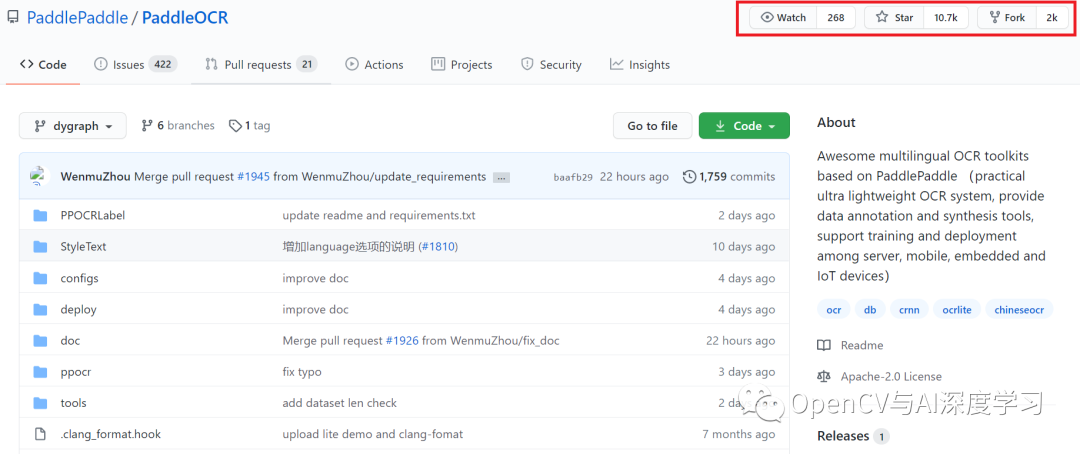
效果展示
分別以車牌識別、身份證信息識別和車票信息識別為例,測試效果如下視頻:
實現(xiàn)步驟
PaddleOCR是基于百度的深度學習框架PaddlePaddle實現(xiàn)的,所以第一步我們需要先安裝PaddlePaddle模塊。直接使用pip安裝即可:
——指令:pip install paddlepaddle
第二步:安裝PaddleOCR。同樣是pip安裝:
——GPU版安裝:
python -m pip install paddlepaddle-gpu==2.0.0 -i https://mirror.baidu.com/pypi/simple
——CPU版安裝:
python -m pip install paddlepaddle==2.0.0 -i https://mirror.baidu.com/pypi/simple
如果要在GPU模式下使用除了有GPU外還需要安裝CUDA 10.1和CUDNN對應文件,另外遇到的安裝問題網上也可以找到答案,我的安裝步驟到此結束。
代碼演示
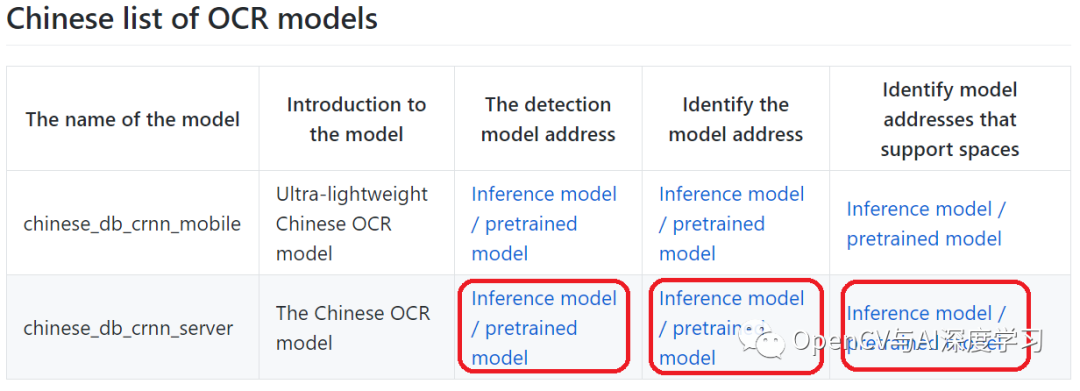
代碼演示前需要先下載PaddleOCR提供的訓練好的模型共3個,我是Win10 PC端使用下載下面三個,如果是移動端下載上面三個。

github提供的Demo如下將會保存一張識別結果圖:
from paddleocr import PaddleOCRimport cv2import numpy as npfrom PIL import Image, ImageDraw, ImageFontfrom paddleocr import PaddleOCR, draw_ocrfont=cv2.FONT_HERSHEY_SIMPLEX
# Paddleocr目前支持中英文、英文、法語、德語、韓語、日語,可以通過修改lang參數(shù)進行切換# 參數(shù)依次為`ch`, `en`, `french`, `german`, `korean`, `japan`。ocr = PaddleOCR(use_angle_cls=True, lang="ch",use_gpu=False,                rec_model_dir='./models/ch_ppocr_server_v2.0_rec_infer/',                cls_model_dir='./models/ch_ppocr_mobile_v2.0_cls_infer/',                det_model_dir='./models/ch_ppocr_server_v2.0_det_infer/') # need to run only once to download and load model into memory

img_path = './imgs/B.jpg'result = ocr.ocr(img_path, cls=True)# 顯示結果from PIL import Imageimage = Image.open(img_path).convert('RGB')boxes = [line[0] for line in result]txts = [line[1][0] for line in result]scores = [line[1][1] for line in result]im_show = draw_ocr(image, boxes, txts, scores, font_path='./simfang.ttf')im_show = Image.fromarray(im_show)
im_show.save('result.png')
識別輸出信息: 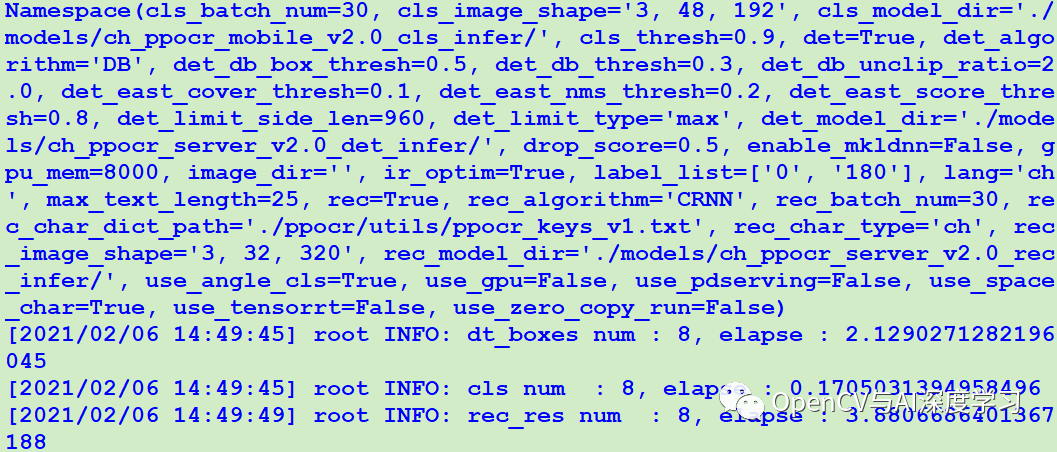
輸出結果圖: 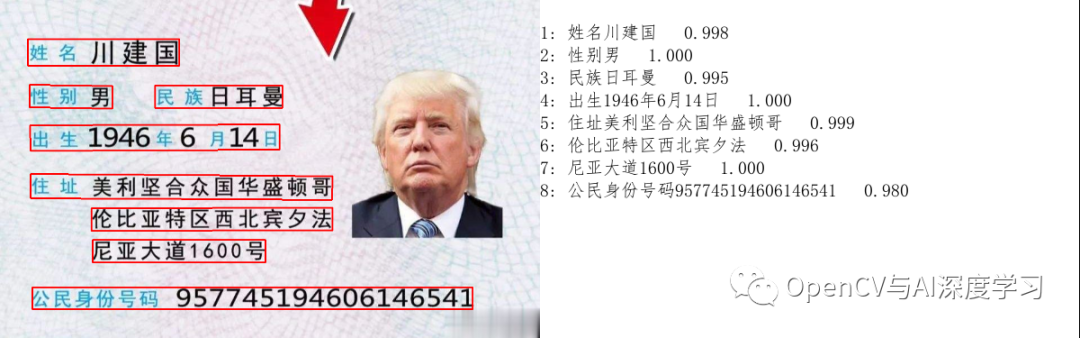
我們把輸出結果部分改成OpenCV實現(xiàn):
from paddleocr import PaddleOCRimport cv2import numpy as npfrom PIL import Image, ImageDraw, ImageFontfont=cv2.FONT_HERSHEY_SIMPLEX
# Paddleocr目前支持中英文、英文、法語、德語、韓語、日語,可以通過修改lang參數(shù)進行切換# 參數(shù)依次為`ch`, `en`, `french`, `german`, `korean`, `japan`。ocr = PaddleOCR(use_angle_cls=True, lang="ch",use_gpu=False,                rec_model_dir='./models/ch_ppocr_server_v2.0_rec_infer/',                cls_model_dir='./models/ch_ppocr_mobile_v2.0_cls_infer/',                det_model_dir='./models/ch_ppocr_server_v2.0_det_infer/') # need to run only once to download and load model into memory

def putText_Chinese(img,strText,pos,color,fontSize):    fontpath = "./simsun.ttc" # <== 這里是宋體路徑     font = ImageFont.truetype(fontpath, fontSize)    img_pil = Image.fromarray(img)    draw = ImageDraw.Draw(img_pil)    draw.text(pos,strText, font=font, fill=color)    img = np.array(img_pil)    return img
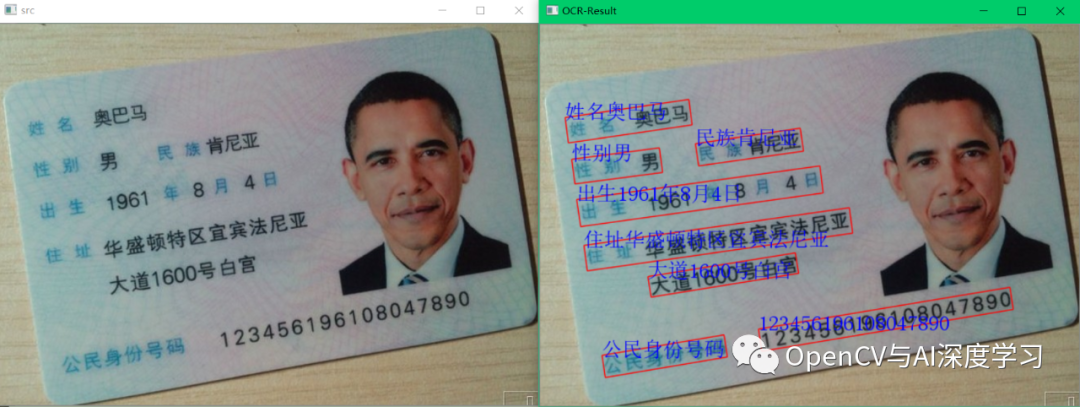
print('---------------PaddleOCR Start---------------------')img_path = './pics/18.jpg'img = cv2.imread(img_path)cv2.imshow("src", img)result = ocr.ocr(img_path, cls=True)#print(result)for line in result:    print('----------------------------')    print(line)    pt1 = ((int)(line[0][0][0]),(int)(line[0][0][1]))    pt2 = ((int)(line[0][1][0]),(int)(line[0][1][1]))    pt3 = ((int)(line[0][2][0]),(int)(line[0][2][1]))    pt4 = ((int)(line[0][3][0]),(int)(line[0][3][1]))    cv2.line(img,pt1,pt2,(0,0,255),1,cv2.LINE_AA)    cv2.line(img,pt2,pt3,(0,0,255),1,cv2.LINE_AA)    cv2.line(img,pt3,pt4,(0,0,255),1,cv2.LINE_AA)    cv2.line(img,pt1,pt4,(0,0,255),1,cv2.LINE_AA)       img = putText_Chinese(img,line[1][0],(pt1[0],pt1[1]-35),(255,0,255),50)   cv2.imshow("OCR-Result", img)cv2.imwrite("result.png", img)cv2.waitKey()cv2.destroyAllWindows()
輸出結果圖: 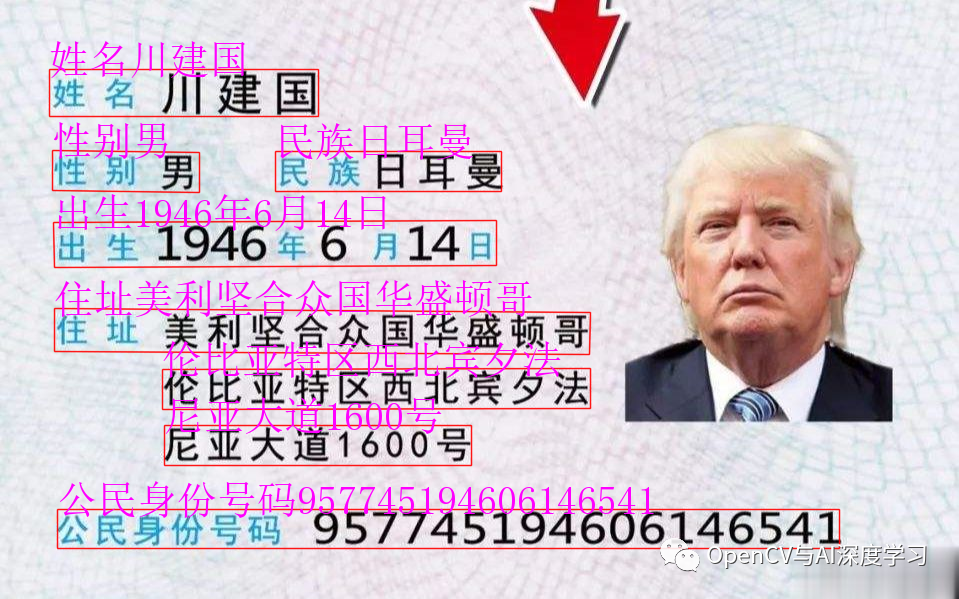
傾斜也可以自動識別:
試試車票識別: 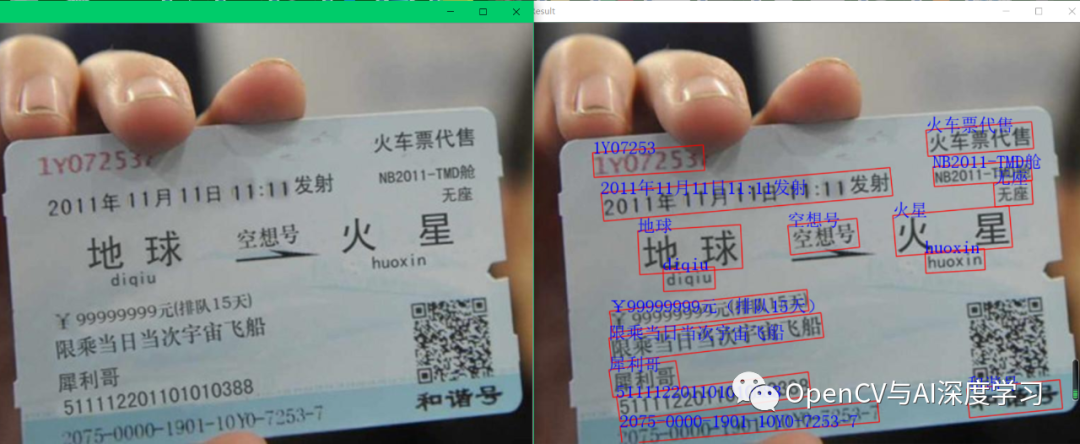
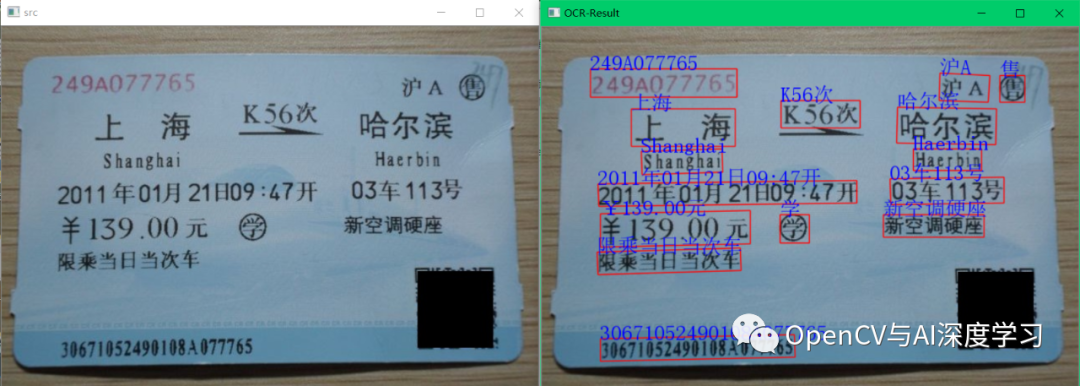
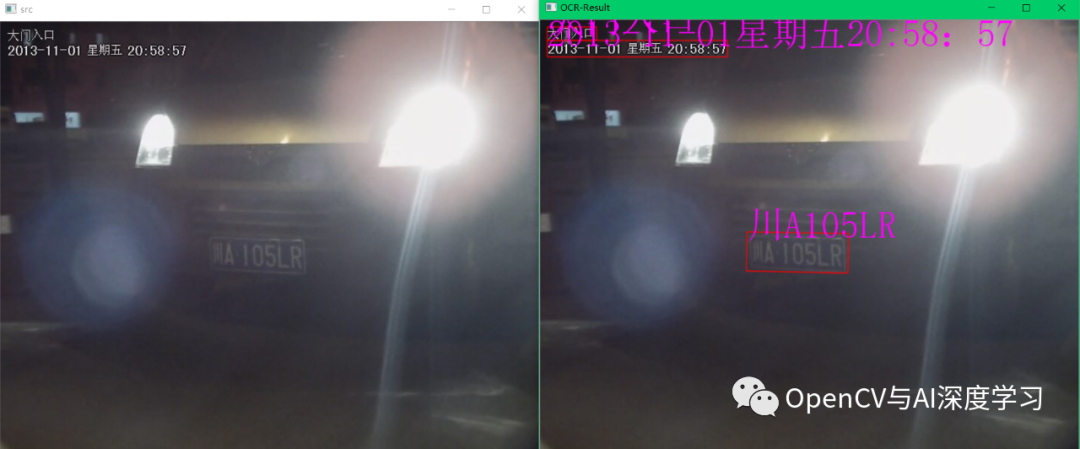
再試試車牌識別: 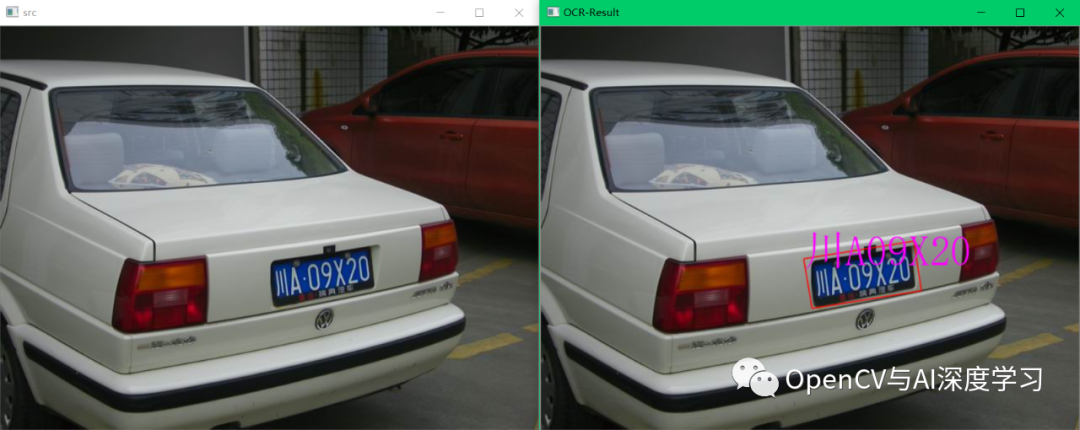
簡單總結:
PaddleOCR字符識別功能很強大,傾斜角度、偏亮偏暗的情況效果都不錯。這里只是一個簡單的演示,大家有興趣可以看看github項目主頁對其做更深入了解,后續(xù)博主有使用心得也會及時更新。
本期將介紹并演示PaddleOCR+Python+OpenCV實現(xiàn)車牌識別、身份證信息識別和車票信息識別的步驟與效果。
介紹
百度深度學習框架PaddlePaddle開源的OCR項目PaddleOCR近期霸榜github。使用測試后發(fā)現(xiàn)識別效果很好,對于簡單的應用(車票車牌身份證等),直接用項目提供的模型即可使用。特殊應用,可自己訓練后使用。
效果展示
實現(xiàn)步驟
PaddleOCR是基于百度的深度學習框架PaddlePaddle實現(xiàn)的,所以第一步我們需要先安裝PaddlePaddle模塊。直接使用pip安裝即可:
——指令:pip install paddlepaddle
第二步:安裝PaddleOCR。同樣是pip安裝:
——GPU版安裝:
python -m pip install paddlepaddle-gpu==2.0.0 -i https://mirror.baidu.com/pypi/simple——CPU版安裝:
python -m pip install paddlepaddle==2.0.0 -i https://mirror.baidu.com/pypi/simple如果要在GPU模式下使用除了有GPU外還需要安裝CUDA 10.1和CUDNN對應文件,另外遇到的安裝問題網上也可以找到答案,我的安裝步驟到此結束。
代碼演示
代碼演示前需要先下載PaddleOCR提供的訓練好的模型共3個,我是Win10 PC端使用下載下面三個,如果是移動端下載上面三個。
github提供的Demo如下將會保存一張識別結果圖:
from paddleocr import PaddleOCRimport cv2import numpy as npfrom PIL import Image, ImageDraw, ImageFontfrom paddleocr import PaddleOCR, draw_ocrfont=cv2.FONT_HERSHEY_SIMPLEX# Paddleocr目前支持中英文、英文、法語、德語、韓語、日語,可以通過修改lang參數(shù)進行切換# 參數(shù)依次為`ch`, `en`, `french`, `german`, `korean`, `japan`。ocr = PaddleOCR(use_angle_cls=True, lang="ch",use_gpu=False,rec_model_dir='./models/ch_ppocr_server_v2.0_rec_infer/',cls_model_dir='./models/ch_ppocr_mobile_v2.0_cls_infer/',det_model_dir='./models/ch_ppocr_server_v2.0_det_infer/') # need to run only once to download and load model into memoryimg_path = './imgs/B.jpg'result = ocr.ocr(img_path, cls=True)# 顯示結果from PIL import Imageimage = Image.open(img_path).convert('RGB')boxes = [line[0] for line in result]txts = [line[1][0] for line in result]scores = [line[1][1] for line in result]im_show = draw_ocr(image, boxes, txts, scores, font_path='./simfang.ttf')im_show = Image.fromarray(im_show)im_show.save('result.png')
我們把輸出結果部分改成OpenCV實現(xiàn):
from paddleocr import PaddleOCRimport cv2import numpy as npfrom PIL import Image, ImageDraw, ImageFontfont=cv2.FONT_HERSHEY_SIMPLEX# Paddleocr目前支持中英文、英文、法語、德語、韓語、日語,可以通過修改lang參數(shù)進行切換# 參數(shù)依次為`ch`, `en`, `french`, `german`, `korean`, `japan`。ocr = PaddleOCR(use_angle_cls=True, lang="ch",use_gpu=False,rec_model_dir='./models/ch_ppocr_server_v2.0_rec_infer/',cls_model_dir='./models/ch_ppocr_mobile_v2.0_cls_infer/',det_model_dir='./models/ch_ppocr_server_v2.0_det_infer/') # need to run only once to download and load model into memorydef putText_Chinese(img,strText,pos,color,fontSize):fontpath = "./simsun.ttc" # <== 這里是宋體路徑font = ImageFont.truetype(fontpath, fontSize)img_pil = Image.fromarray(img)draw = ImageDraw.Draw(img_pil)draw.text(pos,strText, font=font, fill=color)img = np.array(img_pil)return imgprint('---------------PaddleOCR Start---------------------')img_path = './pics/18.jpg'img = cv2.imread(img_path)cv2.imshow("src", img)result = ocr.ocr(img_path, cls=True)#print(result)for line in result:print('----------------------------')print(line)pt1 = ((int)(line[0][0][0]),(int)(line[0][0][1]))pt2 = ((int)(line[0][1][0]),(int)(line[0][1][1]))pt3 = ((int)(line[0][2][0]),(int)(line[0][2][1]))pt4 = ((int)(line[0][3][0]),(int)(line[0][3][1]))cv2.line(img,pt1,pt2,(0,0,255),1,cv2.LINE_AA)cv2.line(img,pt2,pt3,(0,0,255),1,cv2.LINE_AA)cv2.line(img,pt3,pt4,(0,0,255),1,cv2.LINE_AA)cv2.line(img,pt1,pt4,(0,0,255),1,cv2.LINE_AA)img = putText_Chinese(img,line[1][0],(pt1[0],pt1[1]-35),(255,0,255),50)cv2.imshow("OCR-Result", img)cv2.imwrite("result.png", img)cv2.waitKey()cv2.destroyAllWindows()
簡單總結:
—版權聲明—
僅用于學術分享,版權屬于原作者。
若有侵權,請聯(lián)系微信號:yiyang-sy 刪除或修改!
評論
圖片
表情