<kbd id="afajh"><form id="afajh"></form></kbd>
<strong id="afajh"><dl id="afajh"></dl></strong>
    <del id="afajh"><form id="afajh"></form></del>
        1. <th id="afajh"><progress id="afajh"></progress></th>
          <b id="afajh"><abbr id="afajh"></abbr></b>
          <th id="afajh"><progress id="afajh"></progress></th>

          Google Colab基本使用技巧一覽

          共 6559字,需瀏覽 14分鐘

           ·

          2020-11-18 19:39

          選自Medium

          作者:Towards AI Team
          機(jī)器之心編譯
          機(jī)器之心編輯部
          這篇文章教你如何使用 Google Colab,更好地利用免費(fèi)資源。

          Google Colab 是一個(gè)免費(fèi)的 Jupyter 環(huán)境,用戶可以用它創(chuàng)建 Jupyter notebook,在瀏覽器中編寫和執(zhí)行 Python 代碼,以及其他基于 Python 的第三方工具和機(jī)器學(xué)習(xí)框架,如 Pandas、PyTorch、Tensorflow、Keras、Monk、OpenCV 等。

          Google Colab 的好處在于,不需要任何配置就能直接上手使用,并提供免費(fèi)的 GPU,你可以和任何人共享實(shí)時(shí)代碼、數(shù)學(xué)公式、數(shù)據(jù)可視化結(jié)果、數(shù)據(jù)處理、數(shù)值模擬、機(jī)器學(xué)習(xí)模型等各種項(xiàng)目。

          以前,機(jī)器之心也曾經(jīng)介紹過很多關(guān)于 Colab 的知識(shí)點(diǎn),比如這些:


          本文將介紹如何用 Python 使用 Google Colab,以及一些 Colab 使用技巧。

          項(xiàng)目地址:https://github.com/towardsai/tutorials/tree/master/google_colab_tutorial

          為什么大家都愛 Colab

          Colab 的優(yōu)點(diǎn)包括:

          • 提供了免費(fèi)的 Jupyter notebook 環(huán)境;

          • 帶有預(yù)安裝的軟件包;

          • 完全托管在谷歌云上;

          • 用戶無需在服務(wù)器或工作站上進(jìn)行設(shè)置;

          • Notebook 會(huì)自動(dòng)保存在用戶的 Google Drive 中;

          • 提供基于瀏覽器的 Jupyter notebook;

          • 完全免費(fèi),且提供 GPU 和 TPU(Pro 用戶可以使用更多資源,但需要付費(fèi));

          • 支持 Python 2 和 Python 3;

          • 提供兩種硬件加速器:GPU 和 TPU。


          第一步:啟動(dòng) Google Colab

          我們可以使用 Colab 在 Web 瀏覽器上直接運(yùn)行 Python 代碼,使用指南:https://mktg.best/d7b6u。

          啟動(dòng)窗口隨之打開,彈窗中提供了多項(xiàng)功能:


          它提供了創(chuàng)建 notebook 以及從不同來源上傳和選擇的選項(xiàng),比如 GitHub、Google Drive 或本地計(jì)算機(jī)。

          從 GitHub 上傳 Notebook

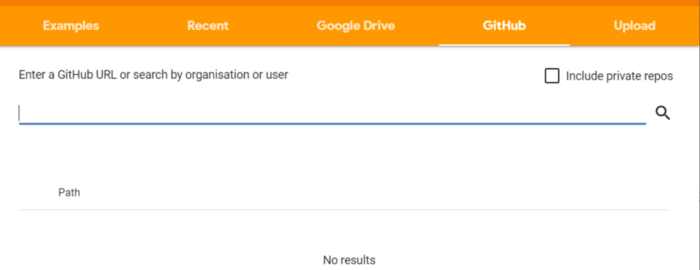
          我們可以使用項(xiàng)目 URL,或者搜索組織和用戶等方法,直接從 GitHub 上傳 Python 代碼。

          使用 URL 的步驟上傳項(xiàng)目的步驟如下圖所示:

          • 啟動(dòng) Google Colab

          • 從彈框中選擇 GitHub 這一項(xiàng)。


          輸入 GitHub 項(xiàng)目 URL 并搜索以獲取代碼
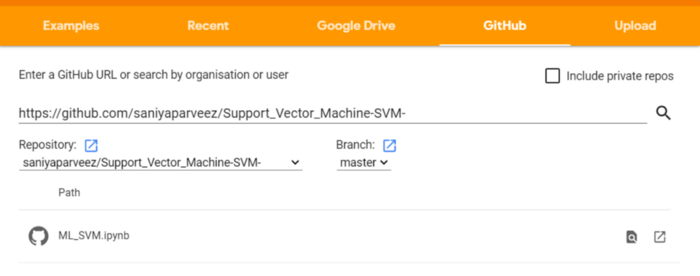


          將完整代碼一鍵上傳到 Google Colab notebook
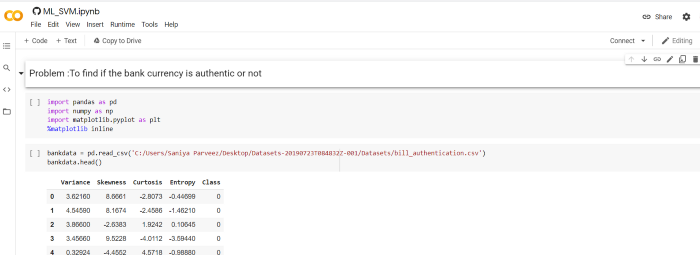


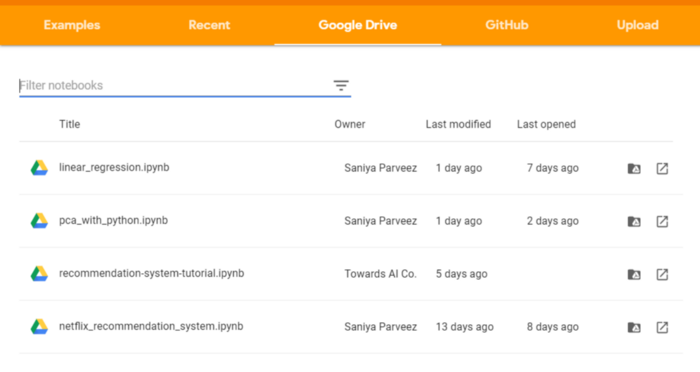
          同樣地,用戶可以通過按名稱、日期、所有者或者修改日期過濾保存的 notebook,直接從 Google Drive 上傳代碼。


          從 Kaggle 上傳數(shù)據(jù)

          從 Kaggle 生成 API Token

          來自 Kaggle 的數(shù)據(jù)可以直接上傳到 Colab,不過這需要 Kaggle 的 API Token 才能完成數(shù)據(jù)導(dǎo)入,步驟如下:

          • 打開 Kaggle

          • 轉(zhuǎn)至「我的賬戶」

          • 向下滾動(dòng)到「API」部分


          • 如果需要,先單擊「Expire API Token」以刪除先前的 token

          • 點(diǎn)擊「Create New API Token」,生成一個(gè)新的 token 并下載一個(gè)名為「kaggle.json」的 JSON 文件

          • 「kaggle.json」文件包含用戶名和密鑰,如下所示:


          從 Kaggle 上傳數(shù)據(jù)的步驟

          將「kaggle.json」文件保存在本地計(jì)算機(jī)上。

          安裝 Kaggle 軟件包:

          !pip install -q kaggle

          導(dǎo)入包:

          from google.colab import files

          上傳本地文件「kaggle.json」:

          files.upload()


          檢查 Colab notebook 是否與 Kaggle 正確連接:

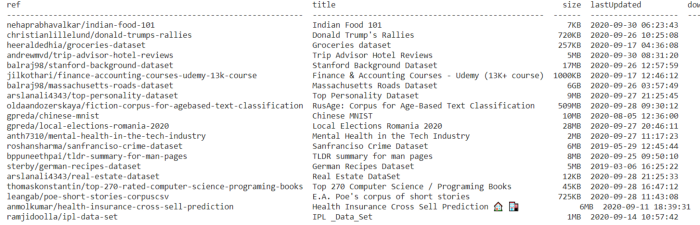
          !kaggle datasets list


          從 Kaggle 下載任意比賽數(shù)據(jù):

          !kaggle competitions download -c competitive-data-science-predict-future-sales
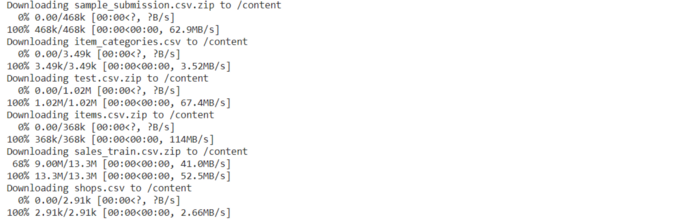
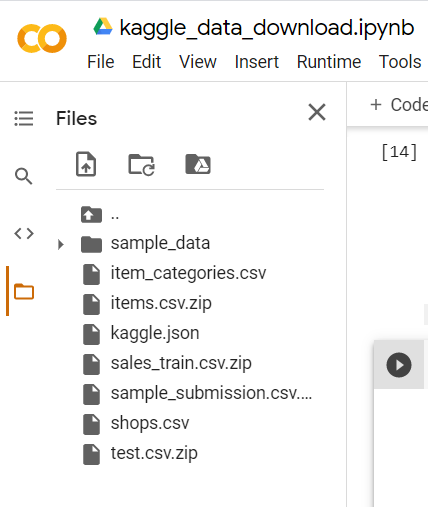

          Kaggle 數(shù)據(jù)將在 Colab 中下載和上傳,如下所示:


          從 Google Drive 中讀取文件

          Colab 還提供從 Google Drive 讀取數(shù)據(jù)的功能。

          導(dǎo)入包

          import globimport pandas as pdfrom google.colab import drive

          掛載 Google Drive

          drive.mount('/gdrive')

          這一步要求填寫 Google Drive 的授權(quán)碼:


          • 授權(quán)碼輸入框

          • 單擊鏈接并生成授權(quán)碼

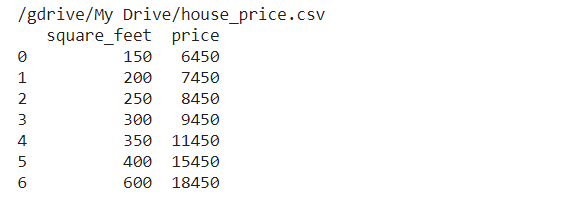
          • 從 Google Drive 讀取 CSV 文件


          file_path = glob.glob("/gdrive/My Drive/***.csv")for file in file_path:       df = pd.read_csv(file)       print(df)


          將運(yùn)行時(shí)硬件加速器設(shè)置為 GPU

          Google Colab 提供免費(fèi)的 GPU 硬件加速器云服務(wù)。在機(jī)器學(xué)習(xí)和深度學(xué)習(xí)中需要同時(shí)處理多個(gè)計(jì)算,高性能 GPU 的價(jià)格很高,但非常重要。


          GPU 通過并行化提供優(yōu)秀的性能,可在一次調(diào)用中啟動(dòng)數(shù)百萬個(gè)線程。盡管與 CPU 相比,GPU 的 clock speed 較低,且缺少多核管理功能,但 GPU 的表現(xiàn)通常比 CPU 好。

          在 Colab 中設(shè)置 GPU 硬件加速器

          設(shè)置步驟如下:

          • 選擇 Runtime → Change runtime type

          • 在彈出窗口中選擇「GPU」


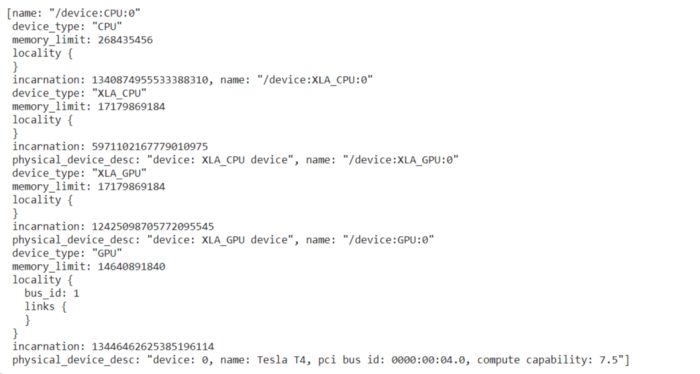
          檢查 Colab 中 GPU 的詳細(xì)信息

          導(dǎo)入重要的包

          import tensorflow as tffrom tensorflow.python.client import device_lib

          檢查 GPU 加速器

          tf.test.gpu_device_name()


          檢查用于 GPU 的硬件

          device_lib.list_local_devices()


          使用 GPU 的代碼示例

          在未選擇運(yùn)行時(shí) GPU 的情況下檢查可用 GPU 的數(shù)量,使其設(shè)置為「None」。


          import tensorflow as tfno_of_gpu = len(tf.config.experimental.list_physical_devices('GPU'))print("Total GPUS:", no_of_gpu)

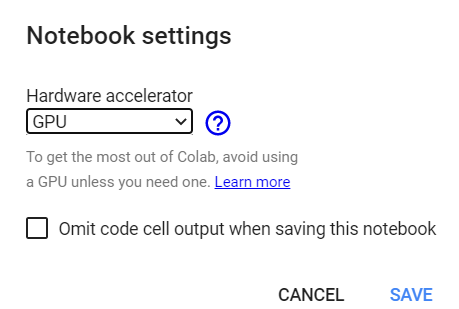
          硬件加速器為 None,因此 GPU 數(shù)量的值為 0。

          將運(yùn)行時(shí)硬件加速器設(shè)置為 GPU:


          import tensorflow as tfno_of_gpu =len(tf.config.experimental.list_physical_devices('GPU'))print("Total GPUS:", no_of_gpu)

          硬件加速器為 GPU,因此 GPU 數(shù)量值為 1。

          在 GPU 上執(zhí)行張量乘法:

          try:      with tf.device('/device:GPU:1'):            tensor1 = tf.constant([[1.0, 2.0, 3.0], [4.0, 5.0, 6.0]])            tensor2 = tf.constant([[1.0, 2.0], [3.0, 4.0], [5.0, 6.0]])           result = tf.matmul(tensor1, tensor2)            print(result)except?RuntimeError?as?exception:????   print(exception)

          張量乘法結(jié)果。

          將 GitHub repo 復(fù)制到 Google Drive

          GitHub repo 代碼可以復(fù)制和存儲(chǔ)到 Google Drive 中,具體步驟如下:

          掛載 Google Drive

          from?google.colab?import?drivedrive.mount('/content/gdrive')


          進(jìn)入 Google drive,創(chuàng)建目錄「project」。

          %cd gdrive/My Drive/mkdir project%cd project/


          復(fù)制 GitHub repo,例如:

          !git clone https://github.com/saniyaparveez/youtube_video_type_prediction.git


          檢查復(fù)制的項(xiàng)目

          !ls


          Colab 魔法

          Colab 提供許多有趣的 trick,包括多個(gè)可以執(zhí)行快速操作的命令,這些命令通常使用 % 作為前綴。

          Colab 魔法命令列表

          %lsmagic


          本地目錄

          %ldir


          獲取 Notebook 歷史

          %history

          CPU 時(shí)間

          %time


          系統(tǒng)運(yùn)行多久?

          !uptime


          展示可用和已用的內(nèi)存

          !free -hprint("-"*100)


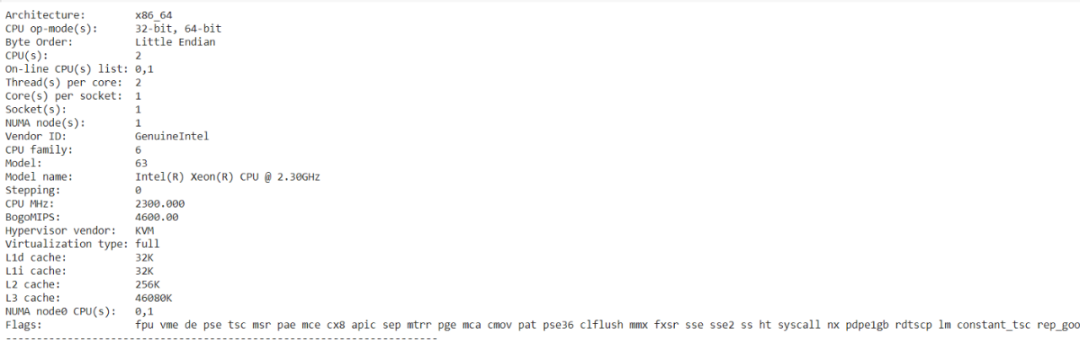
          展示 CPU 產(chǎn)品規(guī)格

          !lscpuprint("-"*70)


          列出所有運(yùn)行虛擬機(jī)進(jìn)程

          %%shecho "List all running VM processes."ps -efecho "Done"


          在 HTML 中嵌入文本

          %%html<marquee>Towards AI is a great publication platformmarquee>

          設(shè)計(jì) HTML 格式

          #@title Personal Details#@markdown Information.Name = 'Peter' #@param {type: "string"}Age = 25  #@param {type: "slider", min: 1, max: 100}zip = 1234  #@param {type: "number"}Date = '2020-01-26'  #@param {type: "date"}Gender = "Male"  #@param ['Male', 'Female', 'Other']#@markdown ---print("Submitting the form")print(string_type, slider_value, number, date, pick_me)print("Submitted")

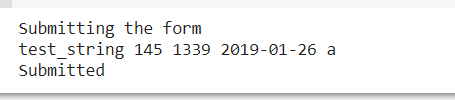
          在 Google Colab 中生成 HTML 格式。

          單元格執(zhí)行輸出

          繪圖

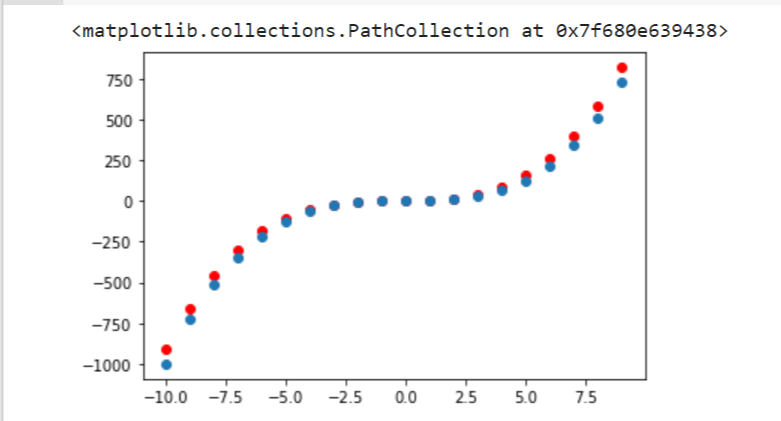
          Google Colab 還可用于數(shù)據(jù)可視化。以下代碼和圖展示了 Google Colab 對(duì)一個(gè)以上多項(xiàng)式的繪圖,Y = X3+X2+X。

          x = np.arange(-10,10)y = np.power(x,3)y1 = np.power(x,3) + np.power(x,2) + xplt.scatter(x,y1,c="red")plt.scatter(x,y)

          以下代碼和圖用于生成熱圖:

          import matplotlib.pyplot as pltimport numpy as npimport seaborn as snslength = 10data = 5 + np.random.randn(length, length)data += np.arange(length)data += np.reshape(np.arange(length), (length, 1))sns.heatmap(data)plt.show()


          Google Colab 中的 TPU

          Google Colab 使用 TPU(張量處理單元)進(jìn)行 Tensorflow 圖上的加速。TPU 是谷歌開發(fā)的、專為神經(jīng)網(wǎng)絡(luò)機(jī)器設(shè)計(jì)的 AI 加速器專用集成電路 (ASIC)。

          TPU 具備優(yōu)秀的 teraflop 配置、浮點(diǎn)運(yùn)算性能等。每個(gè) TPU 的計(jì)算能力達(dá)到每秒 180 萬億次浮點(diǎn)運(yùn)算(180 teraflops),擁有 64 GB 的高帶寬內(nèi)存。

          在 Colab 中設(shè)置 TPU

          在 Google Colab 中設(shè)置 TPU 的步驟如下:

          運(yùn)行時(shí)菜單 → 更改運(yùn)行時(shí)

          選擇 TPU 硬件加速器

          確認(rèn)在 TPU 硬件加速器上運(yùn)行

          這需要 TensorFlow 包。以下代碼和實(shí)現(xiàn)可以確認(rèn) Colab 是否設(shè)置 TPU 加速器:

          import tensorflow as tftry:       tpu = tf.distribute.cluster_resolver.TPUClusterResolver()        print('Running on TPU', tpu.cluster_spec().as_dict()['worker'])except?ValueError:????   print('Exception')


          如果 TPU 未設(shè)置成功,則代碼會(huì)報(bào)錯(cuò)。

          結(jié)論

          Google Colab 是一種 Jupyter notebook 環(huán)境,通過執(zhí)行基于 Python 的代碼來構(gòu)建機(jī)器學(xué)習(xí)或深度學(xué)習(xí)模型。Google Colab 完全免費(fèi)(pro 版除外),并提供 GPU 和 TPU 硬件加速器,易于使用和共享。

          本文列舉了 Google Colab 的使用技巧,希望能夠幫助大家更好地利用 Google Colab 資源。

          資源

          • Google colab 實(shí)現(xiàn):https://colab.research.google.com/drive/1ymIYzFg4Q7iBjnTut31aBqPHgOpkjHYD?usp=sharing

          • Github repository:https://github.com/towardsai/tutorials/tree/master/google_colab_tutorial


          參考文獻(xiàn)

          [1] Google Colab, https://colab.research.google.com/
          [2] Python 2 Deprecation, Google Colab, Google, https://research.google.com/colaboratory/faq.html#python-2-deprecation
          [3] Machine Learning Algorithms for Beginners with Code Examples in Python, Pratik Shukla, Roberto Iriondo, Towards AI, https://towardsai.net/p/machine-learning/machine-learning-algorithms-for-beginners-with-python-code-examples-ml-19c6afd60daa
          [4] Project Jupyter, https://jupyter.org/
          [5] Google Colab, FAQ, https://research.google.com/colaboratory/faq.html


          原文鏈接:https://medium.com/towards-artificial-intelligence/google-colab-101-tutorial-with-python-tips-tricks-and-faq-7689bd4d24b4

          往期精彩:

          【原創(chuàng)首發(fā)】機(jī)器學(xué)習(xí)公式推導(dǎo)與代碼實(shí)現(xiàn)30講.pdf

          【原創(chuàng)首發(fā)】深度學(xué)習(xí)語義分割理論與實(shí)戰(zhàn)指南.pdf

          ?2020,從TF Boy 變成 Torch User

          ?真正想做算法的,不要害怕內(nèi)卷

          求個(gè)在看!

          瀏覽 198
          點(diǎn)贊
          評(píng)論
          收藏
          分享

          手機(jī)掃一掃分享

          分享
          舉報(bào)
          評(píng)論
          圖片
          表情
          推薦
          點(diǎn)贊
          評(píng)論
          收藏
          分享

          手機(jī)掃一掃分享

          分享
          舉報(bào)
          <kbd id="afajh"><form id="afajh"></form></kbd>
          <strong id="afajh"><dl id="afajh"></dl></strong>
            <del id="afajh"><form id="afajh"></form></del>
                1. <th id="afajh"><progress id="afajh"></progress></th>
                  <b id="afajh"><abbr id="afajh"></abbr></b>
                  <th id="afajh"><progress id="afajh"></progress></th>
                  国产v欧美v亚洲v精品v | 无码精品一区二区三区在线 | 丁香五月激情小说 | 黄片免费视频 | 欧美色小说 |