
聊聊 PC 端自動化最佳方案 - WinAppDriver
↑↑↑關(guān)注后"星標(biāo)"簡說Python
人人都可以簡單入門Python、爬蟲、數(shù)據(jù)分析 簡說Python推薦 來源:AirPython
作者:星安果
1. 前言
一提到自動化,可能大家想到的是 App 端的 Appium、Airtest、AutoJS,亦或是 Selenium、Puppeteer、Cypress 等 Web 端的自動化框架
本篇文章,我將和大家聊聊 PC 端的自動化工具 - WinAppDriver
2. 準(zhǔn)備
WinAppDriver,全稱為 Windows Application Driver,它是 Windows 上一個類似 Selenium 的 UI 自動化驅(qū)動服務(wù)框架
它支持 Appium,可以使用 Appium-Python-Client 依賴庫完成對 Windows 桌面程序的自動化操作
項目地址:https://github.com/Microsoft/WinAppDriver
需要注意的是,要使用 WinAppDriver 服務(wù)框架完成 Windows 的自動化,需要滿足 Windows10 或 Windows Server 2016 以上系統(tǒng)
另外,它支持的應(yīng)用程序包含:
UWP - Universal Windows Platform
WinForms - Windows Forms
WPF - Windows Presentation Foundation
Win32 - Classic Windows
在實現(xiàn)之前,我們需要做好以下準(zhǔn)備工作
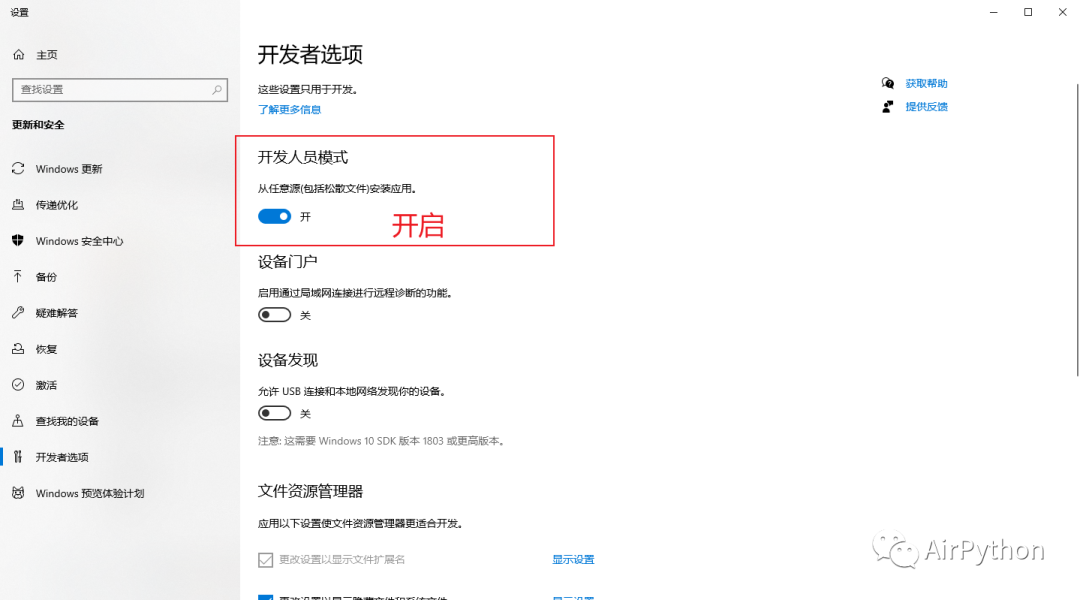
2-1 開啟「 開發(fā)者模式 」
關(guān)鍵字搜索「 開發(fā)者設(shè)置 」,選擇開啟「 開發(fā)者模式 」
2-2 安裝窗口組件元素識別工具
常用的 2 種窗口元素識別工具為:inspect.exe、FlaUInspect
其中
作為官方的組件元素識別工具,inspect.exe 集成于 Windows SDK
如果本地不存在該文件,可以通過下面鏈接進(jìn)行安裝
https://download.microsoft.com/download/4/d/2/4d2b7011-606a-467e-99b4-99550bf24ffc/windowssdk/winsdksetup.exe
相比 inspect.exe,FlaUInspect 界面更簡潔,功能更易用( 推薦 )
項目地址:https://github.com/FlaUI/FlaUInspect
2-3 安裝 WinAppDriver
通過下面鏈接下載 WinAppDriver 應(yīng)用程序,并在本地運行起來
https://github.com/Microsoft/WinAppDriver/releases
2-4 搭建 Appium 環(huán)境
這部分內(nèi)容涉及 NodeJS 安裝及 Appium-Server 環(huán)境的搭建
可以參考:https://www.cnblogs.com/amoyshmily/p/10500687.html
2-5 安裝依賴
最后安裝 Python 依賴庫 Appium-Python-Client
# 安裝依賴 Appium-Python-Client
pip3 install Appium-Python-Client
3. 實戰(zhàn)一下
我們以操作 PC 端的微信為例,聊聊自動化的常見步驟
首先,我們在本機(jī)打開 WinAppDriver 服務(wù),讓它在后臺運行
然后,我們使用 Python 編寫自動化腳本
通過 ip 地址、端口號及 PC 版微信的絕對路徑,使用 Appium 打開微信
import time, os
from appium import webdriver
from selenium.webdriver import ActionChains
from selenium.webdriver.common.keys import Keys
from time import sleep

class Auto():

    def open_weixin(self, host='localhost', port=4723):
        # 打開WinAppDriver服務(wù)
        # 注意:如果手動開啟,則可以注釋掉
        # os.system(r'start "" /d "C:\Program Files\Windows Application Driver\"  "WinAppDriver.exe"')

        # 配置信息
        # 包含:平臺名、系統(tǒng)、應(yīng)用程序絕對路徑
        desired_caps = {'platformName': 'Windows', 'deviceName': 'WindowsPC',
                        'app': r"D:\Program Files (x86)\Tencent\WeChat\WeChat.exe"}

        try:
            # 連接WinAppDriver服務(wù),打開目標(biāo)軟件
            self.driver = webdriver.Remote('http://{}:{}'.format(host, port), desired_caps)
        except Exception as e:
            raise AssertionError(e)
接著,通過「 組件元素識別工具 」拿到界面元素的屬性值,執(zhí)行常見的點擊、移動、滑動等操作
比如:點擊「 文件傳輸助手 」,發(fā)送一條信息
# 給文件傳輸助手發(fā)送一條信息
def send_msg(self, element_name, msg):
    """
    :param element_name:元素name值
    :param msg:
    :return:
    """
    # 通過name屬性,找到目標(biāo)元素
    chat_element = self.weixin_driver.find_element_by_name(target_name)

    # 點擊元素,進(jìn)入聊天界面
    chat_element.click()

    # 找到輸入框,并輸入
    self.weixin_driver.find_element_by_name("輸入").send_keys(msg)

    # 點擊右下角的發(fā)送,發(fā)送消息出去
    self.weixin_driver.find_element_by_name("發(fā)送(S)").click()
需要注意的是,如果涉及界面的滑動,可以使用「 ActionChains 」移動鼠標(biāo),然后使用 win32api 和 win32con 模擬屏幕滑動即可
import win32api
import win32con
from appium import webdriver
from selenium.webdriver import ActionChains

# 模擬屏幕滑動
# 1、移動到某個元素區(qū)域
ActionChains(self.weixin_driver).move_to_element(
     self.weixin_driver.find_element_by_name("element_name")).perform()

# 2、滑動界面
# 比如,向上滾動,模擬滑動
win32api.mouse_event(win32con.MOUSEEVENTF_WHEEL, 0, 0, -500)
完成自動化操作后,就可以主動釋放資源、關(guān)閉 WinAppDriver 服務(wù)
# 釋放資源及關(guān)閉服務(wù)
def tearDownFunc(self):
    print("準(zhǔn)備退出")
    sleep(2)

    # 1、釋放資源
    self.weixin_driver.quit()

    # 2、關(guān)閉WinAppDriver應(yīng)用程序
    os.system(' @taskkill /f /im WinAppDriver.exe')
4. 最后
在實際使用過程中,可能會遇到復(fù)雜的桌面應(yīng)用程序,這時我們可以通過打印驅(qū)動對象的「 page_source」元素控制樹值,以此來幫助我們進(jìn)行快速定位元素,進(jìn)而完善自動化腳本
如果你覺得文章還不錯,請大家 點贊、分享、留言 下,因為這將是我持續(xù)輸出更多優(yōu)質(zhì)文章的最強(qiáng)動力!
--END--
掃碼即可加我微信
觀看朋友圈,獲取最新學(xué)習(xí)資源
學(xué)習(xí)更多: 整理了我開始分享學(xué)習(xí)筆記到現(xiàn)在超過250篇優(yōu)質(zhì)文章,涵蓋數(shù)據(jù)分析、爬蟲、機(jī)器學(xué)習(xí)等方面,別再說不知道該從哪開始,實戰(zhàn)哪里找了 “點贊、留言”就是對我最大的支持!