
PDF 報告生成器:用 reportlab 和 pdfrw 生成自定義 PDF 報告

reportlab,可讓您使用文本和圖片類原件創(chuàng)建PDFpdfrw,一個用于從現(xiàn)有PDF讀取和提取頁面的庫
reportlab來繪制整個PDF,但是使用外部工具設計模板然后在其上疊加動態(tài)內容會更容易。我們可以使用pdfrw來讀取模板PDF,提取頁面,然后可以使用reportlab在該頁面上進行繪制。這樣一來,我們就可以將自定義信息(來自我們的應用程序)直接覆蓋到現(xiàn)有的PDF模板上,并以新名稱保存。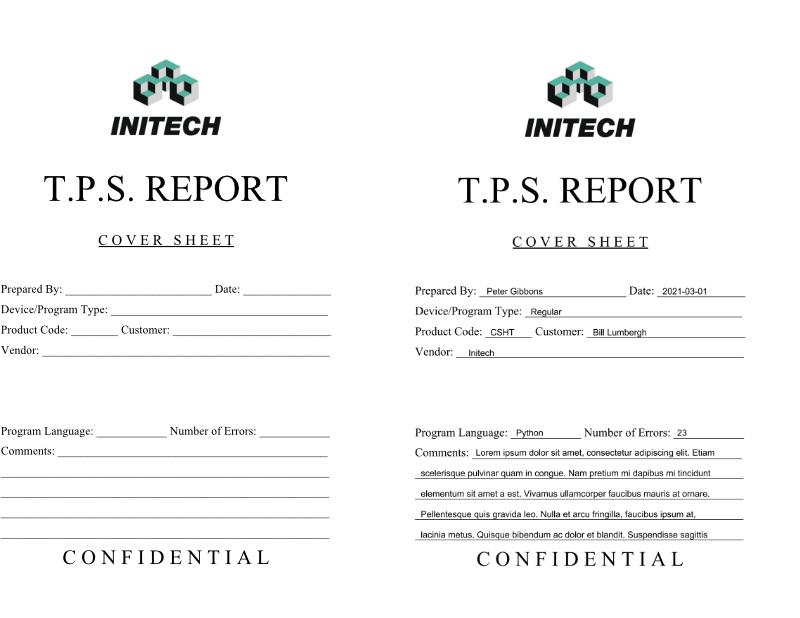
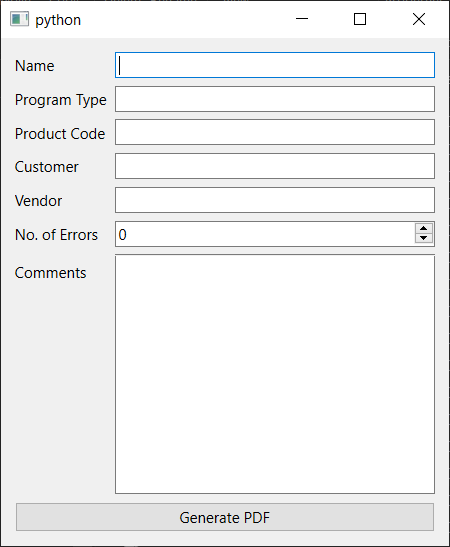
Qt包含一個QFormLayout布局,該布局簡化了生成簡單表單布局的過程。它的工作方式類似于網(wǎng)格,但是您可以將元素的行添加在一起,并將字符串自動轉換為QLabel對象。我們的框架應用程序,包括與模板表單匹配的完整布局,如下所示。from PyQt5.QtWidgets import QPushButton, QLineEdit, QApplication, QFormLayout, QWidget, QTextEdit, QSpinBox
class Window(QWidget):
def __init__(self):
super().__init__()
self.name = QLineEdit()
self.program_type = QLineEdit()
self.product_code = QLineEdit()
self.customer = QLineEdit()
self.vendor = QLineEdit()
self.n_errors = QSpinBox()
self.n_errors.setRange(0, 1000)
self.comments = QTextEdit()
self.generate_btn = QPushButton("Generate PDF")
layout = QFormLayout()
layout.addRow("Name", self.name)
layout.addRow("Program Type", self.program_type)
layout.addRow("Product Code", self.product_code)
layout.addRow("Customer", self.customer)
layout.addRow("Vendor", self.vendor)
layout.addRow("No. of Errors", self.n_errors)
layout.addRow("Comments", self.comments)
layout.addRow(self.generate_btn)
self.setLayout(layout)
app = QApplication([])
w = Window()
w.show()
app.exec()
reportlab和PdfReader兩個庫。流程如下:使用 PdfReader讀入template.pdf文件,并僅提取第一頁。創(chuàng)建一個 reportlab的Canvas對象使用 pdfrw.toreportlab.makerl生成畫布對象,然后使用canvas.doForm()將其添加到Canvas中。在畫布上繪制自定義位 將PDF保存到文件
result.pdf保存在同一文件夾中。from reportlab.pdfgen.canvas import Canvas
from pdfrw import PdfReader
from pdfrw.buildxobj import pagexobj
from pdfrw.toreportlab import makerl
outfile = "result.pdf"
template = PdfReader("template.pdf", decompress=False).pages[0]
template_obj = pagexobj(template)
canvas = Canvas(outfile)
xobj_name = makerl(canvas, template_obj)
canvas.doForm(xobj_name)
ystart = 443
# Prepared by
canvas.drawString(170, ystart, "My name here")
canvas.save()
IO操作,因此可能會花費一些時間(例如,如果我們從網(wǎng)絡驅動器中加載文件)。因此,最好在單獨的線程中進行處理。接下來,我們將定義這個自定義線程運行器。QRunner框架來處理該流程是很有意義的,這也使以后為每個作業(yè)添加可自定義的模板變得很簡單。我們在使用多線程教程中可以看到相同的方法,在該方法中,我們使用QRunner的子類來保存我們的自定義運行代碼,并在單獨的QObject子類上實現(xiàn)特定于運行器的信號。from PyQt5.QtWidgets import QPushButton, QLineEdit, QApplication, QFormLayout, QWidget, QTextEdit, QMessageBox, QSpinBox
from PyQt5.QtCore import QObject, QRunnable, QThreadPool, pyqtSignal, pyqtSlot
from reportlab.pdfgen.canvas import Canvas
from pdfrw import PdfReader
from pdfrw.buildxobj import pagexobj
from pdfrw.toreportlab import makerl
class WorkerSignals(QObject):
"""
Defines the signals available from a running worker thread.
"""
error = pyqtSignal(str)
file_saved_as = pyqtSignal(str)
class Generator(QRunnable):
"""
Worker thread
Inherits from QRunnable to handle worker thread setup, signals
and wrap-up.
:param data: The data to add to the PDF for generating.
"""
def __init__(self, data):
super().__init__()
self.data = data
self.signals = WorkerSignals()
@pyqtSlot()
def run(self):
try:
outfile = "result.pdf"
template = PdfReader("template.pdf", decompress=False).pages[0]
template_obj = pagexobj(template)
canvas = Canvas(outfile)
xobj_name = makerl(canvas, template_obj)
canvas.doForm(xobj_name)
ystart = 443
# Prepared by
canvas.drawString(170, ystart, self.data['name'])
canvas.save()
except Exception as e:
self.signals.error.emit(str(e))
return
self.signals.file_saved_as.emit(outfile)
file_saved_as,它發(fā)出已保存的PDF文件的文件名(成功時)error,它以調試字符串的形式發(fā)出錯誤信號
QThreadPool來添加運行我們的自定義運行器。我們可以將它添加到__init__塊的MainWindow中。class Window(QWidget):
def __init__(self):
super().__init__()
self.threadpool = QThreadPool()
QRunner,我們只需要實現(xiàn)generate方法來創(chuàng)建運行器,將表單字段中的數(shù)據(jù)傳遞給運行器,并開始運行生成器。def generate(self):
self.generate_btn.setDisabled(True)
data = {
'name': self.name.text(),
'program_type': self.program_type.text(),
'product_code': self.product_code.text(),
'customer': self.customer.text(),
'vendor': self.vendor.text(),
'n_errors': str(self.n_errors.value()),
'comments': self.comments.toPlainText()
}
g = Generator(data)
g.signals.file_saved_as.connect(self.generated)
g.signals.error.connect(print) # Print errors to console.
self.threadpool.start(g)
def generated(self, outfile):
pass28
generate_btn,目的是使用戶在生成過程中無法多次按下按鈕。然后,我們從控件中構造數(shù)據(jù)字典,使用.text()方法從QLineEdit控件中獲取文本,.value()從QSpinBox中獲取值,以及.toPlainText()獲得QTextEdit的純文本表示。因為我們要放置文本格式,所以我們將數(shù)值轉換為字符串。Generator運行器的實例,并傳入了數(shù)據(jù)字典。我們將file_saved_as信號連接到生成的方法(在底部定義,但尚未執(zhí)行任何操作),并將錯誤信號連接到標準Python打印功能:這會自動將任何錯誤打印到控制臺。Generator實例,并將其傳遞到線程池的.start()方法以使其排隊運行(它應立即啟動)。然后,我們可以將此方法掛接到主窗口__init__中的按鈕上,例如:self.generate_btn.pressed.connect(self.generate)
result.pdf保存在啟動該應用程序的同一文件夾中。到目前為止,我們只在頁面上放置了一個文本塊,因此讓我們完成生成器的工作,以將所有字段寫在正確的位置。y坐標增加了頁面的高度(所以0,0在左下角),因此在之前的代碼中,我們?yōu)轫斝卸xystart,然后為每行減去28。ystart = 443
# Prepared by
canvas.drawString(170, ystart, self.data['name'])
# Date: Todays date
today = datetime.today()
canvas.drawString(410, ystart, today.strftime('%F'))
# Device/Program Type
canvas.drawString(230, ystart-28, self.data['program_type'])
# Product code
canvas.drawString(175, ystart-(2*28), self.data['product_code'])
# Customer
canvas.drawString(315, ystart-(2*28), self.data['customer'])
# Vendor
canvas.drawString(145, ystart-(3*28), self.data['vendor'])
ystart = 250
# Program Language
canvas.drawString(210, ystart, "Python")
canvas.drawString(430, ystart, self.data['n_errors'])
field.setMaxLength(25)
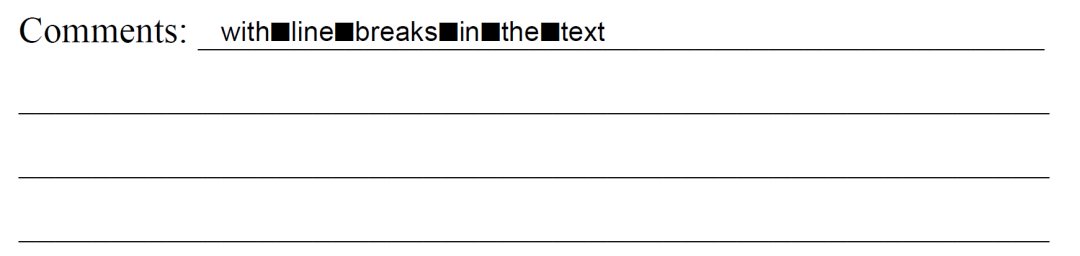
W)填充,則任何實際行都將適合。textwrap庫,一旦我們刪除了換行符,我們就可以使用該庫包裝文本。import textwrap
comments = comments.replace('\n', ' ')
lines = textwrap.wrap(comments, width=80)
import textwrap
comments = comments.replace('\n', ' ')
lines = textwrap.wrap(comments, width=65) # 45
first_line = lines[0]
remainder = ' '.join(lines[1:])
lines = textwrap.wrap(remainder, 75) # 55
lines = lines[:4] # max lines, not including the first.
Ws線插入空間所需的換行長度。這是最短的線,但不現(xiàn)實。使用的值應適用于大多數(shù)普通文本。y位置,將它們打印到 PDF 上。模板文檔中各行之間的間距為28。comments = self.data['comments'].replace('\n', ' ')
if comments:
lines = textwrap.wrap(comments, width=65) # 45
first_line = lines[0]
remainder = ' '.join(lines[1:])
lines = textwrap.wrap(remainder, 75) # 55
lines = lines[:4] # max lines, not including the first.
canvas.drawString(155, 223, first_line)
for n, l in enumerate(lines, 1):
canvas.drawString(80, 223 - (n*28), l)
亂數(shù)假文文本的結果。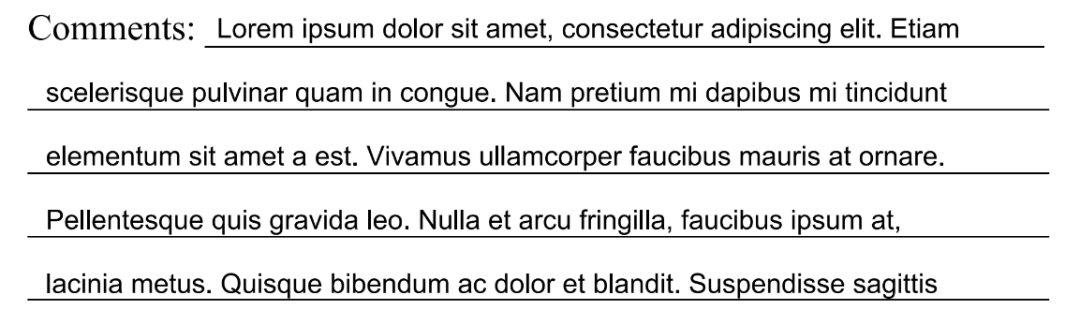
os.startfile以該類型的默認啟動器打開文件 —— 在這種情況下,使用默認的PDF查看器打開PDF。QMessageBoxdef generated(self, outfile):
self.generate_btn.setDisabled(False)
try:
os.startfile(outfile)
except Exception:
# If startfile not available, show dialog.
QMessageBox.information(self, "Finished", "PDF has been generated")
from PyQt5.QtWidgets import QPushButton, QLineEdit, QApplication, QFormLayout, QWidget, QTextEdit, QMessageBox, QSpinBox
from PyQt5.QtCore import QObject, QRunnable, QThreadPool, pyqtSignal, pyqtSlot
from reportlab.pdfgen.canvas import Canvas
import os
import textwrap
from datetime import datetime
from pdfrw import PdfReader
from pdfrw.buildxobj import pagexobj
from pdfrw.toreportlab import makerl
class WorkerSignals(QObject):
"""
Defines the signals available from a running worker thread.
"""
error = pyqtSignal(str)
file_saved_as = pyqtSignal(str)
class Generator(QRunnable):
"""
Worker thread
Inherits from QRunnable to handle worker thread setup, signals
and wrap-up.
:param data: The data to add to the PDF for generating.
"""
def __init__(self, data):
super().__init__()
self.data = data
self.signals = WorkerSignals()
@pyqtSlot()
def run(self):
try:
outfile = "result.pdf"
template = PdfReader("template.pdf", decompress=False).pages[0]
template_obj = pagexobj(template)
canvas = Canvas(outfile)
xobj_name = makerl(canvas, template_obj)
canvas.doForm(xobj_name)
ystart = 443
# Prepared by
canvas.drawString(170, ystart, self.data['name'])
# Date: Todays date
today = datetime.today()
canvas.drawString(410, ystart, today.strftime('%F'))
# Device/Program Type
canvas.drawString(230, ystart-28, self.data['program_type'])
# Product code
canvas.drawString(175, ystart-(2*28), self.data['product_code'])
# Customer
canvas.drawString(315, ystart-(2*28), self.data['customer'])
# Vendor
canvas.drawString(145, ystart-(3*28), self.data['vendor'])
ystart = 250
# Program Language
canvas.drawString(210, ystart, "Python")
canvas.drawString(430, ystart, self.data['n_errors'])
comments = self.data['comments'].replace('\n', ' ')
if comments:
lines = textwrap.wrap(comments, width=65) # 45
first_line = lines[0]
remainder = ' '.join(lines[1:])
lines = textwrap.wrap(remainder, 75) # 55
lines = lines[:4] # max lines, not including the first.
canvas.drawString(155, 223, first_line)
for n, l in enumerate(lines, 1):
canvas.drawString(80, 223 - (n*28), l)
canvas.save()
except Exception as e:
self.signals.error.emit(str(e))
return
self.signals.file_saved_as.emit(outfile)
class Window(QWidget):

    def __init__(self):
        super().__init__()

        self.threadpool = QThreadPool()
self.name = QLineEdit()
self.program_type = QLineEdit()
self.product_code = QLineEdit()
self.customer = QLineEdit()
self.vendor = QLineEdit()
self.n_errors = QSpinBox()
self.n_errors.setRange(0, 1000)
self.comments = QTextEdit()
self.generate_btn = QPushButton("Generate PDF")
self.generate_btn.pressed.connect(self.generate)
layout = QFormLayout()
layout.addRow("Name", self.name)
layout.addRow("Program Type", self.program_type)
layout.addRow("Product Code", self.product_code)
layout.addRow("Customer", self.customer)
layout.addRow("Vendor", self.vendor)
layout.addRow("No. of Errors", self.n_errors)
layout.addRow("Comments", self.comments)
layout.addRow(self.generate_btn)
self.setLayout(layout)
def generate(self):
self.generate_btn.setDisabled(True)
data = {
'name': self.name.text(),
'program_type': self.program_type.text(),
'product_code': self.product_code.text(),
'customer': self.customer.text(),
'vendor': self.vendor.text(),
'n_errors': str(self.n_errors.value()),
'comments': self.comments.toPlainText()
}
g = Generator(data)
g.signals.file_saved_as.connect(self.generated)
g.signals.error.connect(print) # Print errors to console.
self.threadpool.start(g)
def generated(self, outfile):
        self.generate_btn.setDisabled(False)
        try:
            os.startfile(outfile)
        except Exception:
            # If startfile not available, show dialog.
            QMessageBox.information(self, "Finished", "PDF has been generated")
app = QApplication([])
w = Window()
w.show()
app.exec_()
from PyQt5.QtWidgets import QPushButton, QLineEdit, QApplication, QFormLayout, QWidget, QTextEdit, QMessageBox, QSpinBox, QFileDialog
from PyQt5.QtCore import QObject, QRunnable, QThreadPool, pyqtSignal, pyqtSlot

from reportlab.pdfgen.canvas import Canvas

import os, csv

import textwrap
from datetime import datetime

from pdfrw import PdfReader
from pdfrw.buildxobj import pagexobj
from pdfrw.toreportlab import makerl


class WorkerSignals(QObject):
    """
    Defines the signals available from a running worker thread.
    """
    error = pyqtSignal(str)
    finished = pyqtSignal()


class Generator(QRunnable):
    """
    Worker thread

    Inherits from QRunnable to handle worker thread setup, signals
    and wrap-up.

    :param data: The data to add to the PDF for generating.
    """

    def __init__(self, data):
        super().__init__()
        self.data = data
        self.signals = WorkerSignals()

    @pyqtSlot()
    def run(self):
        try:
            filename, _ = os.path.splitext(self.data['sourcefile'])
            folder = os.path.dirname(self.data['sourcefile'])

            template = PdfReader("template.pdf", decompress=False).pages[0]
            template_obj = pagexobj(template)

            with open(self.data['sourcefile'], 'r', newline='') as f:
                reader = csv.DictReader(f)

                for n, row in enumerate(reader, 1):
                    fn = f'{filename}-{n}.pdf'
                    outfile = os.path.join(folder, fn)
                    canvas = Canvas(outfile)

                    xobj_name = makerl(canvas, template_obj)
                    canvas.doForm(xobj_name)

                    ystart = 443

                    # Prepared by
                    canvas.drawString(170, ystart, row.get('name', ''))

                    # Date: Todays date
                    today = datetime.today()
                    canvas.drawString(410, ystart, today.strftime('%F'))

                    # Device/Program Type
                    canvas.drawString(230, ystart-28, row.get('program_type', ''))

                    # Product code
                    canvas.drawString(175, ystart-(2*28), row.get('product_code', ''))

                    # Customer
                    canvas.drawString(315, ystart-(2*28), row.get('customer', ''))

                    # Vendor
                    canvas.drawString(145, ystart-(3*28), row.get('vendor', ''))

                    ystart = 250

                    # Program Language
                    canvas.drawString(210, ystart, "Python")

                    canvas.drawString(430, ystart, row.get('n_errors', ''))

                    comments = row.get('comments', '').replace('\n', ' ')
                    if comments:
                        lines = textwrap.wrap(comments, width=65) # 45
                        first_line = lines[0]
                        remainder = ' '.join(lines[1:])

                        lines = textwrap.wrap(remainder, 75) # 55
                        lines = lines[:4]  # max lines, not including the first.

                        canvas.drawString(155, 223, first_line)
                        for n, l in enumerate(lines, 1):
                            canvas.drawString(80, 223 - (n*28), l)

                    canvas.save()

        except Exception as e:

            self.signals.error.emit(str(e))
            return

        self.signals.finished.emit()


class Window(QWidget):

    def __init__(self):
        super().__init__()

        self.threadpool = QThreadPool()

        self.sourcefile = QLineEdit()
        self.sourcefile.setDisabled(True)  # must use the file finder to select a valid file.

        self.file_select = QPushButton("Select CSV...")
        self.file_select.pressed.connect(self.choose_csv_file)

        self.generate_btn = QPushButton("Generate PDF")
        self.generate_btn.pressed.connect(self.generate)

        layout = QFormLayout()
        layout.addRow(self.sourcefile, self.file_select)
        layout.addRow(self.generate_btn)

        self.setLayout(layout)

    def choose_csv_file(self):
        filename, _ = QFileDialog.getOpenFileName(self, "Select a file", filter="CSV files (*.csv)")
        if filename:
            self.sourcefile.setText(filename)

    def generate(self):
        if not self.sourcefile.text():
            return  # If the field is empty, ignore.

        self.generate_btn.setDisabled(True)

        data = {
            'sourcefile': self.sourcefile.text(),
        }
        g = Generator(data)
        g.signals.finished.connect(self.generated)
        g.signals.error.connect(print)  # Print errors to console.
        self.threadpool.start(g)

    def generated(self):
        self.generate_btn.setDisabled(False)
        QMessageBox.information(self, "Finished", "PDFs have been generated")


app = QApplication([])
w = Window()
w.show()
app.exec()
template.pdf和此示例CSV文件運行此應用,以生成一些TPS報告。現(xiàn)在我們生成了多個文件,完成后打開它們并沒有多大意義。取而代之的是,我們始終只顯示一次“完成”消息。信號 file_saved_as已重命名為finished,并且由于不再使用文件名str,我們將其刪除。用于獲取文件名的 QLineEdit已禁用,因此無法直接進行編輯:設置源CSV文件的唯一方法是直接選擇文件,確保已在其中。我們基于導入文件名和當前行號自動生成輸出文件名。文件名取自輸入CSV:CSV文件名為 tps.csv,文件名為tps-1.pdf,tps-2.pdf等。文件被寫到源CSV所在的文件夾中。由于某些行/文件可能會漏掉必填字段,因此我們在行字典上使用 .get()并使用默認的空字符串。
使模板和輸出文件位置可配置 —— 使用Qt文件對話框 從文件和模板(JSON)一起加載字段位置,因此您可以將同一表單用于多個模板 使字段可配置-這非常棘手,但是您可以為特定類型( str,datetime,int等)分配特定的小部件
更多閱讀
特別推薦
點擊下方閱讀原文加入社區(qū)會員
評論
圖片
表情