
Node.js + Vue 實(shí)現(xiàn) Excel 導(dǎo)出與保存
作者:可愛子 https://juejin.cn/post/6953882449235410951
我們的項(xiàng)目是前端用vue,服務(wù)端用node.js,這個(gè)excel導(dǎo)出我們已經(jīng)用了一年,我們目前用到的無非是圖片導(dǎo)出,文本導(dǎo)出,調(diào)調(diào)excel單元格距離等.
這個(gè)node端的封裝是經(jīng)過同事不斷的review(感謝同事),俺不斷的修改優(yōu)化后的代碼,當(dāng)時(shí)也是我第一次接觸node.js,只想告訴你,用它,穩(wěn)穩(wěn)的!
node.js服務(wù)端代碼
1.拿到需要導(dǎo)出的數(shù)據(jù)之后如何使用(假數(shù)據(jù)模擬,下面是頁面)

 constructor(prop) {
    super(prop)
    // 定義excel頭部數(shù)據(jù)
    this.header = [
      { header: '游戲', key: 'gameInfo', width: 30 },
      { header: '宣傳圖片', key: 'image', width: 15 },
      { header: '游戲詳情頁', key: 'path', width: 15 },
      { header: '狀態(tài)', key: 'activeStatus', width: 30 },
      { header: '排序權(quán)重', key: 'sort', width: 30 },
      { header: '最近編輯時(shí)間', key: 'updateTime', width: 30 },
      { header: '最近編輯人', key: 'operatorName', width: 30 },
    ]
  }
 /**
   * 導(dǎo)出游戲管理數(shù)據(jù)
   */
  async exportGameEndGameManage() {
    const { list } = await this.commonGameEndGameManage(true)
    console.log(list, 'list')
    const baseExcelInfo = {
      data: list,
      filename: 'gameManageList',
      header: this.header,
      sheetName: '游戲管理列表',
      imageKeys: [
        {
          name: 'image',
          imgWidth: '100',
          imgHeight: '100',
        },
      ],
    }
    await this.service.common.exportFile.exportExcel(baseExcelInfo)
  }
復(fù)制代碼
list就是拿到的數(shù)據(jù),打印如下
baseExcelInfo用來定義基本的參數(shù)
data 表示的是excel的數(shù)據(jù)來源
filename 是文件名(但是前端的excel導(dǎo)出會(huì)進(jìn)行覆蓋)
header表示的是表格的頭部
sheetName表示的是excel的表名
imageKeys:圖片的信息:字段名稱,圖片的寬高,但是只要有圖片,name必須設(shè)
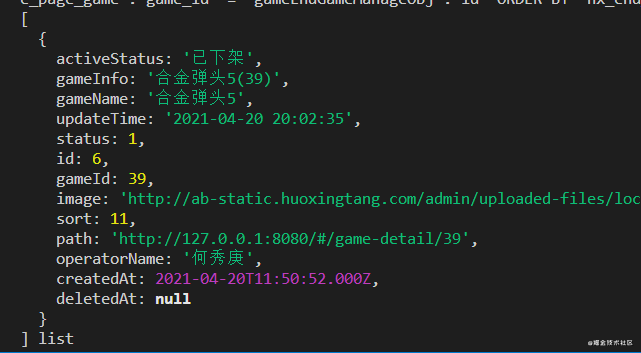
很重要的一點(diǎn)就是,假設(shè)從表里面的數(shù)據(jù)返回的status是1,那么我肯定導(dǎo)出的不能1,應(yīng)該是對應(yīng)的一個(gè)中文,所以在導(dǎo)出前,應(yīng)該進(jìn)行處理,這個(gè)處理應(yīng)該是在服務(wù)端來做,而不是前端做一遍,然后為了導(dǎo)出這個(gè)功能重新做一遍舉個(gè)例子
/**
   *  公共游戲管理數(shù)據(jù)
   *  @param { Boolean } isExport 是否導(dǎo)出
   */
  async commonGameEndGameManage(isExport) {
    const activeStatus = { // 這個(gè)按道理寫在constructor里面哈
      1: '打開',
      2: '關(guān)閉',
    }
    const { ctx, app } = this
    const { limit, offset } = this.paginationDeal(ctx.request.query)
    const isPagi = isExport ? {} : { limit, offset }
    const { list, total } = await ctx.service.operateManage.gameEndPage.
    getGameEndGameManage({ isPagi })
    const data = list.map(node => {
      const { status, ...params } = node.toJSON()
      const activeStatus = activeStatus[status]
      return { activeStatus, status, ...params }
    })
    return { list: data, total }
  }
復(fù)制代碼
2.exportExcel的封裝
首先安裝對應(yīng)的包 npm install exceljs --save
然后復(fù)制下面的代碼就好了
'use strict'
const Service = require('egg').Service
// 引入exceljs
const Excel = require('exceljs')

// 導(dǎo)出文件相關(guān)服務(wù)
class exportFileService extends Service {
  constructor(prop) {
    super(prop)
    this.defaultViews = [
      {
        x: 0,
        y: 0,
        width: 10000,
        height: 20000,
        firstSheet: 0,
        activeTab: 1,
        visibility: 'visible',
      },
    ]
    this.fontName = 'Arial Unicode MS'
    this.font = { name: this.fontName, family: 4, size: 13 }
    this.fill = { type: 'pattern', pattern: 'solid', fgColor: { argb: 'FF8DB4E2' } }
    this.border = { style: 'thin', color: { argb: 'cccccc' } }
  }
  /**
   * 導(dǎo)出excel
   * @param { Object } config 傳入的excel對象
   * @param { Array } config.data excel的數(shù)據(jù)
   * @param { String } config.filename excel文件名
   * @param { Array } config.header excel的頭部
   * @param { String } config.sheetName 表名
   * @param { Array } config.imageKeys 需要轉(zhuǎn)化圖片的key
   * @param { String } config.creator 創(chuàng)建表的人
   * @param { String } config.lastModifiedBy 最后修改表的人
   * @param { String } config.imageKeys.imgWidth 圖片的寬度
   * @param { String } config.imageKeys.imgHeight 圖片的高度
   * */
  async exportExcel({
    data = [],
    filename = 'file',
    header,
    sheetName = 'sheet1',
    imageKeys = [],
    creator = 'me',
    lastModifiedBy = 'her',
  }) {
    const { ctx } = this
    const workbook = new Excel.Workbook()
    // 設(shè)置屬性 -創(chuàng)建著以及最后修改的人
    workbook.creator = creator
    workbook.lastModifiedBy = lastModifiedBy

    // 時(shí)間獲取一次就好
    const now = new Date()
    workbook.created = now
    workbook.modified = now
    workbook.lastPrinted = now
    const worksheet = workbook.addWorksheet(sheetName)
    // 設(shè)置打開時(shí)候的視圖-設(shè)置位置
    workbook.views = this.defaultViews
    // 使工作表可見
    worksheet.state = 'visible'
    worksheet.columns = header

    for (let i = 1; i <= header.length; i++) {
      worksheet.getColumn(i).alignment = { vertical: 'middle', horizontal: 'center' }
      worksheet.getColumn(i).font = { name: 'Arial Unicode MS' }
    }
    worksheet.addRows(data)
    // 處理圖片
    const imageList = this.getImageList(imageKeys, data, header)
    // 添加圖片到sheet
    await this.addPicToSheet(imageList, imageKeys, workbook, worksheet)
    // 多級(jí)表頭
    const headerOPtion = header.filter((item, index) => {
      if (item.type && item.type === 'multi') {
        header.splice(index, 1)
        return item
      }
      return item.type && item.type === 'multi'
    })
    // 多級(jí)表頭重置設(shè)置表頭
    if (headerOPtion.length) {
      headerOPtion[0].headerText.forEach((text, index) => {
        const borderAttr = { top: this.border, left:
        this.border, bottom: this.border, right: this.border, index }
        const headerAttr = [
          {
            attr: 'values',
            value: text,
          },
          {
            attr: 'font',
            value: this.font,
          },
          {
            attr: 'fill',
            value: this.fill,
          },
          {
            attr: 'border',
            value: borderAttr,
          },
        ]
        headerAttr.map(item => {
          worksheet.getRow(index + 1)[item.attr] = item.value
          return worksheet
        })
      })
      headerOPtion[0].mergeOption.forEach(merge => {
        worksheet.mergeCells(merge)
      })
    } else {
      // 設(shè)置表頭樣式
      worksheet.getRow(1).font = this.font
      worksheet.getRow(1).fill = this.fill
    }
    const bufferContent = await workbook.xlsx.writeBuffer()

    // 設(shè)置
    ctx.set('Content-disposition', `attachment;filename=${filename}.xlsx`)
    // 返回文件buffer
    ctx.body = bufferContent
  }
  // 設(shè)置圖片大小
  getImageList(imageKeys, data, header) {
    return imageKeys.map(
      key => data.map(
        (item, index) => ({
          key,
          url: item[key.name],
          col: this.app.utils.index.getIndexByKey(header, key.name) + 1,
          row: index + 2,
          width: key.imgWidth,
          height: key.imgHeight,
        })
      )
    )
  }
  // 添加圖片到sheet
  async addPicToSheet(imageList, imageKeys, workbook, worksheet) {
    if (imageKeys.length > 0) {
      await Promise.all(imageList.map(async imgArr => {
        return await Promise.all(imgArr.map(item => {
          const { url, width, height, row, col } = item
          // 因?yàn)橛械膱D片是不存在的需要判斷
          if (url) {
            return this.app.utils.index.getBase64(url, this.ctx).then(res => {
              if (!url) return
              const imgType = url.split('?')[0].substring(url.split('?')[0].
              lastIndexOf('.') + 1).toLowerCase()
              const id = workbook.addImage({
                base64: res,
                extension: imgType,
              })
              worksheet.addImage(id, {
                tl: { col: col - 1, row: row - 1 },
                ext: { width, height },
              })
              worksheet.getRow(row).height = height
              // // 去掉背景鏈接
              worksheet.getRow(row).getCell(item.key.name).value = ''
            })
          }
          return item
        }))
      }))
    }
  }
}

module.exports = exportFileService
復(fù)制代碼
3.調(diào)用下載接口后node.js返回的信息
前端看到的就是一個(gè)二進(jìn)制文件流
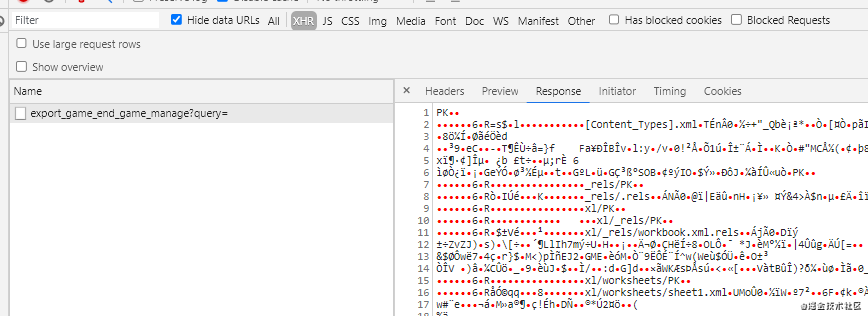
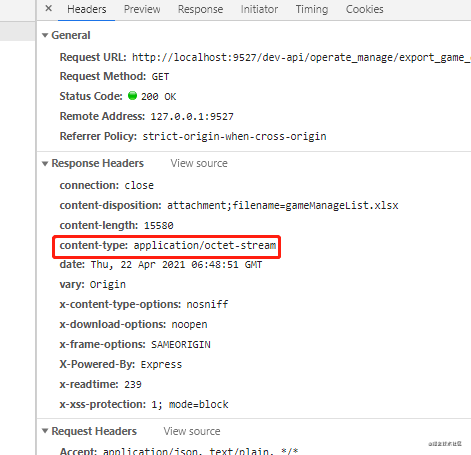
推薦了解 content-type: application/octet-stream
前端代碼
接口
// 文件導(dǎo)出
export function exportFile(url, params) {
  return request({
    responseType: 'blob',
    headers: {
      'Content-Type': 'application/json',
    },
    timeout: 1000 * 60,
    url: url,
    method: 'get',
    params: {
      query: qs.stringify(params),
    },
  })
}
復(fù)制代碼
utils
/**
 * 本地保存文件并導(dǎo)出
 * @param { Object } Obj 導(dǎo)出文件參數(shù)對象
 * @param { Blob } file 文件資源
 * @param { String } fileName 文件名稱(注意:包含后綴)
 */
export function loacalSaveFile({ file, fileName, option = { type: 'application/vnd.ms-excel' }}) {
  const ieKit = judgeBrowser('ie')
  const blobData = new Blob([file], option) // 生成 Blob文件
  if (ieKit && navigator.msSaveBlob) {
    navigator.msSaveBlob && navigator.msSaveBlob(blobData, fileName)
  } else {
    // 其他
    const save_link = document.createElement('a')
    const url = URL.createObjectURL(file) // 創(chuàng)建url
    save_link.href = url
    save_link.download = fileName
    document.body.appendChild(save_link)
    save_link.click()
    setTimeout(() => {
      document.body.removeChild(save_link)
      window.URL.revokeObjectURL(url) // 回收url
    }, 0)
  }
}
復(fù)制代碼
調(diào)用
const file = await exportFile(this.exportItem.apiUrl, data)
loacalSaveFile({ file, fileName: `${this.exportItem.fileName}.xlsx` })
復(fù)制代碼
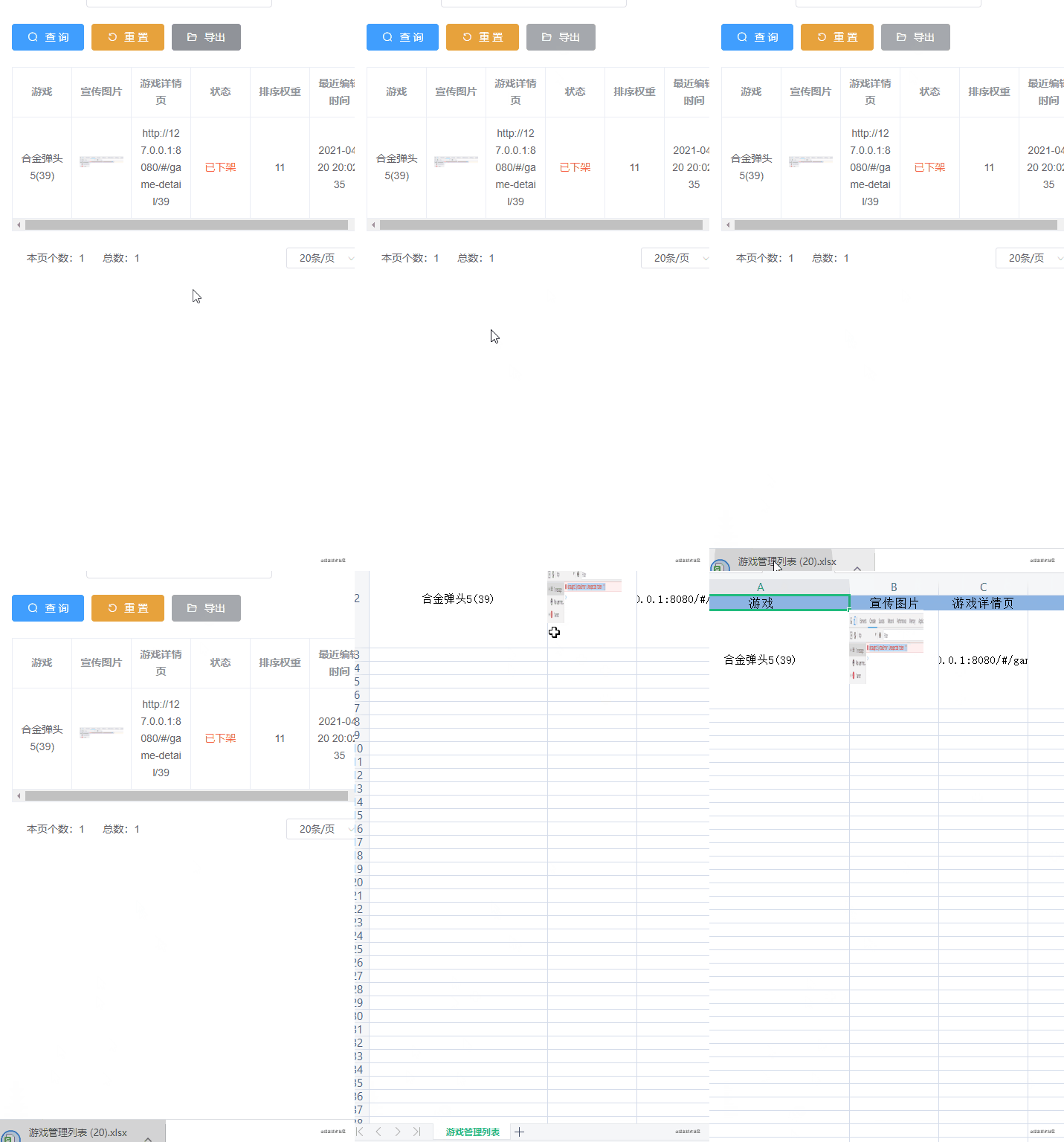
效果
點(diǎn)贊和在看就是最大的支持??