
Python 自動(dòng)化辦公-玩轉(zhuǎn) PPT
如果你有一堆 PPT 要做,他們的格式是一樣的,只是填充的內(nèi)容不一樣,那你就可以使用 Python 來減輕你的負(fù)擔(dān)。
PPT 分為內(nèi)容和格式,用 Python 操作 PPT,就是利用 Python 對(duì) PPT 的內(nèi)容進(jìn)行獲取和填充,修改 PPT 的格式并不是 Python 的強(qiáng)項(xiàng)。因此,當(dāng)你有一堆 PPT 要做的時(shí)候,先做好一個(gè)帶格式的 PPT,然后用 Python 復(fù)制這個(gè) PPT 文件,然后再對(duì)其進(jìn)行讀寫。
本文介紹如何使用 python 操作 PPT,用到的模塊就是 python-pptx,以下的示例基本滿足日常需求,如果要知道更多,可以訪問 python-pptx 的官方文檔。
python-pptx 模塊的安裝
pip install python-pptx
讀取 PPT
假如文件「測(cè)試.pptx」的內(nèi)容如下:
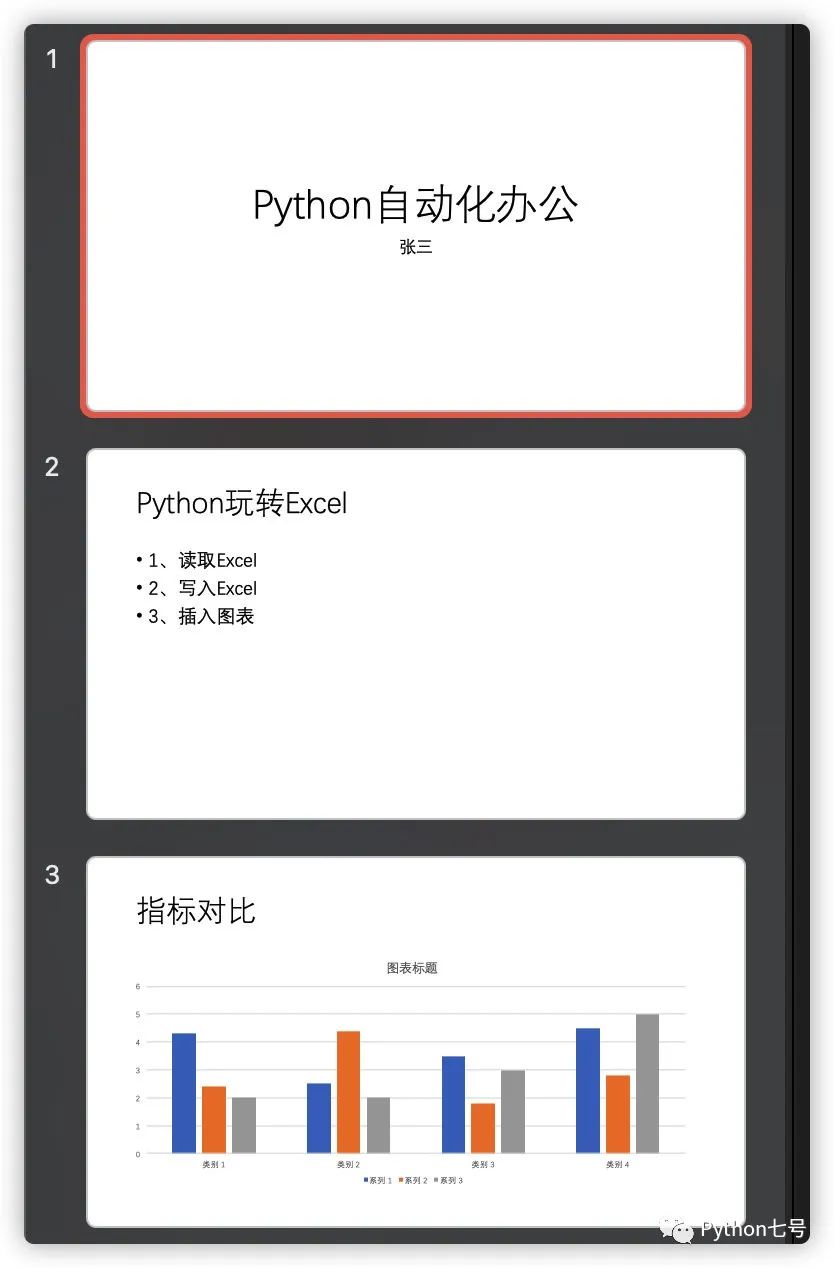
那么以下代碼可以讀取其內(nèi)容:
from pptx import Presentation
prs = Presentation("測(cè)試.pptx")
for index, slide in enumerate(prs.slides):
    print(f"第 {index+1} 頁")
    for shape in slide.shapes:
        if shape.has_text_frame:
            text_frame = shape.text_frame
            # print(text_frame.text)
            # 如果分段讀就用下面的代碼
            for paragraph in text_frame.paragraphs:
                print(paragraph.text)
執(zhí)行結(jié)果如下所示:
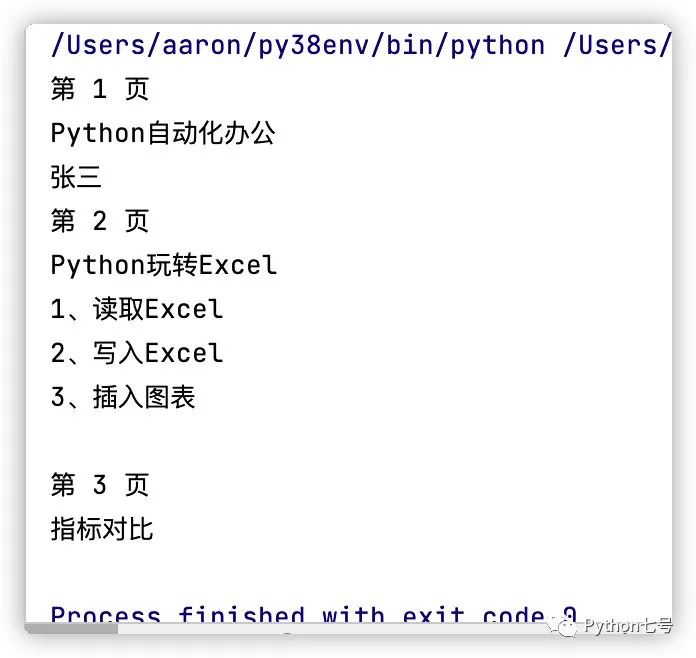
寫入 PPT
先來個(gè)簡(jiǎn)單點(diǎn)的。
假如要生成如下圖所示的 PPT 頁

代碼可以這樣寫:
from pptx import Presentation

prs = Presentation()
title_slide_layout = prs.slide_layouts[0]
slide = prs.slides.add_slide(title_slide_layout)
title = slide.shapes.title
subtitle = slide.placeholders[1]

title.text = "Hello, World!"
subtitle.text = "python-pptx was here!"

prs.save('test.pptx')
添加一張幻燈片
幻燈片都有板式,同樣的,pptx 提供了 9 種版式讓我們選擇,分別是:
Title (presentation title slide) Title and Content Section Header (sometimes called Segue) Two Content (side by side bullet textboxes) Comparison (same but additional title for each side by side content box) Title Only Blank Content with Caption Picture with Caption
分別對(duì)應(yīng) PPT 的如下版式,我已經(jīng)用數(shù)據(jù)一一標(biāo)出:
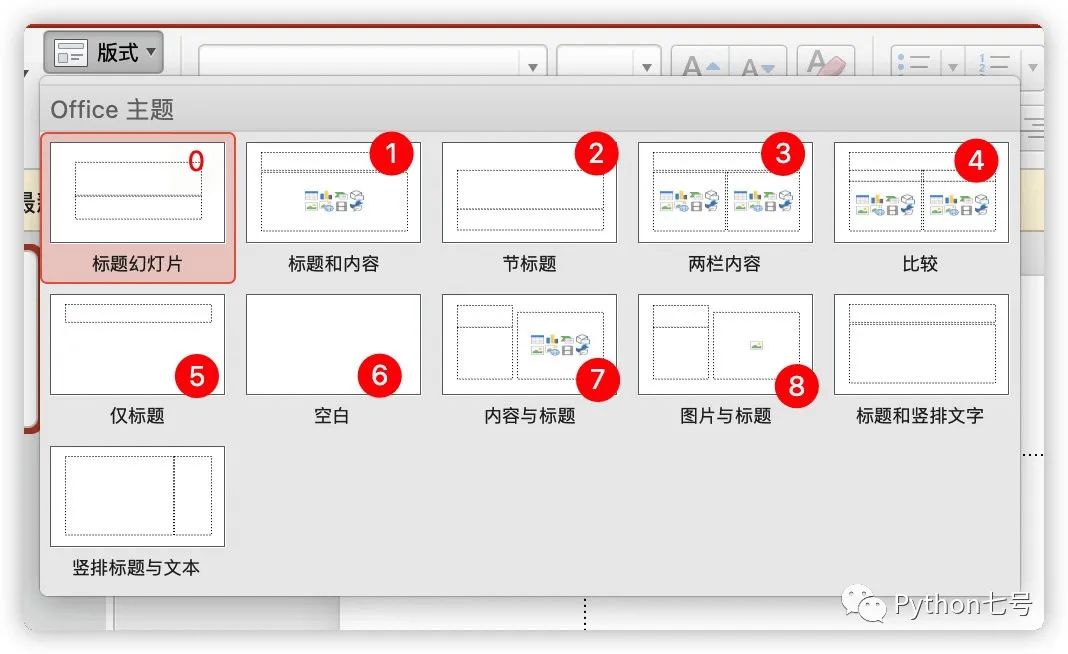
比如現(xiàn)在要添加一張標(biāo)題和內(nèi)容的版式,就可以這樣寫代碼:
from pptx import Presentation

prs = Presentation()
SLD_LAYOUT_TITLE_AND_CONTENT = 1  ##標(biāo)題和內(nèi)容版式的序號(hào)
slide_layout = prs.slide_layouts[SLD_LAYOUT_TITLE_AND_CONTENT]
slide = prs.slides.add_slide(slide_layout)
為幻燈片添加內(nèi)容
添加內(nèi)容之前先理解一下形狀。從技術(shù)上講,可以在幻燈片上放置 9 種類型的形狀:
形狀 - 帶有填充和輪廓的自動(dòng)形狀 文本框 - 沒有填充和輪廓的自動(dòng)形狀 占位符 - 可以出現(xiàn)在幻燈片布局或母版上的自動(dòng)形狀,并在使用該布局的幻燈片上繼承,允許添加采用占位符格式的內(nèi)容 線路/連接器 圖片 表格 - 行和列的東西 圖表 – 餅圖、折線圖等。 智能藝術(shù) - 尚不支持,但如果存在則保留 媒體剪輯——視頻或音頻
每一個(gè)幻燈片都有由一個(gè)形狀樹來組織,之所以稱為樹,是因?yàn)樗谝话闱闆r下是分層的;形狀樹中的節(jié)點(diǎn)可以是一個(gè)組形狀,它本身可以包含形狀并具有與形狀樹相同的語義。對(duì)于大多數(shù)用途,形狀樹具有列表語義。
獲取幻燈片中的形狀:
shapes = slide.shapes
自動(dòng)形狀是規(guī)則形狀。正方形、圓形、三角形、星星之類的。有 182 種不同的形狀可供選擇。其中 120 個(gè)具有調(diào)整“手柄”,您可以使用它來改變形狀。
許多形狀類型共享一組公共屬性。我們將在此處介紹其中的許多形狀,因?yàn)槠渲幸恍┬螤钪皇?AutoShape 的一種特殊形式。
添加自動(dòng)形狀
以下代碼添加一個(gè)圓角矩形形狀,一英寸見方,并放置在距幻燈片左上角一英寸處:
from pptx.enum.shapes import MSO_SHAPE
from pptx.util import Inches


shapes = slide.shapes
left = top = width = height = Inches(1.0)
shape = shapes.add_shape(
    MSO_SHAPE.ROUNDED_RECTANGLE, left, top, width, height
)
prs.save('新建幻燈片.pptx')
有關(guān)所有 182 種自動(dòng)形狀類型的列表,具體請(qǐng)參閱官方文檔 MSO_AUTO_SHAPE_TYPE 枚舉項(xiàng)。
占位符
占位符也是一種形狀,有 18 種類型的占位符。標(biāo)題、中心標(biāo)題、副標(biāo)題、正文,內(nèi)容,圖片,剪貼畫,圖表、表格、智能藝術(shù),日期、頁腳、幻燈片編號(hào),媒體剪輯,標(biāo)題,垂直正文、垂直對(duì)象、垂直標(biāo)題。
幻燈片上的占位符可以為空或已填充。這在圖片占位符中最為明顯。未填充時(shí),占位符會(huì)顯示可自定義的提示文本。內(nèi)容豐富的占位符在為空時(shí)也會(huì)顯示一個(gè)或多個(gè)內(nèi)容插入按鈕。
純文本占位符在輸入文本的第一個(gè)字符時(shí)進(jìn)入“填充”模式,并在刪除文本的最后一個(gè)字符時(shí)返回“未填充”模式。內(nèi)容豐富的占位符在插入圖片等內(nèi)容時(shí)進(jìn)入填充模式,并在刪除該內(nèi)容時(shí)返回未填充模式。為了刪除填充的占位符,形狀必須被刪除兩次。第一次刪除刪除內(nèi)容并將占位符恢復(fù)到未填充模式。額外的刪除將刪除占位符本身。可以通過重新應(yīng)用布局來恢復(fù)已刪除的占位符。
訪問占位符
>>> prs = Presentation()
>>> slide = prs.slides.add_slide(prs.slide_layouts[8])
>>> for shape in slide.placeholders:
...     print('%d %s' % (shape.placeholder_format.idx, shape.name))
...
0  Title 1
1  Picture Placeholder 2
2  Text Placeholder 3
如果已經(jīng)知道占位符的索引,也可通過索引來訪問:
>>> slide.placeholders[1]
<pptx.parts.slide.PicturePlaceholder object at 0x10d094590>
>>> slide.placeholders[2].name
'Text Placeholder 3'
將內(nèi)容插入占位符
>>> prs = Presentation()
>>> slide = prs.slides.add_slide(prs.slide_layouts[8])
>>> placeholder = slide.placeholders[1]  # idx key, not position
>>> placeholder.name
'Picture Placeholder 2'
>>> placeholder.placeholder_format.type
PICTURE (18)
>>> picture = placeholder.insert_picture('my-image.png')
如果要插入表格:
from pptx import Presentation
from pptx.util import Inches

prs = Presentation()
title_only_slide_layout = prs.slide_layouts[5]
slide = prs.slides.add_slide(title_only_slide_layout)
shapes = slide.shapes

shapes.title.text = 'Adding a Table'

rows = cols = 2
left = top = Inches(2.0)
width = Inches(6.0)
height = Inches(0.8)

table = shapes.add_table(rows, cols, left, top, width, height).table

# set column widths
table.columns[0].width = Inches(2.0)
table.columns[1].width = Inches(4.0)

# write column headings
table.cell(0, 0).text = 'Foo'
table.cell(0, 1).text = 'Bar'

# write body cells
table.cell(1, 0).text = 'Baz'
table.cell(1, 1).text = 'Qux'

prs.save('write_ppt_table.pptx')
如果要插入圖表:
from pptx import Presentation
from pptx.chart.data import CategoryChartData
from pptx.enum.chart import XL_CHART_TYPE
from pptx.util import Inches

# create presentation with 1 slide ------
prs = Presentation()
slide = prs.slides.add_slide(prs.slide_layouts[5])

# define chart data ---------------------
chart_data = CategoryChartData()
chart_data.categories = ['East', 'West', 'Midwest']
chart_data.add_series('Series 1', (19.2, 21.4, 16.7))

# add chart to slide --------------------
x, y, cx, cy = Inches(2), Inches(2), Inches(6), Inches(4.5)
slide.shapes.add_chart(
    XL_CHART_TYPE.COLUMN_CLUSTERED, x, y, cx, cy, chart_data
)

prs.save('write_ppt_chart.pptx')
PPT 轉(zhuǎn) Pdf
以下方法僅適用于 windows
def PPTtoPDF2(inputFileName, outputFileName, formatType = 32):
    import comtypes.client
    powerpoint = comtypes.client.CreateObject("Powerpoint.Application")
    powerpoint.Visible = 1

    if outputFileName[-3:] != 'pdf':
        outputFileName = outputFileName + ".pdf"
    deck = powerpoint.Presentations.Open(inputFileName)
    deck.SaveAs(outputFileName, formatType) # formatType = 32 for ppt to pdf
    deck.Close()
    powerpoint.Quit()
最后的話
本文拋磚引玉,更多復(fù)雜的 PPT 操作,請(qǐng)移步至文末的官方文檔。另外,Python 自動(dòng)化辦公系列的文章會(huì)同步到個(gè)人博客 https://somenzz.cn 上,保持更新,歡迎收藏。
后續(xù)本公眾號(hào)將堅(jiān)持日更,死磕自己,娛樂大家,請(qǐng)點(diǎn)贊給個(gè)鼓勵(lì)吧,感謝支持。
參考文檔:
https://python-pptx.readthedocs.io/en/latest/user/quickstart.html