
萬字教程:Python Word 文檔自動化

來源:超級大洋蔥806
環(huán)境安裝
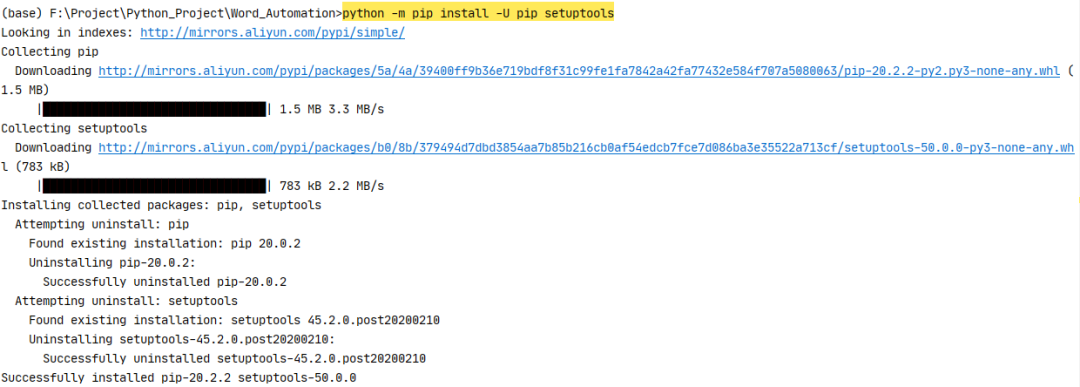
python -m pip install -U pip setuptools
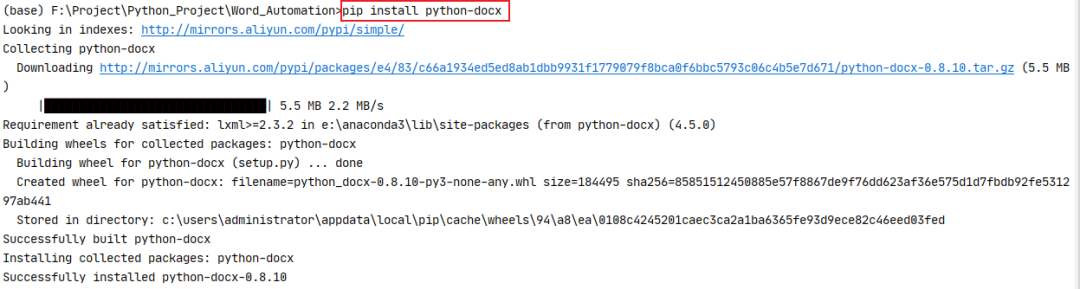
pip install python-docx
     from docx import Document

from docx.shared import Inches
pip install pypiwin32

     import win32com

from win32com.client import Dispatch, constants
pip install docx-mailmerge

from mailmerge import MailMerge
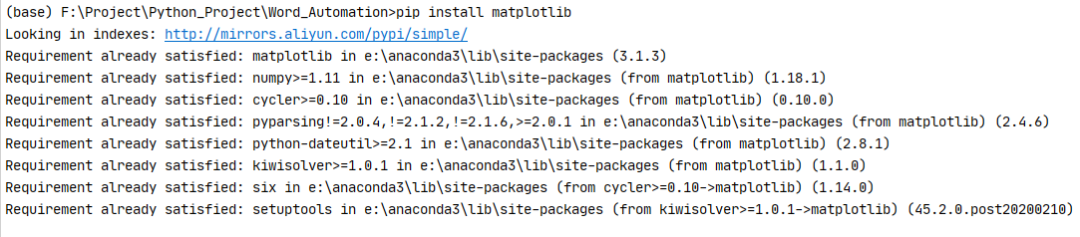
pip install matplotlib
import matplotlib.pyplot as plt

Python-docx 新建文檔
     from docx import Document

document = Document()

document.save('new.docx')

     from docx import Document


def GenerateNewWord(filename):

    document = Document()

    document.save(filename)


if __name__ == "__main__":

    print("大家好!我們今天開始學習word文檔自動化")

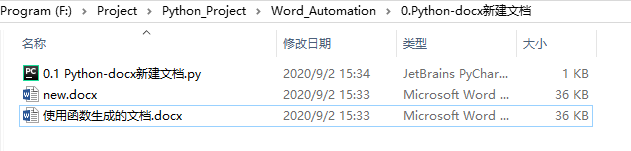
    print("我們先來直接生成一個名為‘new.docx’的文檔")

    document = Document()

    document.save('new.docx')


    print("沒錯,里面什么都沒有")


    # 我是華麗的分隔符


    print("我們使用函數(shù)生成一個word文檔試試")

    newname = '使用函數(shù)生成的文檔.docx'

    GenerateNewWord(newname)
Python-docx 編輯已存在文檔
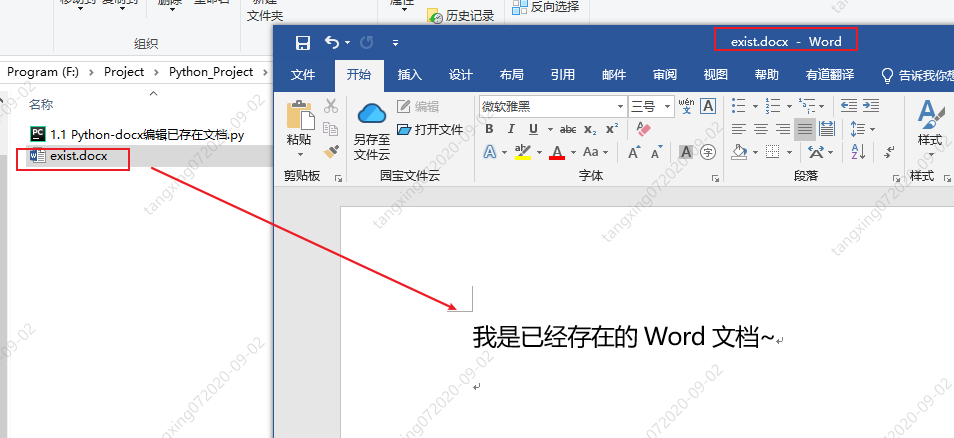
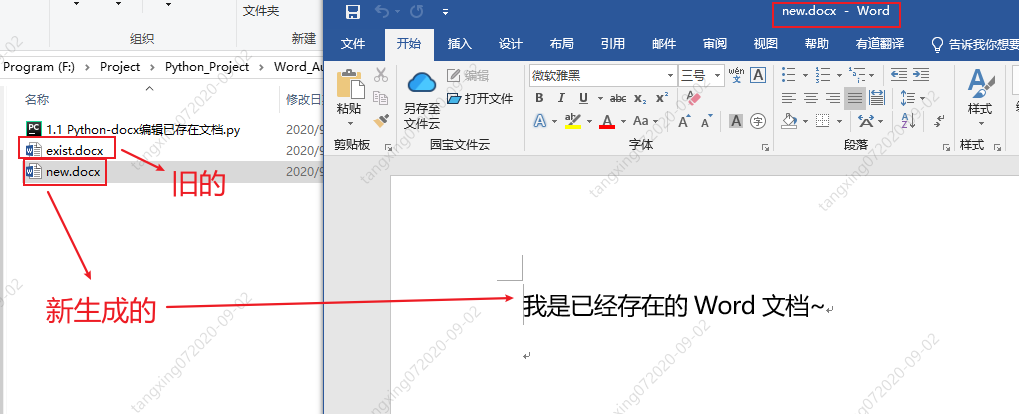
     from docx import Document

document = Document('exist.docx')

document.save('new.docx')
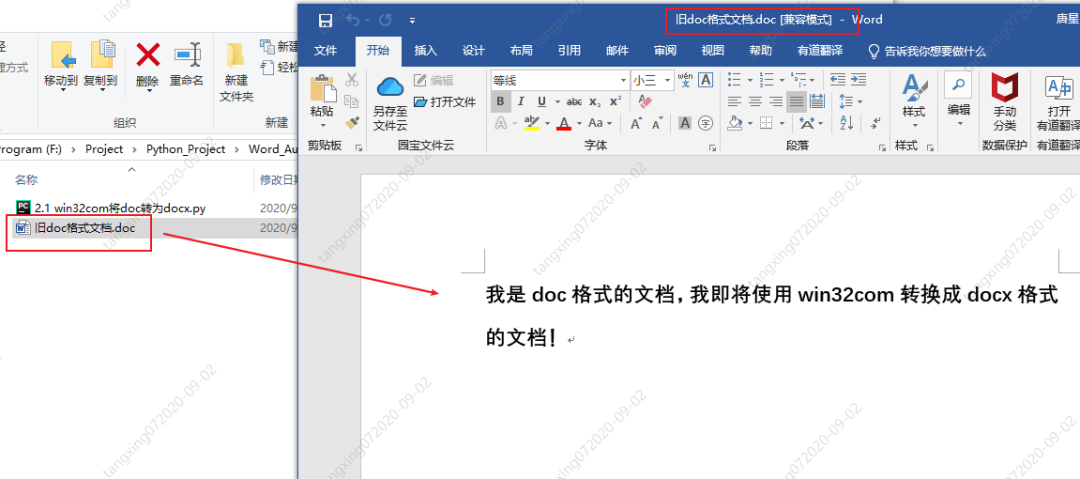
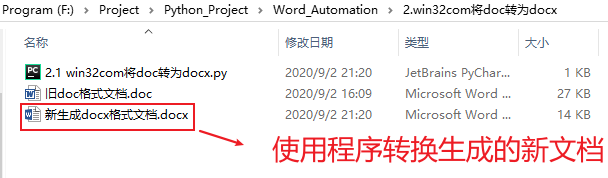
win32com 將 doc 轉為 docx
     import os

from win32com import client as wc


def TransDocToDocx(oldDocName,newDocxName):

    print("我是 TransDocToDocx 函數(shù)")

    # 打開word應用程序

    word = wc.Dispatch('Word.Application')


    # 打開 舊word 文件

    doc = word.Documents.Open(oldDocName)


    # 保存為 新word 文件,其中參數(shù) 12 表示的是docx文件

    doc.SaveAs(newDocxName, 12)


    # 關閉word文檔

    doc.Close()

    word.Quit()


    print("生成完畢!")


if __name__ == "__main__":

    # 獲取當前目錄完整路徑

    currentPath = os.getcwd()

    print("當前路徑為:",currentPath)


    # 獲取 舊doc格式word文件絕對路徑名

    docName = os.path.join(currentPath,'舊doc格式文檔.doc')

    print("docFilePath = ", docName)


    # 設置新docx格式文檔文件名

    docxName = os.path.join(currentPath,'新生成docx格式文檔.docx')


    TransDocToDocx(docName,docxName)
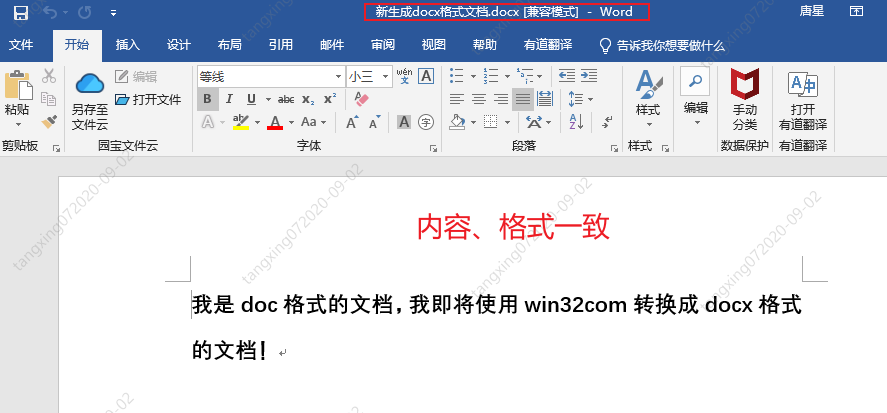
win32com 操作 word
     import win32com

from win32com.client import Dispatch, constants

import os


# 創(chuàng)建新的word文檔

def funOpenNewFile():

    word = Dispatch('Word.Application')

    # 或者使用下面的方法,使用啟動獨立的進程:

    # word = DispatchEx('Word.Application')


    # 如果不聲明以下屬性,運行的時候會顯示的打開word

    word.Visible = 1  # 0:后臺運行 1:前臺運行(可見)

    word.DisplayAlerts = 0  # 不顯示,不警告


    # 創(chuàng)建新的word文檔

    doc = word.Documents.Add()


    # 在文檔開頭添加內容

    myRange1 = doc.Range(0, 0)

    myRange1.InsertBefore('Hello word\n')


    # 在文檔末尾添加內容

    myRange2 = doc.Range()

    myRange2.InsertAfter('Bye word\n')


    # 在文檔i指定位置添加內容

    i = 0

    myRange3 = doc.Range(0, i)

    myRange3.InsertAfter("what's up, bro?\n")


    # doc.Save()  # 保存

    doc.SaveAs(os.getcwd() + "\\funOpenNewFile.docx")  # 另存為

    doc.Close()  # 關閉 word 文檔

    word.Quit()  # 關閉 office


if __name__ == '__main__':


    print("當前文件路徑名:",os.getcwd())


    print("調用funOpenNewFile()")

    funOpenNewFile()
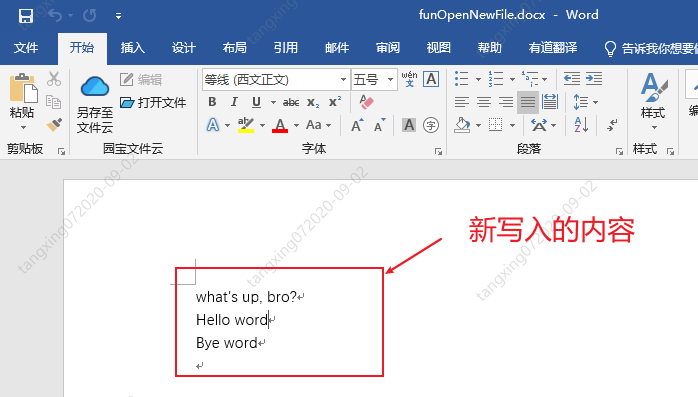
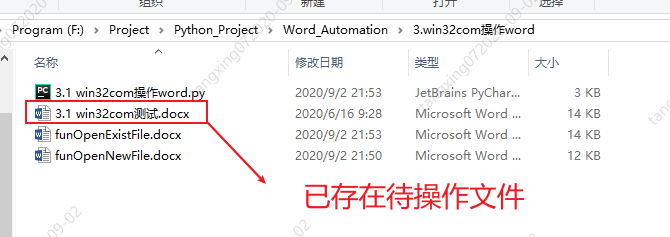
     import win32com

from win32com.client import Dispatch, constants

import os


# 打開已存在的word文件

def funOpenExistFile():

    word = Dispatch('Word.Application')

    # 或者使用下面的方法,使用啟動獨立的進程:

    # word = DispatchEx('Word.Application')


    # 如果不聲明以下屬性,運行的時候會顯示的打開word

    word.Visible = 1  # 0:后臺運行 1:前臺運行(可見)

    word.DisplayAlerts = 0  # 不顯示,不警告


    doc = word.Documents.Open(os.getcwd() + "\\3.1 win32com測試.docx") # 打開一個已有的word文檔


    # 在文檔開頭添加內容

    myRange1 = doc.Range(0, 0)

    myRange1.InsertBefore('Hello word\n')


    # 在文檔末尾添加內容

    myRange2 = doc.Range()

    myRange2.InsertAfter('Bye word\n')


    # 在文檔i指定位置添加內容

    i = 0

    myRange3 = doc.Range(0, i)

    myRange3.InsertAfter("what's up, bro?\n")


    # doc.Save()  # 保存

    doc.SaveAs(os.getcwd() + "\\funOpenExistFile.docx")  # 另存為

    doc.Close()  # 關閉 word 文檔

    word.Quit()  # 關閉 office


if __name__ == '__main__':

    print("當前文件路徑名:",os.getcwd())


    print("調用funOpenExistFile()")

    funOpenExistFile()
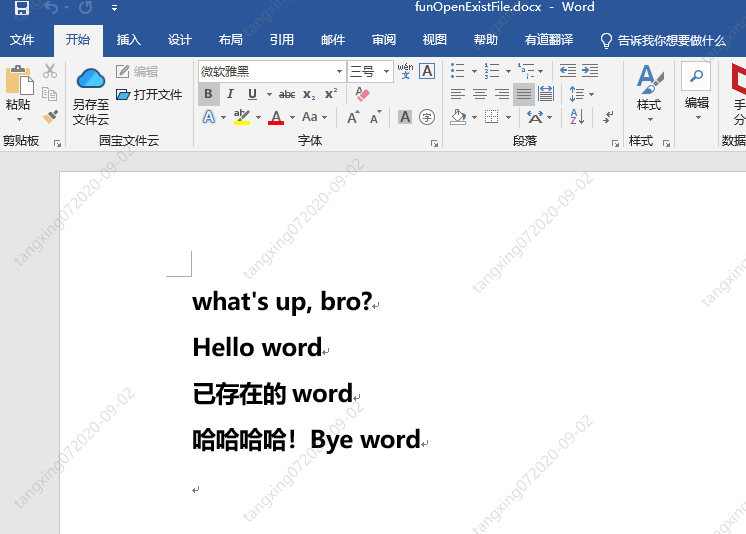
     import win32com

from win32com.client import Dispatch, constants

import os


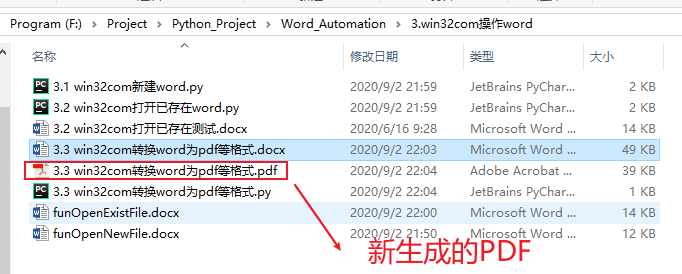
# 生成Pdf文件

def funGeneratePDF():

    word = Dispatch("Word.Application")

    word.Visible = 0  # 后臺運行,不顯示

    word.DisplayAlerts = 0  # 不警告

    doc = word.Documents.Open(os.getcwd() + "\\3.3 win32com轉換word為pdf等格式.docx") # 打開一個已有的word文檔

    doc.SaveAs(os.getcwd() + "\\3.3 win32com轉換word為pdf等格式.pdf", 17)  # txt=4, html=10, docx=16, pdf=17

    doc.Close()

    word.Quit()


if __name__ == '__main__':

    funGeneratePDF()
Python-docx 操作 word
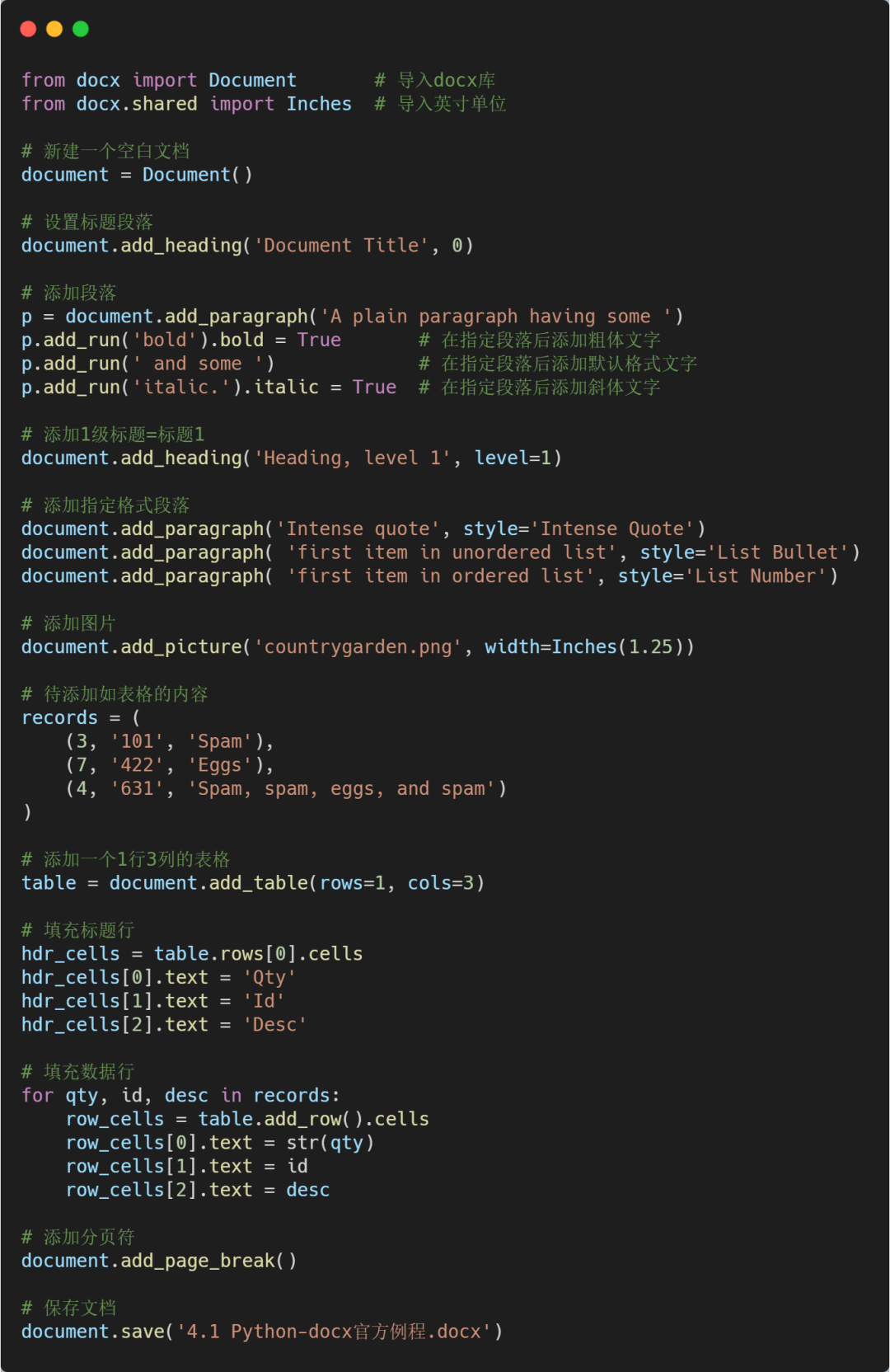
     from docx import Document

from docx.shared import Inches


document = Document()


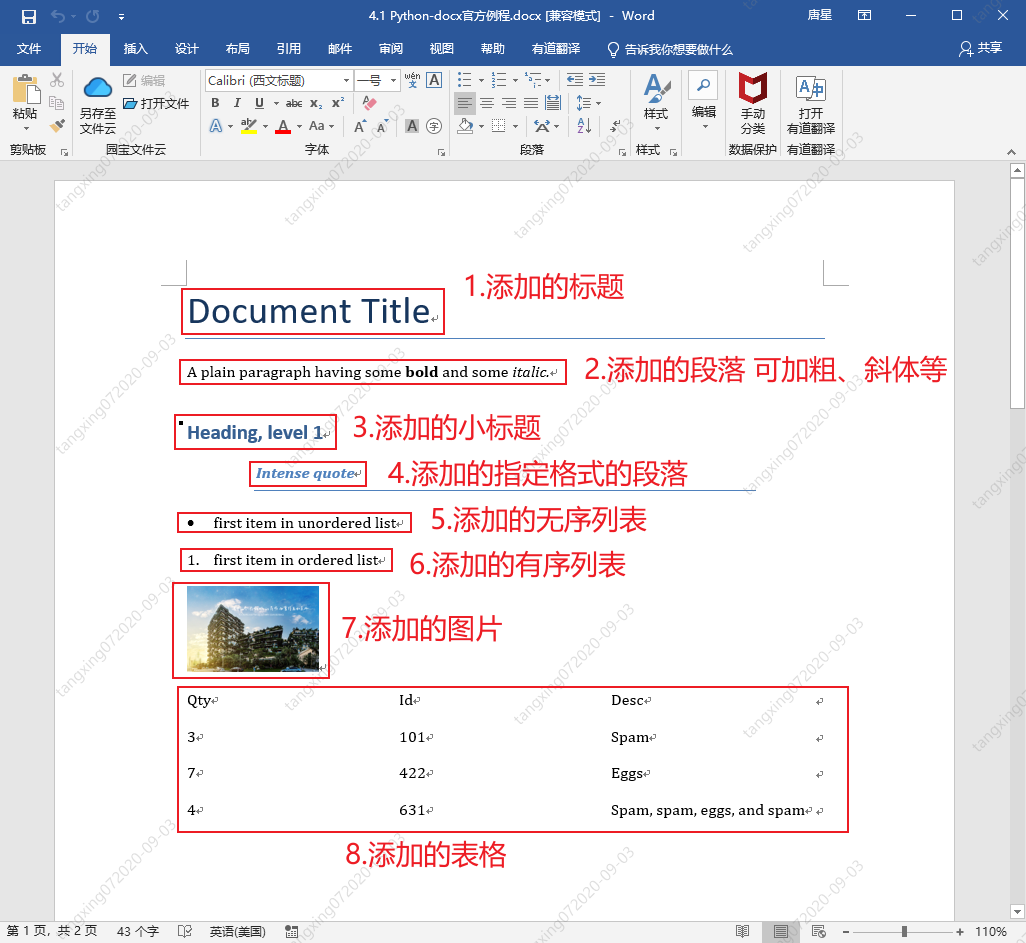
document.add_heading('Document Title', 0)


p = document.add_paragraph('A plain paragraph having some ')

p.add_run('bold').bold = True

p.add_run(' and some ')

p.add_run('italic.').italic = True


document.add_heading('Heading, level 1', level=1)

document.add_paragraph('Intense quote', style='Intense Quote')


document.add_paragraph(

    'first item in unordered list', style='List Bullet'

)

document.add_paragraph(

    'first item in ordered list', style='List Number'

)


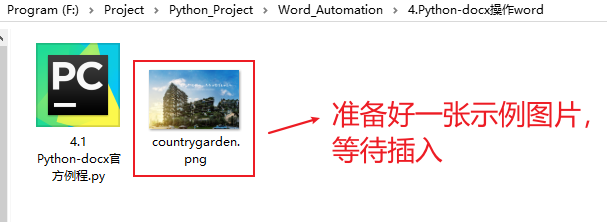
document.add_picture('countrygarden.png', width=Inches(1.25))


records = (

    (3, '101', 'Spam'),

    (7, '422', 'Eggs'),

    (4, '631', 'Spam, spam, eggs, and spam')

)


table = document.add_table(rows=1, cols=3)

hdr_cells = table.rows[0].cells

hdr_cells[0].text = 'Qty'

hdr_cells[1].text = 'Id'

hdr_cells[2].text = 'Desc'

for qty, id, desc in records:

    row_cells = table.add_row().cells

    row_cells[0].text = str(qty)

    row_cells[1].text = id

    row_cells[2].text = desc


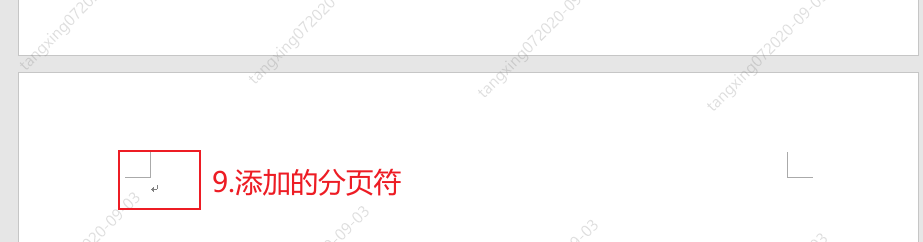
document.add_page_break()


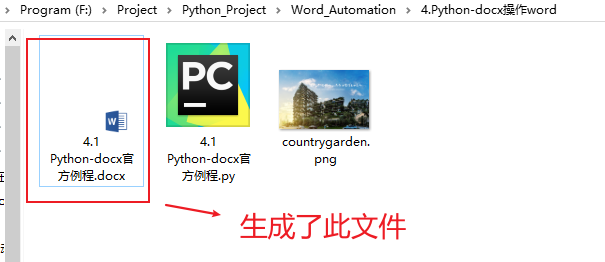
document.save('4.1 Python-docx官方例程.docx')
from docx import Document
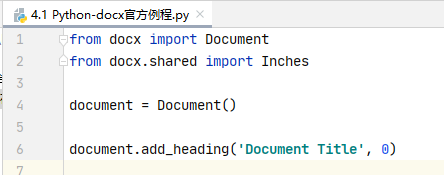
from docx.shared import Inches
document = Document()
document = Document('exist.docx')
document.add_heading('Document Title', 0)

p = document.add_paragraph('A plain paragraph having some ')
     p.add_run('bold').bold = True   # 添加粗體文字

p.add_run(' and some ')     # 添加默認格式文字

p.add_run('italic.').italic = True  # 添加斜體文字

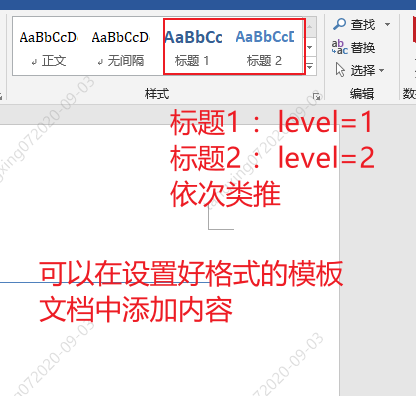
document.add_heading('Heading, level 1', level=1)
     document.add_paragraph('Intense quote', style='Intense Quote')


# 以下兩句的含義等同于上面一句

p = document.add_paragraph('Intense quote')

p.style = 'Intense Quote'
document.add_paragraph( 'first item in unordered list', style='List Bullet')
document.add_paragraph( 'first item in ordered list', style='List Number')

document.add_picture('countrygarden.png', width=Inches(1.25))
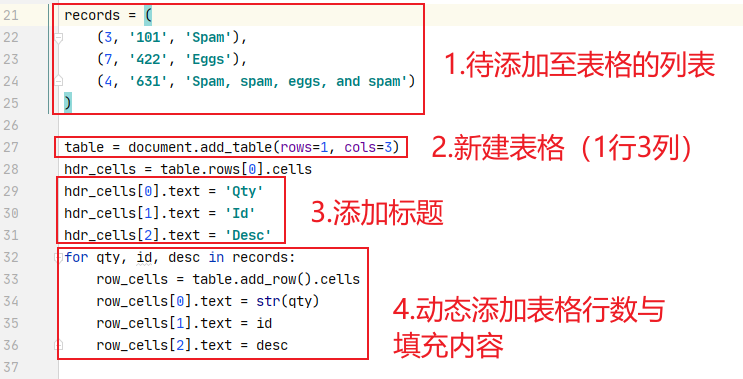
table = document.add_table(rows=1, cols=3)
     hdr_cells = table.rows[0].cells

hdr_cells[0].text = 'Qty'

hdr_cells[1].text = 'Id'

hdr_cells[2].text = 'Desc'
     for qty, id, desc in records:

    row_cells = table.add_row().cells

    row_cells[0].text = str(qty)

    row_cells[1].text = id

    row_cells[2].text = desc
table.style = 'LightShading-Accent1'

document.add_page_break()
document.save('4.1 Python-docx官方例程.docx')
     from docx import *

document = Document()


table = document.add_table(3, 3, style="Medium Grid 1 Accent 1")

heading_cells = table.rows[0].cells

heading_cells[0].text = '第一列內容'

heading_cells[1].text = '第二列內容'

heading_cells[2].text = '第三列內容'


document.save("demo.docx")
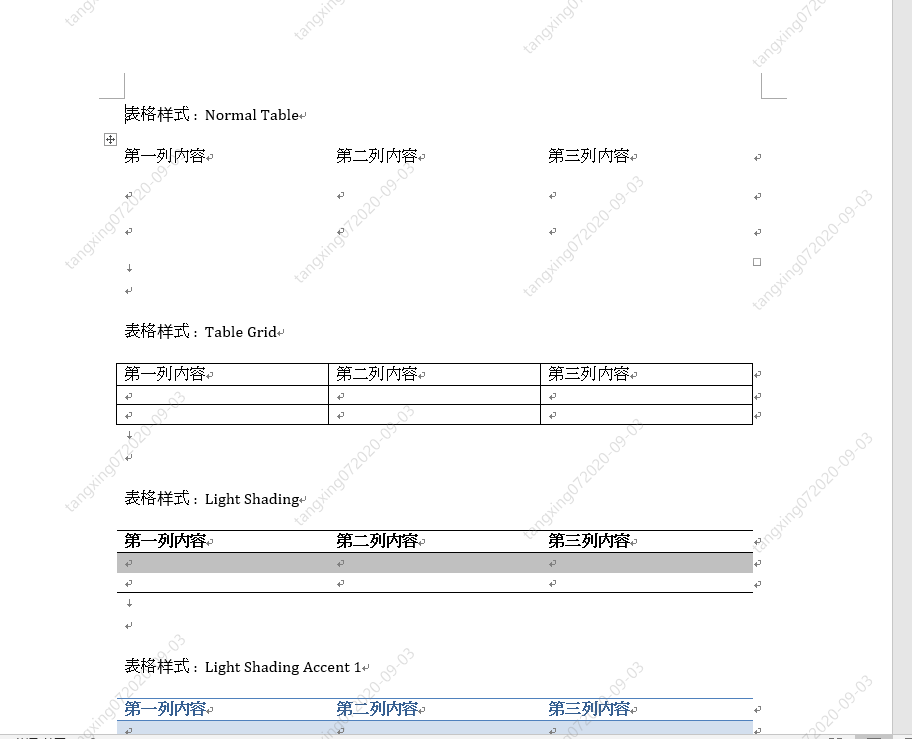
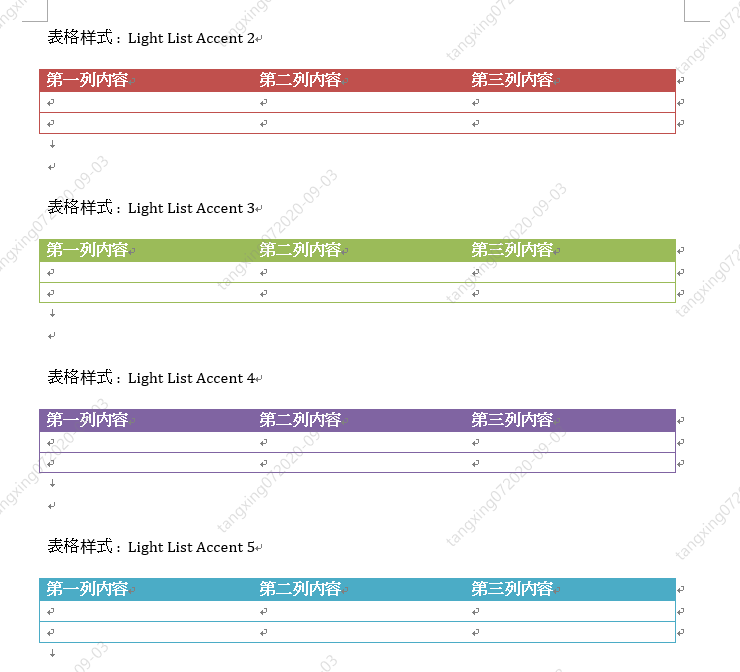
     from docx.enum.style import WD_STYLE_TYPE

from docx import Document


document = Document()

styles = document.styles


# 生成所有表樣式

for s in styles:

    if s.type == WD_STYLE_TYPE.TABLE:

        document.add_paragraph("表格樣式 :  " + s.name)

        table = document.add_table(3, 3, style=s)

        heading_cells = table.rows[0].cells

        heading_cells[0].text = '第一列內容'

        heading_cells[1].text = '第二列內容'

        heading_cells[2].text = '第三列內容'

        document.add_paragraph("\n")


document.save('4.3 所有表格樣式.docx')
docx&matplotlib 自動生成數(shù)據(jù)分析報告
     import xlrd


xlsx = xlrd.open_workbook('./3_1 xlrd 讀取 操作練習.xlsx')


# 通過sheet名查找:xlsx.sheet_by_name("sheet1")

# 通過索引查找:xlsx.sheet_by_index(3)

table = xlsx.sheet_by_index(0)


# 獲取單個表格值 (2,1)表示獲取第3行第2列單元格的值

value = table.cell_value(2, 1)

print("第3行2列值為",value)


# 獲取表格行數(shù)

nrows = table.nrows

print("表格一共有",nrows,"行")


# 獲取第4列所有值(列表生成式)

name_list = [str(table.cell_value(i, 3)) for i in range(1, nrows)]

print("第4列所有的值:",name_list)
     # 獲取學習成績信息

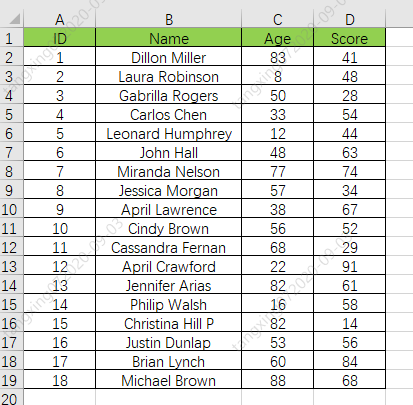
def GetExcelInfo():

    print("開始獲取表格內容信息")


    # 打開指定文檔

    xlsx = xlrd.open_workbook('學生成績表格.xlsx')


    # 獲取sheet

    sheet = xlsx.sheet_by_index(0)


    # 獲取表格行數(shù)

    nrows = sheet.nrows

    print("一共 ",nrows," 行數(shù)據(jù)")


    # 獲取第2列,和第4列 所有值(列表生成式),從第2行開始獲取

    nameList = [str(sheet.cell_value(i, 1)) for i in range(1, nrows)]

    scoreList = [int(sheet.cell_value(i, 3)) for i in range(1, nrows)]


    # 返回名字列表和分數(shù)列表

    return nameList,scoreList

     # 將名字和分數(shù)列表合并成字典(將學生姓名和分數(shù)關聯(lián)起來)

scoreDictionary = dict(zip(nameList, scoreList))

print("dictionary:",scoreDictionary)


# 對字典進行值排序,高分在前,reverse=True 代表降序排列

scoreOrder = sorted(scoreDictionary.items(), key=lambda x: x[1], reverse=True)

print("scoreOrder",scoreOrder)
     # 合成的字典

dictionary: {'Dillon Miller': 41, 'Laura Robinson': 48, 'Gabrilla Rogers': 28, 'Carlos Chen': 54, 'Leonard Humphrey': 44, 'John Hall': 63, 'Miranda Nelson': 74, 'Jessica Morgan': 34, 'April Lawrence': 67, 'Cindy Brown': 52, 'Cassandra Fernan': 29, 'April Crawford': 91, 'Jennifer Arias': 61, 'Philip Walsh': 58, 'Christina Hill P': 14, 'Justin Dunlap': 56, 'Brian Lynch': 84, 'Michael Brown': 68}


# 排序后,再次轉換成列表

scoreOrder [('April Crawford', 91), ('Brian Lynch', 84), ('Miranda Nelson', 74), ('Michael Brown', 68), ('April Lawrence', 67), ('John Hall', 63), ('Jennifer Arias', 61), ('Philip Walsh', 58), ('Justin Dunlap', 56), ('Carlos Chen', 54), ('Cindy Brown', 52), ('Laura Robinson', 48), ('Leonard Humphrey', 44), ('Dillon Miller', 41), ('Jessica Morgan', 34), ('Cassandra Fernan', 29), ('Gabrilla Rogers', 28), ('Christina Hill P', 14)]

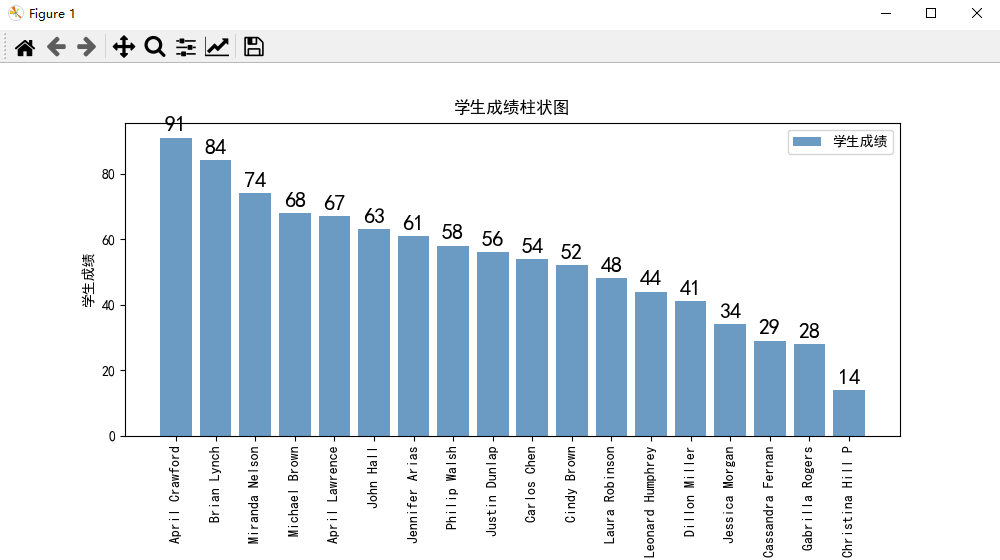
     # 生成學生成績柱狀圖(使用matplotlib)

# 會生成一張名為"studentScore.jpg"的圖片

def GenerateScorePic(scoreList):

    # 解析成績列表,生成橫縱坐標列表

    xNameList = [str(studentInfo[0]) for studentInfo in scoreList]

    yScoreList = [int(studentInfo[1]) for studentInfo in scoreList]

    print("xNameList",xNameList)

    print("yScoreList",yScoreList)


    # 設置字體格式

    matplotlib.rcParams['font.sans-serif'] = ['SimHei']  # 用黑體顯示中文


    # 設置繪圖尺寸

    plt.figure(figsize=(10,5))


    # 繪制圖像

    plt.bar(x=xNameList, height=yScoreList, label='學生成績', color='steelblue', alpha=0.8)


    # 在柱狀圖上顯示具體數(shù)值, ha參數(shù)控制水平對齊方式, va控制垂直對齊方式

    for x1, yy in scoreList:

        plt.text(x1, yy + 1, str(yy), ha='center', va='bottom', fontsize=16, rotation=0)


    # 設置標題

    plt.title("學生成績柱狀圖")


    # 為兩條坐標軸設置名稱

    plt.xlabel("學生姓名")

    plt.ylabel("學生成績")


    # 顯示圖例

    plt.legend()


    # 坐標軸旋轉

    plt.xticks(rotation=90)


    # 設置底部比例,防止橫坐標顯示不全

    plt.gcf().subplots_adjust(bottom=0.25)


    # 保存為圖片

    plt.savefig("studentScore.jpg")


    # 直接顯示

    plt.show()
     # 開始生成報告

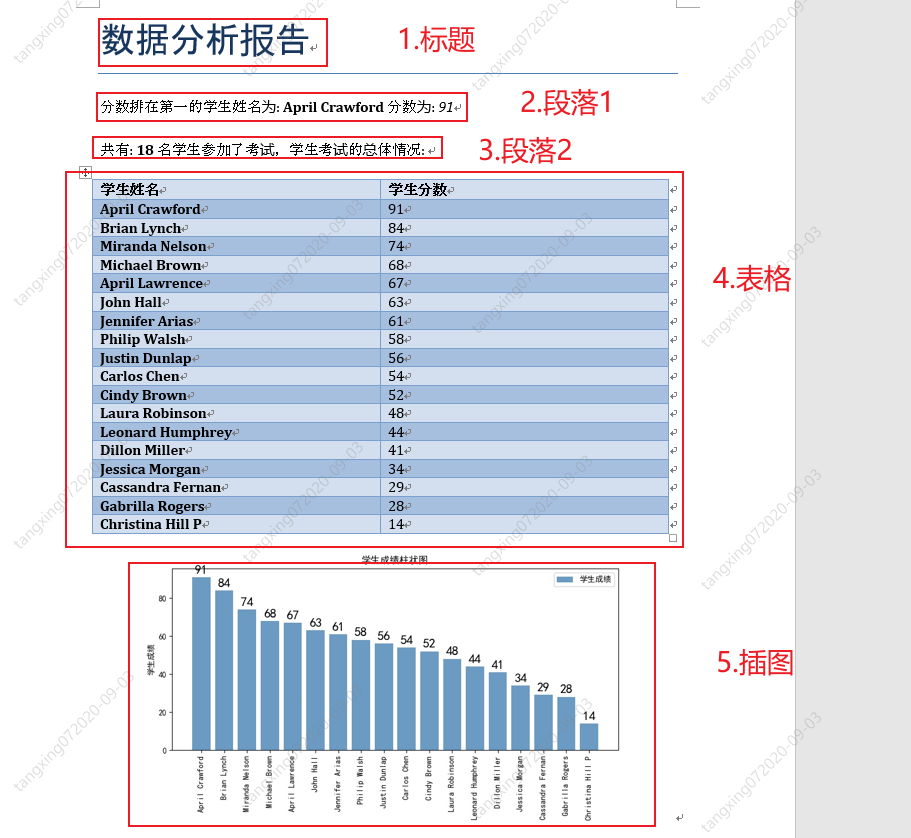
def GenerateScoreReport(scoreOrder,picPath):

    # 新建一個文檔

    document = Document()


    # 設置標題

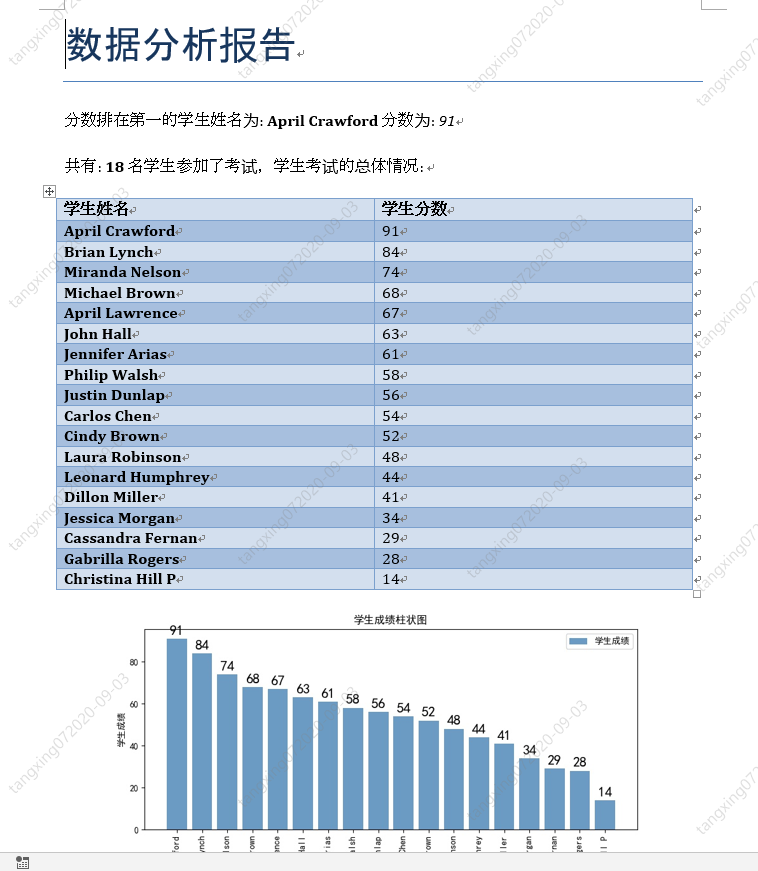
    document.add_heading('數(shù)據(jù)分析報告', 0)


    # 添加第一名的信息

    p1 = document.add_paragraph("分數(shù)排在第一的學生姓名為: ")

    p1.add_run(scoreOrder[0][0]).bold = True

    p1.add_run(" 分數(shù)為: ")

    p1.add_run(str(scoreOrder[0][1])).italic = True


    # 添加總體情況信息

    p2 = document.add_paragraph("共有: ")

    p2.add_run(str(len(scoreOrder))).bold = True

    p2.add_run(" 名學生參加了考試,學生考試的總體情況: ")


    # 添加考試情況表格

    table = document.add_table(rows=1, cols=2)

    table.style = 'Medium Grid 1 Accent 1'

    hdr_cells = table.rows[0].cells

    hdr_cells[0].text = '學生姓名'

    hdr_cells[1].text = '學生分數(shù)'

    for studentName,studentScore in scoreOrder:

        row_cells = table.add_row().cells

        row_cells[0].text = studentName

        row_cells[1].text = str(studentScore)


    # 添加學生成績柱狀圖

    document.add_picture(picPath, width=Inches(6))


    document.save('學生成績報告.docx')
     import xlrd

import matplotlib

import matplotlib.pyplot as plt

from docx import Document

from docx.shared import Inches


# 獲取學習成績信息

def GetExcelInfo():

    print("開始獲取表格內容信息")


    # 打開指定文檔

    xlsx = xlrd.open_workbook('學生成績表格.xlsx')


    # 獲取sheet

    sheet = xlsx.sheet_by_index(0)


    # 獲取表格行數(shù)

    nrows = sheet.nrows

    print("一共 ",nrows," 行數(shù)據(jù)")


    # 獲取第2列,和第4列 所有值(列表生成式),從第2行開始獲取

    nameList = [str(sheet.cell_value(i, 1)) for i in range(1, nrows)]

    scoreList = [int(sheet.cell_value(i, 3)) for i in range(1, nrows)]


    # 返回名字列表和分數(shù)列表

    return nameList,scoreList


# 生成學生成績柱狀圖(使用matplotlib)

# 會生成一張名為"studentScore.jpg"的圖片

def GenerateScorePic(scoreList):

    # 解析成績列表,生成橫縱坐標列表

    xNameList = [str(studentInfo[0]) for studentInfo in scoreList]

    yScoreList = [int(studentInfo[1]) for studentInfo in scoreList]

    print("xNameList",xNameList)

    print("yScoreList",yScoreList)


    # 設置字體格式

    matplotlib.rcParams['font.sans-serif'] = ['SimHei']  # 用黑體顯示中文


    # 設置繪圖尺寸

    plt.figure(figsize=(10,5))


    # 繪制圖像

    plt.bar(x=xNameList, height=yScoreList, label='學生成績', color='steelblue', alpha=0.8)


    # 在柱狀圖上顯示具體數(shù)值, ha參數(shù)控制水平對齊方式, va控制垂直對齊方式

    for x1, yy in scoreList:

        plt.text(x1, yy + 1, str(yy), ha='center', va='bottom', fontsize=16, rotation=0)


    # 設置標題

    plt.title("學生成績柱狀圖")


    # 為兩條坐標軸設置名稱

    plt.xlabel("學生姓名")

    plt.ylabel("學生成績")


    # 顯示圖例

    plt.legend()


    # 坐標軸旋轉

    plt.xticks(rotation=90)


    # 設置底部比例,防止橫坐標顯示不全

    plt.gcf().subplots_adjust(bottom=0.25)


    # 保存為圖片

    plt.savefig("studentScore.jpg")


    # 直接顯示

    plt.show()


# 開始生成報告

def GenerateScoreReport(scoreOrder,picPath):

    # 新建一個文檔

    document = Document()


    # 設置標題

    document.add_heading('數(shù)據(jù)分析報告', 0)


    # 添加第一名的信息

    p1 = document.add_paragraph("分數(shù)排在第一的學生姓名為: ")

    p1.add_run(scoreOrder[0][0]).bold = True

    p1.add_run(" 分數(shù)為: ")

    p1.add_run(str(scoreOrder[0][1])).italic = True


    # 添加總體情況信息

    p2 = document.add_paragraph("共有: ")

    p2.add_run(str(len(scoreOrder))).bold = True

    p2.add_run(" 名學生參加了考試,學生考試的總體情況: ")


    # 添加考試情況表格

    table = document.add_table(rows=1, cols=2)

    table.style = 'Medium Grid 1 Accent 1'

    hdr_cells = table.rows[0].cells

    hdr_cells[0].text = '學生姓名'

    hdr_cells[1].text = '學生分數(shù)'

    for studentName,studentScore in scoreOrder:

        row_cells = table.add_row().cells

        row_cells[0].text = studentName

        row_cells[1].text = str(studentScore)


    # 添加學生成績柱狀圖

    document.add_picture(picPath, width=Inches(6))


    document.save('學生成績報告.docx')


if __name__ == "__main__":

    # 調用信息獲取方法,獲取用戶信息

    nameList,scoreList = GetExcelInfo()

    # print("nameList:",nameList)

    # print("ScoreList:",scoreList)


    # 將名字和分數(shù)列表合并成字典(將學生姓名和分數(shù)關聯(lián)起來)

    scoreDictionary = dict(zip(nameList, scoreList))

    # print("dictionary:",scoreDictionary)


    # 對字典進行值排序,高分在前,reverse=True 代表降序排列

    scoreOrder = sorted(scoreDictionary.items(), key=lambda x: x[1], reverse=True)

    # print("scoreOrder",scoreOrder)


    # 將進行排序后的學生成績列表生成柱狀圖

    GenerateScorePic(scoreOrder)


    # 開始生成報告

    picPath = "studentScore.jpg"

    GenerateScoreReport(scoreOrder,picPath)


    print("任務完成,報表生成完畢!")
Python-docx 修改舊 word 文檔
     from docx import Document


if __name__ == "__main__":

    document = Document('6 學生成績報告.docx')


    # 在這里進行操作,此處忽略


    document.save('修改后的報告.docx')
     from docx import Document


if __name__ == "__main__":

    document = Document('6 學生成績報告.docx')


    # 讀取 word 中所有內容

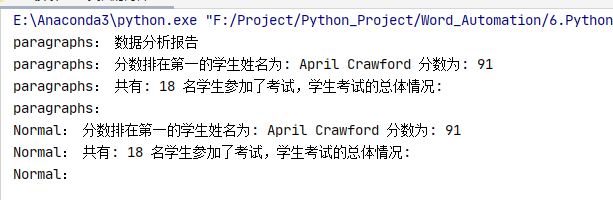
    for p in document.paragraphs:

        print("paragraphs:",p.text)


    # 讀取 word 中所有一級標題

    for p in document.paragraphs:

        if p.style.name == 'Heading 1':

            print("Heading 1:",p.text)


    # 讀取 word 中所有二級標題

    for p in document.paragraphs:

        if p.style.name == 'Heading 2':

            print("Heading 2:", p.text)


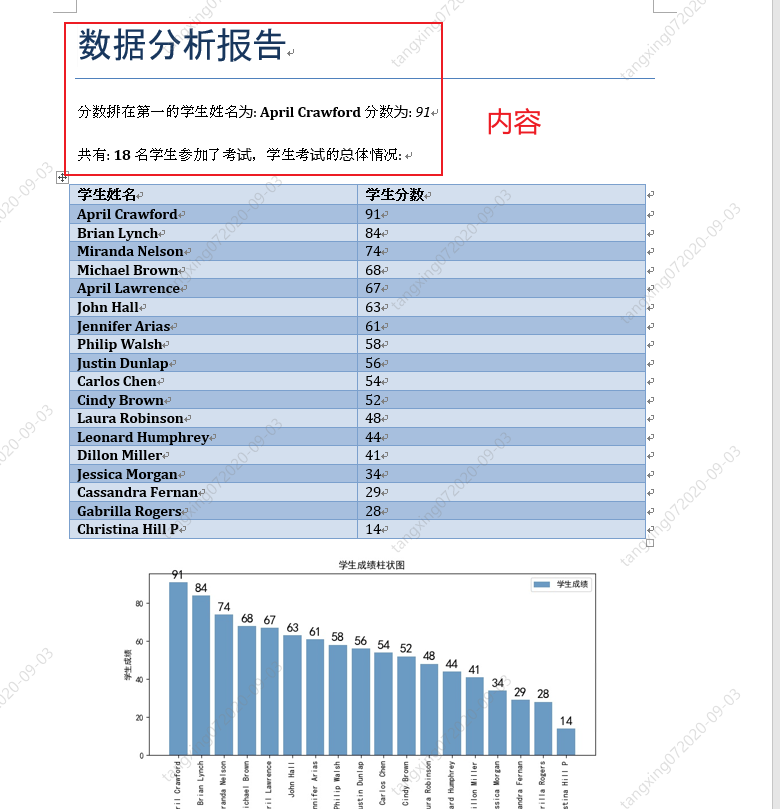
    # 讀取 word 中所有正文

    for p in document.paragraphs:

        if p.style.name == 'Normal':

            print("Normal:", p.text)


    document.save('修改后的報告.docx')
     from docx import Document


if __name__ == "__main__":

    document = Document('6 學生成績報告.docx')


    # 讀取表格內容

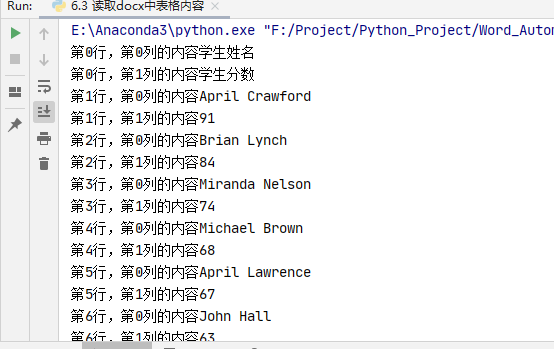
    for tb in document.tables:

        for i,row in enumerate(tb.rows):

            for j,cell in enumerate(row.cells):

                text = ''

                for p in cell.paragraphs:

                    text += p.text


                print(f'第{i}行,第{j}列的內容{text}')


    document.save('修改后的報告.docx')
     from docx import Document


if __name__ == "__main__":

    document = Document('6 學生成績報告.docx')


    # 修改 word 中所有內容

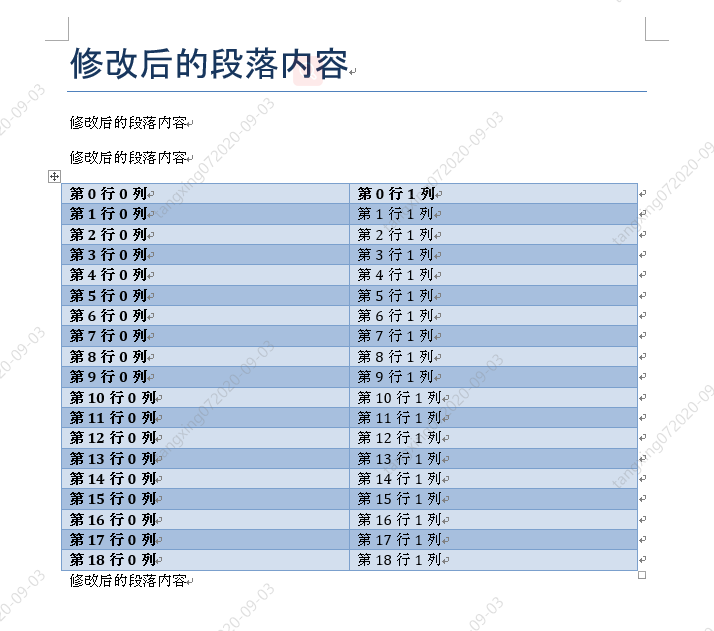
    for p in document.paragraphs:

        p.text = "修改后的段落內容"


    # 修改表格內容

    for tb in document.tables:

        for i,row in enumerate(tb.rows):

            for j,cell in enumerate(row.cells):

                text = ''

                for p in cell.paragraphs:

                    p.text = ("第",str(i),"行",str(j),"列")


                print(f'第{i}行,第{j}列的內容{text}')


    document.save('6.4 修改后的報告.docx')
docx-mailmerge 自動生成萬份勞動合同
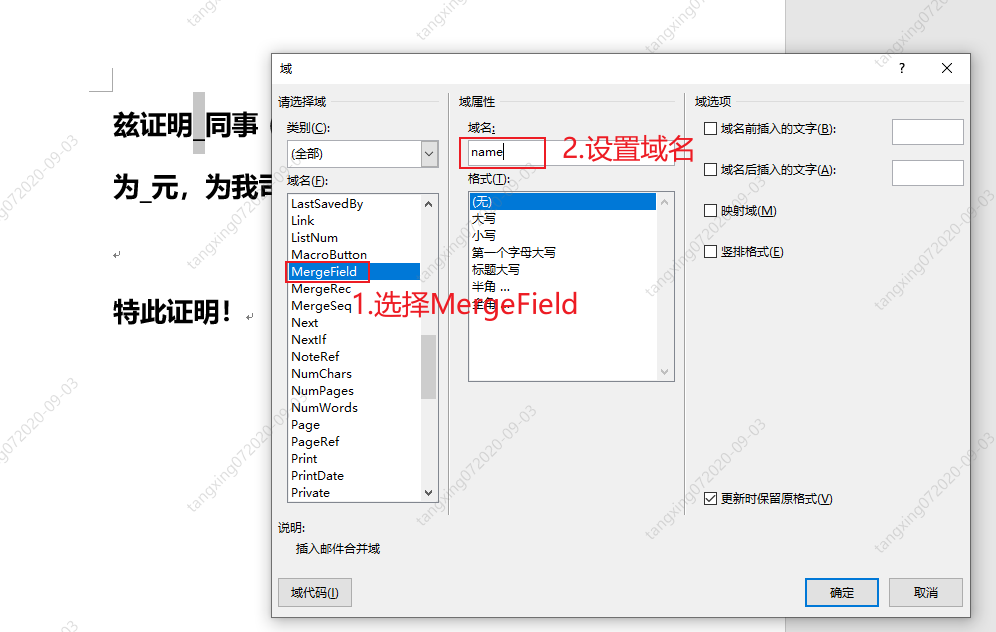
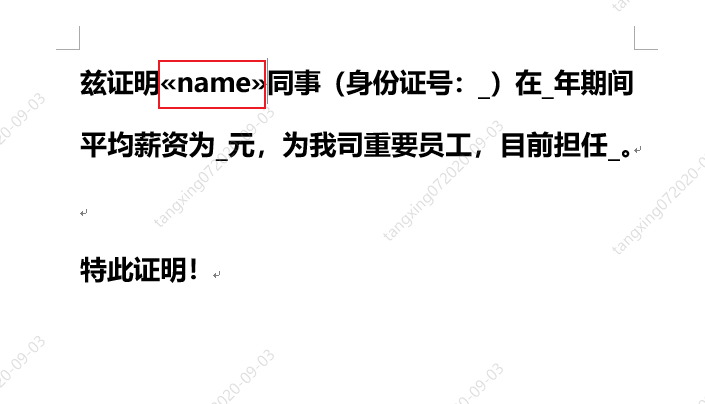
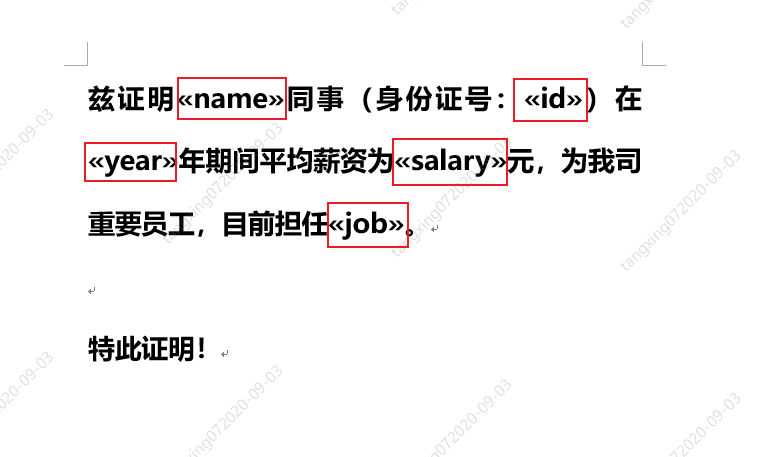
     from mailmerge import MailMerge


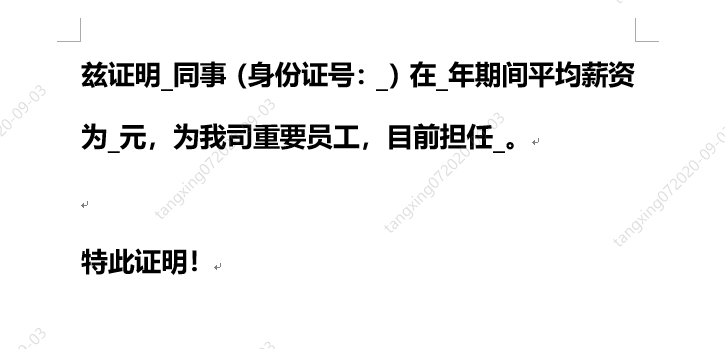
template = '薪資證明模板.docx'


document = MailMerge(template)


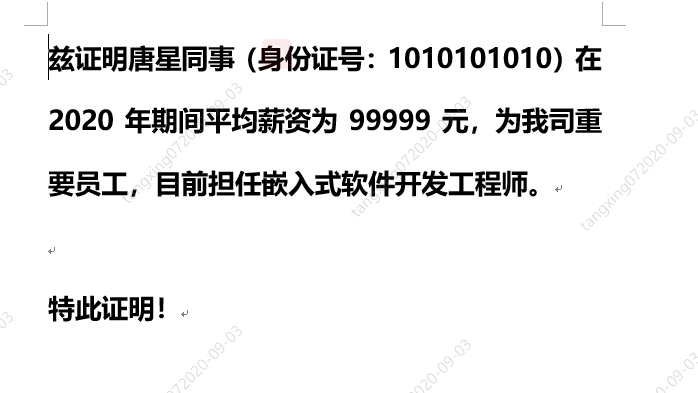
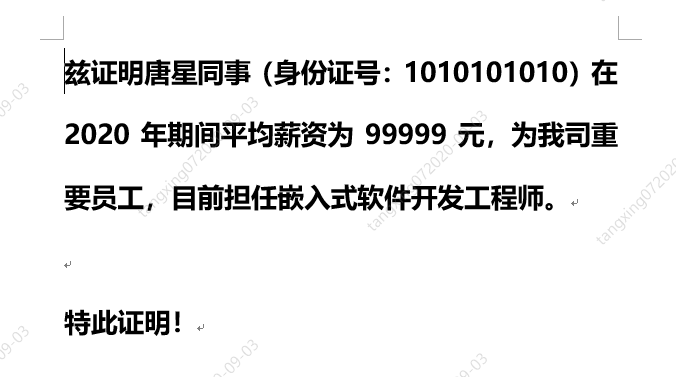
document.merge(name = '唐星',

               id = '1010101010',

               year = '2020',

               salary = '99999',

               job = '嵌入式軟件開發(fā)工程師')


document.write('生成的1份證明.docx')
     from mailmerge import MailMerge

from datetime import datetime


# 生成單份合同

def GenerateCertify(templateName,newName):

    # 打開模板

    document = MailMerge(templateName)


    # 替換內容

    document.merge(name='唐星',

                   id='1010101010',

                   year='2020',

                   salary='99999',

                   job='嵌入式軟件開發(fā)工程師')


    # 保存文件

    document.write(newName)


if __name__ == "__main__":

    templateName = '薪資證明模板.docx'


    # 獲得開始時間

    startTime = datetime.now()


    # 開始生成

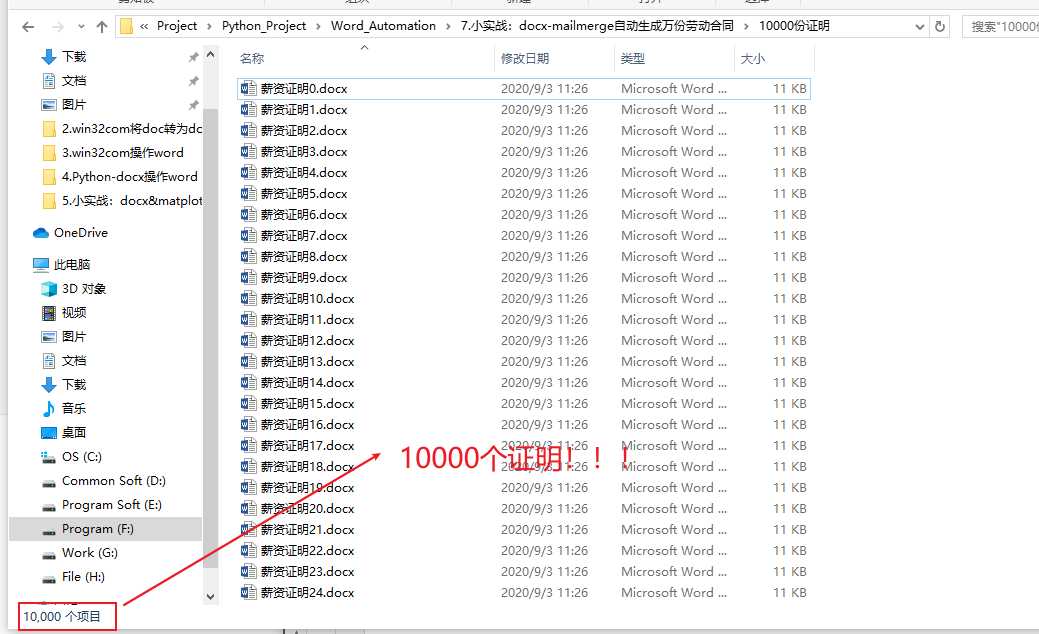
    for i in range(10000):

        newName = f'./10000份證明/薪資證明{i}.docx'

        GenerateCertify(templateName,newName)


    # 獲取結束時間

    endTime = datetime.now()


    # 計算時間差

    allSeconds = (endTime - startTime).seconds

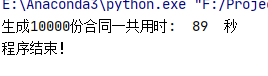
    print("生成10000份合同一共用時: ",str(allSeconds)," 秒")


    print("程序結束!")

長按或掃描下方二維碼,后臺回復:加群,可申請入群。一定要備注:入群+地點+學習/公司。例如:入群+上海+復旦。
感謝你的分享,點贊,在看三連 
評論
圖片
表情