<kbd id="afajh"><form id="afajh"></form></kbd>
<strong id="afajh"><dl id="afajh"></dl></strong>
    <del id="afajh"><form id="afajh"></form></del>
        1. <th id="afajh"><progress id="afajh"></progress></th>
          <b id="afajh"><abbr id="afajh"></abbr></b>
          <th id="afajh"><progress id="afajh"></progress></th>

          告別「復制+粘貼」,基于深度學習的 OCR,實現(xiàn) PDF 轉文本

          共 4700字,需瀏覽 10分鐘

           ·

          2021-06-04 19:23

          對很多人來說,將 PDF 轉換為可編輯的文本是個剛需,卻苦于沒有簡單方法。在本文介紹的項目中,來自 K1 Digital 的高級機器學習工程師 Lucas Soares,嘗試使用 OCR(光學字符識別)自動轉錄 pdf 幻燈片,轉錄效果還不錯。

          傳統(tǒng)的講座通常伴隨著一組 pdf 幻燈片。一般來說,想要對此類講座做筆記,需要從 pdf 復制、粘貼很多內容。

          最近,來自 K1 Digital 的高級機器學習工程師 Lucas Soares 一直在嘗試通過使用 OCR(光學字符識別)自動轉錄 pdf 幻燈片,以便直接在 markdown 文件中操作它們的內容,從而避免手動復制和粘貼 pdf 內容,實現(xiàn)這一過程的自動化。

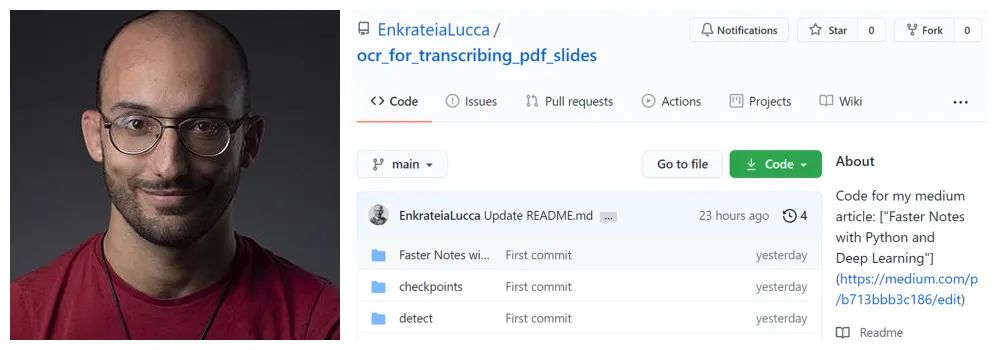
          左為項目作者 Lucas Soares。

          項目地址:https://github.com/EnkrateiaLucca/ocr_for_transcribing_pdf_slides

          為什么不使用傳統(tǒng)的 pdf 轉文本工具呢?

          Lucas Soares 發(fā)現(xiàn)傳統(tǒng)工具往往會帶來更多的問題,需要花時間解決。他曾經嘗試使用傳統(tǒng)的 Python 軟件包,但是遇到了很多問題(例如必須使用復雜的正則表達式模式解析最終輸出等),因此決定嘗試使用目標檢測和 OCR 來解決。

          基本過程可分為以下步驟:

          • 將 pdf 轉換為圖片;

          • 檢測和識別圖像中的文本;

          • 展示示例輸出。


          基于深度學習的 OCR 將 pdf 轉錄為文本

          將 pdf 轉換為圖像

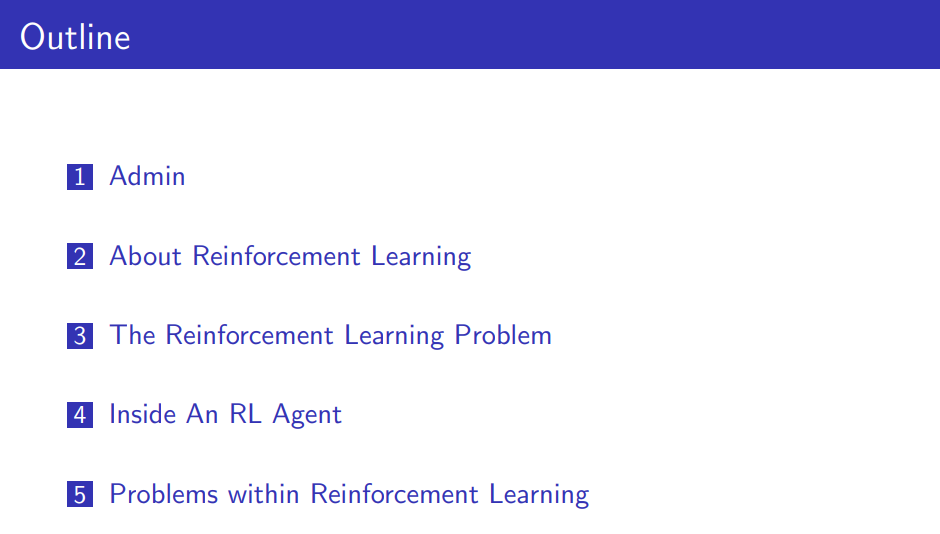
          Soares 使用的 pdf 幻燈片來自于 David Silver 的增強學習(參見以下 pdf 幻燈片地址)。使用「pdf2image」包將每張幻燈片轉換為 png 圖像格式。

          pdf 幻燈片示例。地址:https://www.davidsilver.uk/wp-content/uploads/2020/03/intro_RL.pdf

          代碼如下:

          from pdf2image import convert_from_path
          from pdf2image.exceptions import (
           PDFInfoNotInstalledError,
           PDFPageCountError,
           PDFSyntaxError
          )

          pdf_path = "path/to/file/intro_RL_Lecture1.pdf"
          images = convert_from_path(pdf_path)
          for i, image in enumerate(images):
              fname = "image" + str(i) + ".png"
              image.save(fname, "PNG")
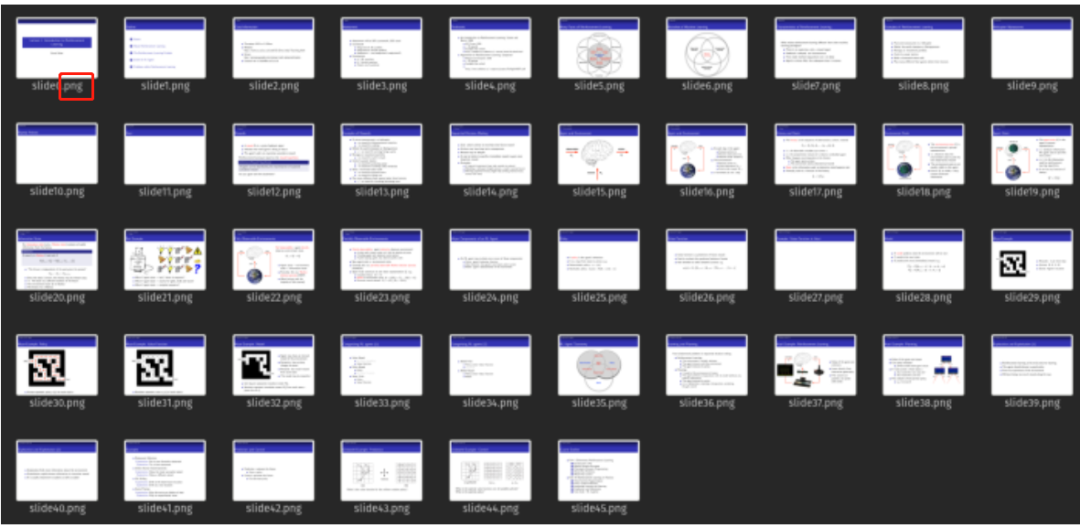
          經過處理后,所有的 pdf 幻燈片都轉換成 png 格式的圖像:


          檢測和識別圖像中的文本

          為了檢測和識別 png 圖像中的文本,Soares 使用 ocr.pytorch 庫中的文本檢測器。按照說明下載模型并將模型保存在 checkpoints 文件夾中。

          ocr.pytorch 庫地址:https://github.com/courao/ocr.pytorch

          代碼如下:

          # adapted from this source: https://github.com/courao/ocr.pytorch
          %load_ext autoreload
          %autoreload 2
          import os
          from ocr import ocr
          import time
          import shutil
          import numpy as np
          import pathlib
          from PIL import Image
          from glob import glob
          import matplotlib.pyplot as plt
          import seaborn as sns
          sns.set()
          import pytesseract

          def single_pic_proc(image_file):
              image = np.array(Image.open(image_file).convert('RGB'))
              result, image_framed = ocr(image)
              return result,image_framed

          image_files = glob('./input_images/*.*')
          result_dir = './output_images_with_boxes/'

          # If the output folder exists we will remove it and redo it.
          if os.path.exists(result_dir):
              shutil.rmtree(result_dir)
          os.mkdir(result_dir)

          for image_file in sorted(image_files):
              result, image_framed = single_pic_proc(image_file) # detecting and recognizing the text
              filename = pathlib.Path(image_file).name
              output_file = os.path.join(result_dir, image_file.split('/')[-1])
              txt_file = os.path.join(result_dir, image_file.split('/')[-1].split('.')[0]+'.txt')
              txt_f = open(txt_file, 'w')
              Image.fromarray(image_framed).save(output_file)
              for key in result:
                  txt_f.write(result[key][1]+'\n')
              txt_f.close()

          設置輸入和輸出文件夾,接著遍歷所有輸入圖像(轉換后的 pdf 幻燈片),然后通過 single_pic_proc() 函數(shù)運行 OCR 模塊中的檢測和識別模型,最后將輸出保存到輸出文件夾。

          其中檢測繼承(inherit)了 Pytorch CTPN 模型,識別繼承了 Pytorch CRNN 模型,兩者都存在于 OCR 模塊中。

          示例輸出

          代碼如下:

          import cv2 as cv

          output_dir = pathlib.Path("./output_images_with_boxes")

          # image = cv.imread(str(np.random.choice(list(output_dir.iterdir()),1)[0]))
          image = cv.imread(f"{output_dir}/image7.png")
          size_reshaped = (int(image.shape[1]),int(image.shape[0]))
          image = cv.resize(image, size_reshaped)
          cv.imshow("image", image)
          cv.waitKey(0)
          cv.destroyAllWindows()
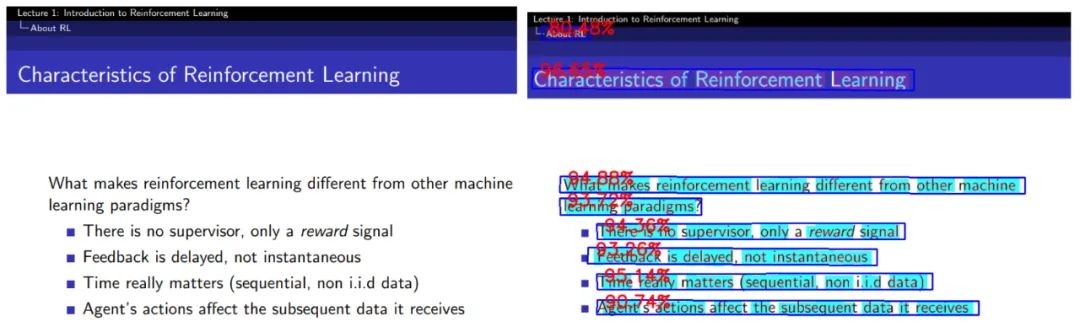
          下圖左為原始 pdf 幻燈片,圖右為轉錄后的輸出文本,轉錄后的準確率非常高。


          文本識別輸出如下:

          filename = f"{output_dir}/image7.txt"
          with open(filename, "r"as text:
              for line in text.readlines():
                  print(line.strip("\n"))

          通過上述方法,最終你可以得到一個非常強大的工具來轉錄各種文檔,從檢測和識別手寫筆記到檢測和識別照片中的隨機文本。擁有自己的 OCR 工具來處理一些文本內容,這比依賴外部軟件來轉錄文檔要好的多。

          原文鏈接:https://towardsdatascience.com/faster-notes-with-python-and-deep-learning-b713bbb3c186

          福利時間

          近日吳恩達新書《Machine Learning Yearning》中文版開放下載!
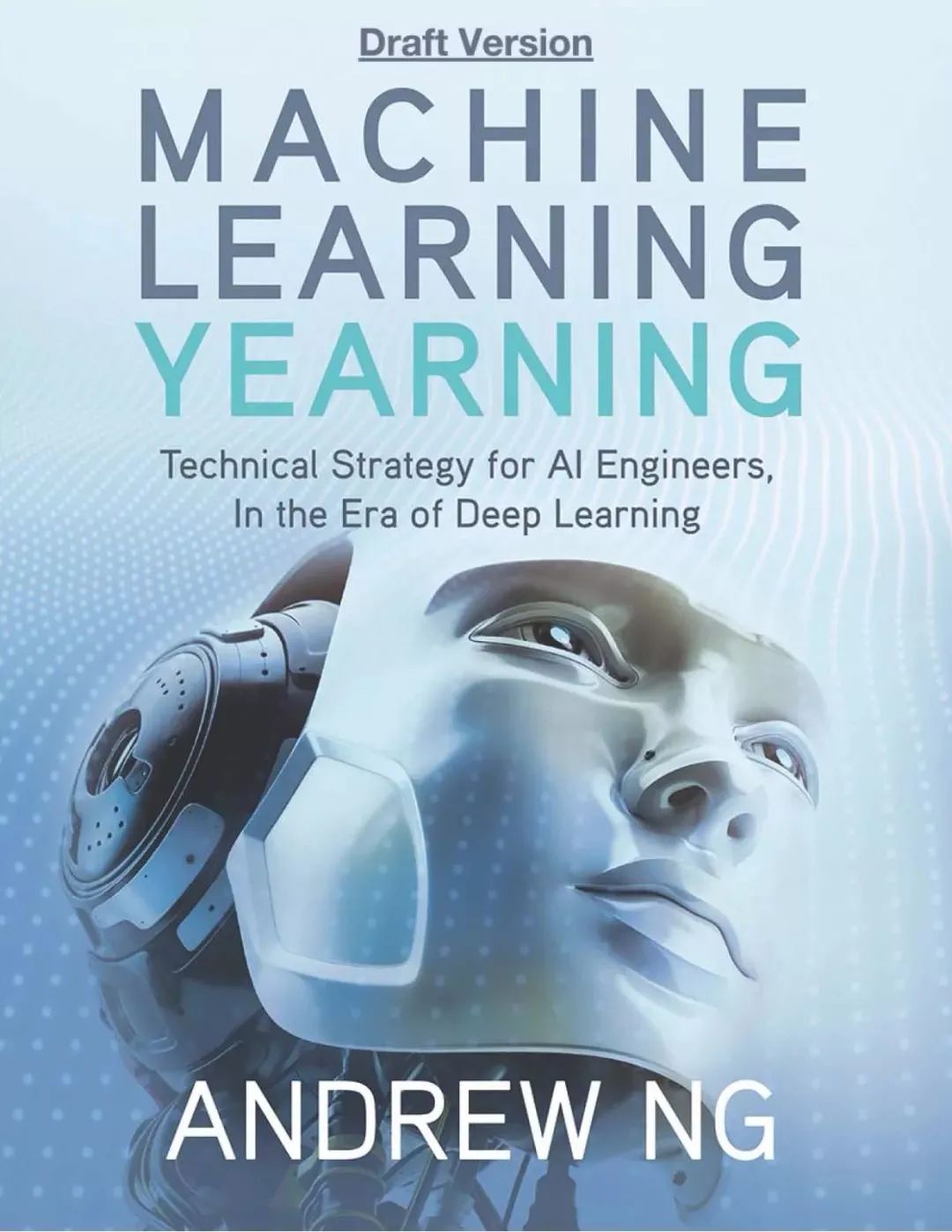
          《Machine Learning Yearning》是吳恩達歷時兩年,根據(jù)自己多年實踐經驗整理出來的一本機器學習、深度學習實踐經驗寶典。里面講的機器學習課程非常棒,很適合數(shù)學基礎不是很好的人自學,最近中文版也開放下載閱讀了!


          如何下載?


          1. 識別并關注下方公眾號;
          2. 在下面公眾號(非本號)后臺回復關鍵字「
          吳恩達」。


          瀏覽 70
          點贊
          評論
          收藏
          分享

          手機掃一掃分享

          分享
          舉報
          評論
          圖片
          表情
          推薦
          點贊
          評論
          收藏
          分享

          手機掃一掃分享

          分享
          舉報
          <kbd id="afajh"><form id="afajh"></form></kbd>
          <strong id="afajh"><dl id="afajh"></dl></strong>
            <del id="afajh"><form id="afajh"></form></del>
                1. <th id="afajh"><progress id="afajh"></progress></th>
                  <b id="afajh"><abbr id="afajh"></abbr></b>
                  <th id="afajh"><progress id="afajh"></progress></th>
                  成人做爱小视频 | 亚洲日本黄色片 | 加勒比免费精品视频 | 操b视频免费 | 中国黄色视频一级片 |